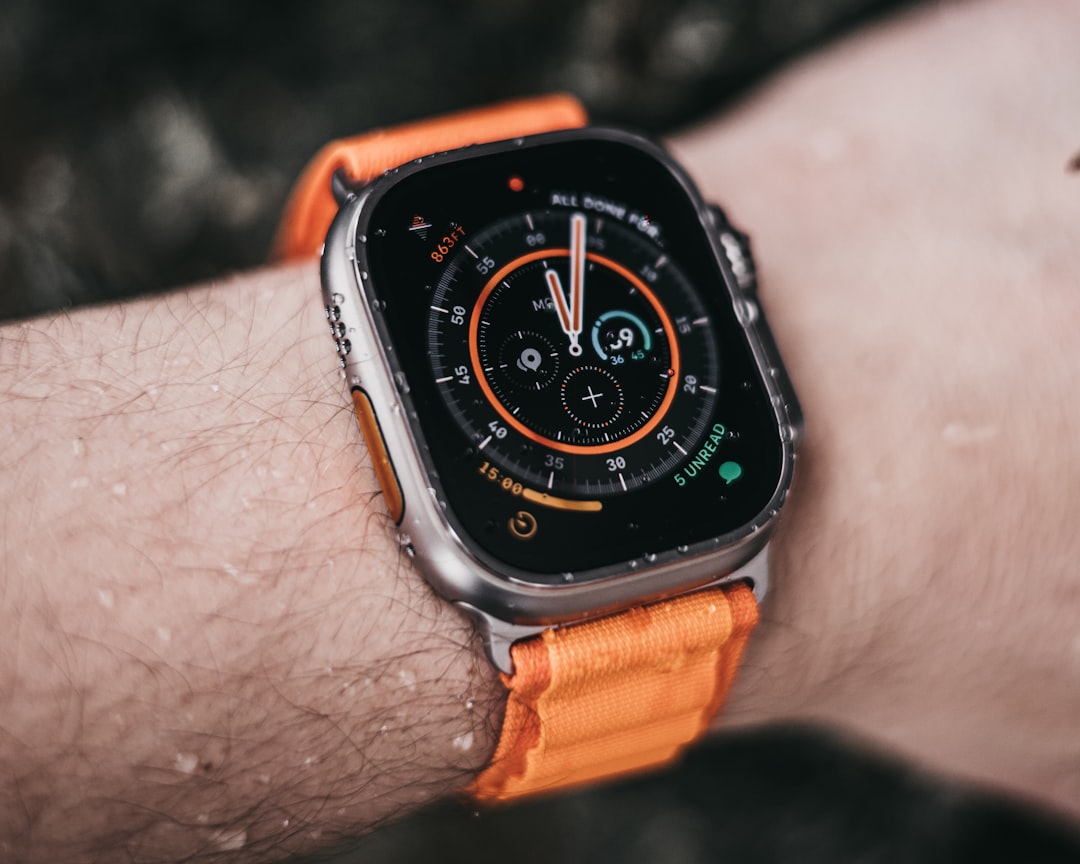
Quick Answer: Apple Watch Ultra 2 battery drain is almost never one single thing—it's a compounding cascade of always-on display settings, background app refresh cycles, aggressive GPS polling, workout detection, and network handoff behavior. Fixing it requires systematic behavioral analysis, not a factory reset. Most users recover 30–40% battery life through targeted setting adjustments alone.
There's a particular frustration that comes with premium hardware that underperforms on its most fundamental promise. The Apple Watch Ultra 2 is marketed as the endurance athlete's companion—a watch built to survive multi-day adventures in Patagonia, to track ultramarathons, to be the device that doesn't die on you. Its titanium case and 76-hour theoretical battery life exist to signal exactly that: this isn't your casual smartwatch. This is serious gear.
And then it dies by 8 PM on a Tuesday in a Chicago suburb.
That gap between promise and daily reality is what this guide is actually about. Not just settings toggles, but why the battery behaves the way it does, why Apple's own documentation is frustratingly incomplete on several failure modes, and why some of the most commonly recommended fixes on Reddit and YouTube miss the underlying systemic behavior entirely.
Understanding the Real Battery Architecture of Apple Watch Ultra 2
Before touching a single setting, it's worth understanding what you're actually dealing with. The Ultra 2 uses a 564 mAh battery—substantially larger than the Series 9's 308 mAh—paired with Apple's S9 SiP (System in Package) processor and the new dual-frequency L1/L5 GPS chip. The L5 GPS is not a footnote. It is, in practice, one of the most power-hungry operations the watch performs, and it runs far more aggressively than most users realize.
Apple's "up to 76 hours" claim applies only in Low Power Mode, with heart rate monitoring set to intervals (not continuous), workout detection disabled, and cellular turned off. Under "normal use," Apple estimates 60 hours. Under what most active users actually do—cellular enabled, always-on display active, workout tracking with dual-frequency GPS, blood oxygen monitoring—you're looking at closer to 24–36 hours in real-world conditions.
That's not a scandal. That's physics. But Apple doesn't surface this context prominently, which creates a specific kind of user disillusionment that drives thousands of support threads monthly.
The Compound Drain Problem: Why Identifying a Single Culprit Usually Fails
The most common mistake in battery troubleshooting—on Apple Watch specifically—is treating it as a single-variable problem. Users on the r/AppleWatch subreddit regularly post threads like: "Turned off always-on display and still getting terrible battery life, any ideas?" And they're right to be confused. Turning off AOD is often cited as the nuclear option for battery savings, but much like dealing with Nintendo Switch Joy-Con drift or trying to fix PS5 DualSense stick drift, if GPS is polling aggressively or if the watch struggles with cellular connectivity, that single setting change becomes almost noise.
The accurate mental model is: battery drain is a stack of simultaneous behaviors, not a single leak.
The Always-On Display: More Complicated Than It Looks
Yes, disabling AOD matters, just as knowing how to fix Apple TV 4K black screen issues or addressing a Philips Airfryer grinding noise is essential for home device maintenance. But the degree to which it matters depends enormously on your use pattern and wrist detection accuracy.
When the watch detects your wrist is down, AOD is supposed to suppress its refresh cycle. In practice, wrist detection has documented failure modes, much like how a Ryobi pressure washer pulsing or a Samsung QLED TV ghosting requires specific technical adjustments to resolve. If you experience performance issues, it can be as frustrating as Garmin Forerunner GPS lag, a PS5 Pro system crash, or Vanguard login errors, which is why users must also watch for Nintendo Switch OLED burn-in, TP-Link Archer BE800 packet loss, or even a Breville Oracle Touch grinder jam..
There's a long-running thread on Apple's Community Support forums (archived across multiple watchOS versions) where users report dramatically different AOD drain depending on sleep position and work type. A surgeon who scrubs their hands frequently reported AOD consuming nearly twice the expected power compared to baseline because the wrist-up detection kept triggering during hand-washing motions. This isn't a bug Apple has publicly acknowledged, but it's operationally real.
What actually helps here:
- Navigate to Settings → Display & Brightness → Always On and toggle off
- If you want to keep AOD, use Theatre Mode during sleep (swipe up in Control Center, tap the masks icon)—this disables the display and motion activation without turning off tracking
- Check your wrist detection sensitivity indirectly by watching the screen during tasks with repetitive hand movements
Watch Face Complexity and Rendering Cost
This one gets overlooked almost entirely in mainstream battery guides. Complication count on your watch face has a measurable impact on background processing. Each complication is a mini-app making periodic data requests—weather, calendar, activity rings, heart rate trends.
The Modular Ultra face, for example, with all six complications populated from data-heavy apps like Carrot Weather, Fantastical, and Strava can generate background processing demands that rival a running workout session over 12 hours. There's no system-level disclosure about this. Apple doesn't tell you in Settings which complications are costing what. You're flying partially blind.
The pragmatic fix: strip complications to essentials. Time, battery, activity rings. If you need more, use watchOS 10's Smart Stack for on-demand information rather than always-rendered complications.
GPS and the L5 Dual-Frequency Drain Reality
This is where the Ultra 2's flagship feature becomes its most significant liability for daily users who aren't actually running ultramarathons.
The dual-frequency L1/L5 GPS delivers dramatically improved accuracy in urban canyons and dense forest cover. It's genuinely impressive engineering. It also consumes substantially more power than single-frequency GPS chips in older Apple Watch models.
Here's the operational problem: GPS doesn't only run during explicit workouts. Automatic workout detection—enabled by default—means the watch is running motion analysis algorithms continuously. When it thinks you might be starting a workout (you went for a fast walk, you started cycling, you climbed stairs vigorously), it spins up GPS pre-emptively. Sometimes it locks, sometimes it doesn't trigger a full workout detection, but the power spike already happened.
Users in the cycling community specifically have documented this behavior on forums like VeloTalk and in Strava's own community spaces. A commuter cycling 35 minutes to work can trigger partial GPS sessions 3–4 times during their ride from automatic detection attempts before the actual workout registers, adding phantom drain.
Workout Detection Settings: The Underexplored Controls
Go to Settings → Workout → Workout Reminders. Turning off "Start Workout Reminder" and "End Workout Reminder" doesn't stop automatic detection—it only suppresses the notification. The detection algorithm itself, and associated sensor polling, continues.
To actually reduce this behavior:
- Settings → Workout → Detect Workout Pause: Turning this off reduces continuous motion sampling during tracked workouts
- For workouts where precision GPS isn't critical (gym sessions, yoga, indoor cycling), explicitly start the workout in the Workout app and select the indoor variant—this tells the system to suppress GPS polling entirely
There's an important nuance here: the watch cannot be instructed to "use L1 only" instead of dual-frequency. This control doesn't exist in any user-facing settings. Apple's guidance is that the chip automatically switches modes based on conditions, but users have no visibility into when this happens or what it costs.
Cellular Connectivity: The Hidden Background Tax
The Ultra 2's cellular capability is genuinely useful and genuinely expensive from a power perspective—especially in ways that aren't obvious.
The most costly cellular scenario isn't making calls or streaming music. It's marginal signal environments. When the watch is on the edge of cellular coverage—inside a building with poor penetration, in a suburban dead zone, in a basement gym—the cellular radio amplifies its transmit power aggressively trying to maintain connection. This is standard behavior across all cellular devices, but on a watch-sized battery it's punishing.
Users who commute on subways, work in concrete buildings, or live in rural areas with inconsistent LTE coverage regularly report dramatically worse battery life than comparable users in well-served urban environments. This isn't a complaint you'll see foregrounded in Apple's documentation, but it shows up constantly in one-star App Store reviews and support thread after support thread.
Practical mitigations:
- In known low-signal environments, manually disable cellular (Control Center → cellular toggle) rather than letting the watch spend power hunting for connection
- If you rarely need standalone cellular on your watch, consider keeping cellular off by default and enabling only when you genuinely leave your phone behind
- Check cellular signal indicator in Settings → Cellular → the visual indicator isn't granular enough; what matters is whether the watch is in a marginal state
The iPhone Proximity Variable
When your iPhone is nearby and connected via Bluetooth, the watch offloads most network requests to the phone. Bluetooth is dramatically cheaper than cellular from a power perspective. The watch's own cellular radio should be largely dormant.
The problem is Bluetooth connection quality. A watch worn on the left wrist, with the phone in the right rear pocket, with the body acting as an absorber between them, can experience degraded Bluetooth RSSI values that trigger the watch to intermittently attempt cellular fallback. This is especially pronounced in crowded environments (gyms, transit) where Bluetooth spectrum is congested.
You can't control this directly, but you can reduce the failure rate: keep iPhone closer, use a phone-holding arm strap on the same arm as the watch during workouts, or simply accept that the workaround here is behavioral rather than technical.
Background App Refresh and Third-Party Health Apps: The Ecosystem Problem
This is where the battery drain conversation gets genuinely complicated, because the problem isn't Apple's first-party behavior—it's the ecosystem Apple has built and the implicit contract it has with third-party developers.
Health and fitness apps on watchOS are allowed to use background refresh capabilities. The problem is that many popular apps—Garmin Connect, MyFitnessPal, Strava, AutoSleep, HeartWatch, Gentler Streak, Oura's companion app—are all trying to sync health data, fetch coaching updates, process sleep data, and run analysis in the background simultaneously.
The watch's background task scheduler is supposed to rate-limit this. In practice, after major watchOS updates, the scheduling behavior changes in ways that aren't well-documented, and developers scramble to adapt. After watchOS 10's initial rollout, there were widely reported spikes in battery drain that took Apple two point releases to partially address. The r/AppleWatch community documented this extensively, with users comparing before/after screenshots and identifying the new background execution model as the culprit.
The practical diagnosis step here is almost forensic:
- Settings → General → Background App Refresh on iPhone, filtered to watch apps
- Systematically disable background refresh for non-essential apps
- Delete and reinstall apps that have known background refresh issues (AutoSleep, for instance, has had documented background task runaway bugs in specific versions—check the developer's own community on Reddit for version-specific issues)
"The problem with health app ecosystems on watchOS is that every developer is trying to be the most comprehensive, which means constantly polling sensors and syncing. There's no collaborative power budget. Everyone assumes the other apps will be responsible." — paraphrased from a developer discussion on the watchOS Developer Forums
Sleep Tracking, Heart Rate, and Blood Oxygen: The Overnight Drain Profile
Many Ultra 2 users who upgraded from Series 6 or Series 7 are surprised to find overnight drain significantly higher than expected—even accounting for the larger battery.
The reason is sensor density. The Ultra 2, running watchOS 10, performs:
- Continuous wrist temperature sampling (for cycle tracking / retrospective wellness data)
- Irregular rhythm notifications requiring continuous background ECG-adjacent analysis
- Blood oxygen spot checks at programmed intervals (or continuously if enabled)
- Sleep stage detection using accelerometer + heart rate fusion
- Crash detection monitoring (a continuous accelerometer analysis running at all times)
Each of these is individually small. Together, running overnight, they add up to a non-trivial drain. Users in climates with significant cold exposure report additional drain because battery chemistry performs worse in cold and the watch runs its sleep sensors at the same duty cycle regardless.
Optimizing overnight without gutting functionality:
- Keep Blood Oxygen set to "During Sleep Focus and Theater Mode" rather than always-on
- Ensure Low Power Mode is activated during sleep if you're purely using it for sleep tracking (this disables cellular, reduces heart rate sampling frequency, and suppresses background execution)
- Charge to 80% before sleep if you track sleep—this is a behavioral adjustment that many serious users adopt because it preserves battery health over time (lithium-ion degrades faster when cycled between 100% and low states repeatedly)
Real Field Reports: When the Fixes Don't Work
Here's where the operational honesty matters. Not every battery drain issue on the Ultra 2 is a settings problem. Some are hardware. Some are software bugs. Some are genuinely unresolved.
Field Report 1 — Post-Update Drain That Never Resolved: Multiple users on MacRumors Forums reported after upgrading to watchOS 10.2 that drain doubled overnight with no settings changes. The thread accumulated hundreds of replies. Apple's eventual fix in 10.2.1 addressed a background process related to the new double-tap gesture detection algorithm that was failing to properly enter low-power state after the gesture was not used for extended periods. The fix was silent—no public release notes mentioned it specifically.
Field Report 2 — Cellular Radio That Won't Sleep: A user on the Apple Community forums documented (with battery analytics exports) that their Ultra 2's cellular radio showed nonzero activity time even when cellular was supposedly disabled via the Control Center toggle. After escalation to Apple Support and a hardware replacement, the behavior resolved—suggesting a hardware radio management defect. This is rare, but it exists.
Field Report 3 — AutoSleep + HeartWatch Interaction: Several developers in the Apple Watch Developer Community have noted (and users on Reddit have replicated) that running both AutoSleep and HeartWatch simultaneously creates competing background refresh cycles that can effectively keep the accelerometer and heart rate sensor from properly entering low-power states during sleep. The fix: choose one sleep tracking app, not both.
Counter-Criticism and the "Just Charge It More" School of Thought
There's a legitimate counter-argument to the optimization-maximalist approach, and it deserves acknowledgment.
Some engineers and power users argue that spending significant time tweaking Apple Watch Ultra 2 settings to extract marginal battery improvements is itself a form of feature self-sabotage. The watch's value proposition—continuous health monitoring, crash detection, always-available cellular—depends on these features being on. Turning off background health monitoring to save 8% battery overnight means your retrospective sleep data is less accurate. Disabling automatic workout detection means manually starting every workout, which most users don't consistently do, meaning gaps in training data.
The counter-argument from this camp: the Ultra 2's battery, while imperfect in daily scenarios, charges to 80% in roughly 45 minutes. The realistic mitigation isn't behavioral optimization—it's charging habit adjustment. Charge while showering. Charge during meetings. The charging time is so short that the "battery anxiety" many users report is, from this perspective, a psychological problem rather than a technical one.
This is not a wrong argument. It's a different value system. For users who genuinely need multi-day battery life—expedition athletes, people in remote areas without charging access—optimization matters critically. For urban professionals who sleep near a charger every night, the entire anxiety around Ultra 2 battery life may be somewhat manufactured.
The watchOS Update Cycle: Why Fixes Regress
There's a pattern in watchOS release history that any serious Apple Watch power user should internalize: significant battery behavior changes—often negative—accompany major watchOS feature additions, and Apple is often slow to publicly acknowledge them.
watchOS 10 introduced a redesigned Smart Stack, new gesture controls, an updated background execution model, and expanded health sensors integration. Each of these touched the battery management layer. The result was a documented degradation in battery performance for many users in the first two point releases of watchOS 10.
The pattern is consistent: major watchOS version ships, battery reports worsen, Apple silently addresses in point releases over 3–4 months, some improvements stick, some don't. For users who care deeply about battery performance, the conventional wisdom that has emerged on communities like r/AppleWatch and AppleNova is: don't update immediately after a major watchOS release. Wait 3–4 weeks, monitor reports, and update after the first or second point release.
This is, of course
Bu makale affiliate linkleri içermektedir.