
Quick Answer: Netgear Nighthawk router disconnects are most commonly caused by firmware bugs, overheating, channel congestion, misconfigured QoS settings, or ISP-side instability. The fastest fixes involve a firmware update, a 30-30-30 hard reset, adjusting wireless channel width, and disabling Smart Connect. Most chronic disconnection issues resolve within 20 minutes of methodical diagnosis, much like the process outlined in our guide on Why Your Wi-Fi 7 Is Dropping Packets: A Guide to Fixing MLO Jitter.
There's a particular kind of frustration that comes with a Nighthawk disconnect. It's not the clean, obvious failure of a router that simply won't boot. It's the intermittent kind — the one where your video call drops every forty minutes, your smart TV loses sync at 9 PM without fail, or your gaming session dies just as you're in the middle of something that actually matters. You reboot the router, everything works for a while, and then it happens again. The cycle is maddening precisely because it's almost working.
The Netgear Nighthawk line has been one of the most dominant consumer and prosumer router families since the original R7000 shipped in 2013. It carries genuine engineering ambitions — dual and tri-band radios, MU-MIMO, beamforming, sometimes a 2.5GbE WAN port — but it also carries a decade of accumulated firmware debt, a support ecosystem that frequently ages out devices faster than their hardware warrants, and a history of connectivity bugs that have lived in community forums for years without resolution.
This is not a device that fails loudly. It fails quietly and intermittently, similar to other complex hardware failures like PS5 Pro Error CE-108255-1: How to Fix Crashes and Restore Stability, which require a structured approach to diagnose.
Understanding Why Nighthawk Routers Actually Disconnect: The Operational Reality
Before touching a single setting, it's worth understanding what "disconnect" actually means in this context — because the word covers fundamentally different failure modes, and treating them identically wastes time.
The Four Disconnect Archetypes
1. WAN-side disconnects — the modem loses sync, or your ISP line drops. The router is blameless but appears guilty.
2. Wireless client disconnects — devices lose their Wi-Fi association while the router's WAN link stays healthy. Usually a radio-layer issue.
3. Wired client drops — switches or individual ethernet ports lose packets or full connectivity. Less common but frequently misdiagnosed.
4. Full router crashes — the device stops responding entirely, sometimes requiring a power cycle, sometimes self-recovering.
Each archetype has a different root cause. The community frustration on the Netgear forums (particularly threads like "R7000 random disconnects - 2 years and still no fix" and "RAX80 drops all clients every 45 minutes post-firmware-update") largely comes from people applying wireless fixes to WAN problems and WAN fixes to crash scenarios. The diagnosis has to come first, as misidentifying the root cause can lead to unnecessary frustration, similar to trying to resolve a Bosch Dishwasher E15 Error: The Real Cause and How to Fix It without understanding the underlying water leak issue.
The Firmware Problem Nobody Fully Acknowledges
Netgear's firmware cadence for the Nighthawk line is inconsistent in ways that actively create problems. Some devices receive meaningful updates for three to four years; others quietly fall off the support schedule with known bugs unfixed. The R7000, which remained one of the most popular units on the market well into the 2020s, received its last official firmware update in early 2023 — but community members on Netgear's own forums had documented a persistent wireless dropout issue tied to the 1.0.11.x firmware branch that never received a formal patch.
The issue wasn't obscure, though it remains as persistent as the common technical headaches users face with devices like the Nintendo Switch Joy-Con Drift: Why It Happens and How to Fix It Yourself. GitHub repositories for DD-WRT and Tomato both contain issue threads where developers documented the same 2.4GHz association table overflow behavior that was causing the official firmware's disconnects. The fix existed in third-party firmware. Netgear never backported it.
This isn't unique to Netgear — it's a structural problem across the consumer router industry — but it's particularly acute for a premium brand that positioned these devices as long-term investments.
Step 1: Isolate the Disconnect — Modem vs. Router vs. Radio
The most important diagnostic step costs nothing and takes under five minutes.
Log into your router admin panel at 192.168.1.1 (default gateway for most Nighthawk units). Navigate to Advanced > Administration > Logs or check the ROUTER STATUS page for WAN uptime.
If your WAN uptime resets at the same time your devices lose connectivity, the problem is upstream — your modem or your ISP. If WAN uptime shows continuous connection but your devices dropped, the issue is the router's wireless radio or internal switching.
Practical Isolation Test
Connect one device via ethernet cable directly to the Nighthawk. If that device never drops while wireless clients do, you've isolated the problem to the wireless subsystem. If the wired device also loses connectivity, the issue is deeper — internal processing, WAN instability, or a firmware crash.
A recurring observation in the Netgear community (r/HomeNetworking, r/Netgear) is that users skip this step and spend hours adjusting wireless channels for what is fundamentally a modem DHCP lease renewal issue. Don't be that person.
"I spent three weeks adjusting 5GHz channel widths before I noticed the log showed WAN reconnects every 47 minutes. Turned out my cable modem was dropping sync. The router was fine the whole time." — u/packet_grief, r/HomeNetworking
Step 2: Firmware — Update It, But Read the Changelog First
This sounds obvious. It isn't.
Netgear has a documented history of releasing firmware updates that introduce new disconnect behaviors. The RAX80's 1.0.4.x firmware series caused widespread MU-MIMO association failures in late 2020. The R8000's 1.0.4.62 update broke 5GHz band steering for several months before a subsequent patch. The community learned — sometimes painfully — that "latest firmware" is not always "most stable firmware."
How to Update Safely
- Go to Netgear's support site and locate your exact model.
- Read the release notes — not just the version number. Look for mentions of "wireless stability," "WAN connectivity," or "band steering."
- Check the Netgear community forums for your specific model. Search "[model number] + firmware + disconnect" and sort by date. If the latest firmware has fresh complaints, consider staying on the previous version.
- Download the
.imgfile. In your admin panel: Advanced > Administration > Router Update > Browse > Upload. - Never interrupt the process. This is not the moment for a power fluctuation.
If you're on a version that's more than two major builds behind and haven't experienced issues, updating is still recommended — but do it during a window when disruption is acceptable.
Step 3: The 30-30-30 Hard Reset — When and Why
The 30-30-30 reset is one of those procedures that router communities treat like folklore, but it has genuine technical grounding. The procedure — hold the reset button for 30 seconds with power on, hold for 30 seconds with power off while continuing to hold the button, restore power while holding for another 30 seconds — is specifically designed to clear NVRAM fully, not just restore default settings.
A standard factory reset through the admin UI often leaves cached configuration data in NVRAM that can corrupt new settings. Chronic disconnect issues that seem to recur after factory resets are frequently caused by this incomplete wipe.
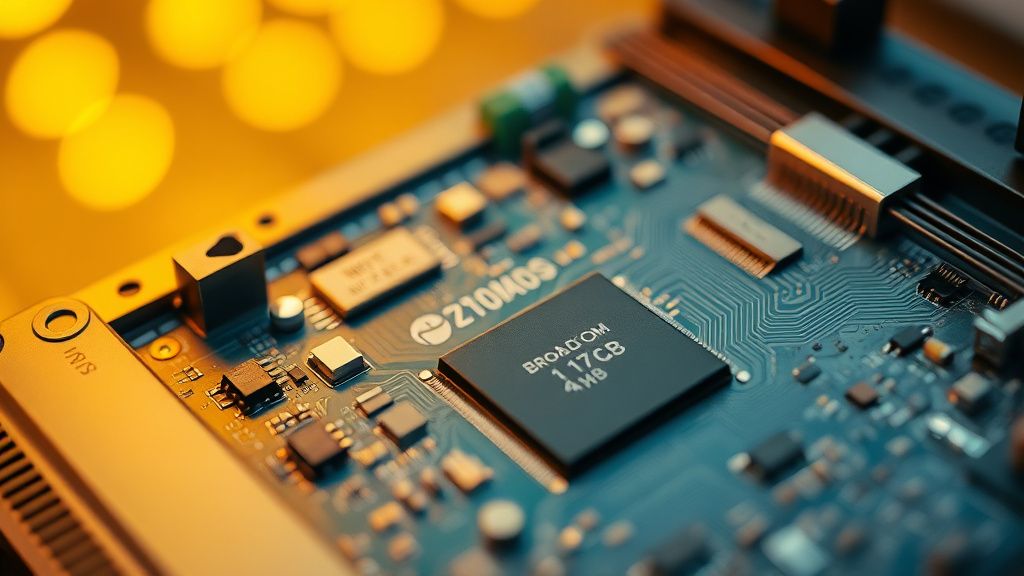
Important caveat: Netgear has publicly noted that the 30-30-30 procedure carries a small risk on some modern ARM-based Nighthawk units. For models like the RAX series, Netgear officially recommends using only the admin-panel factory reset or the pinhole button method (30 seconds, power on, no power cycling). The 30-30-30 was validated primarily for the older Broadcom-based units (R7000, R8000, R6700).
For ARM-based units, use: Advanced > Administration > Backup Settings > Erase.
After any full reset, configure the router fresh. Don't restore from a backup file — backup files preserve the configuration that may have been causing problems.
Step 4: Wireless Channel Configuration — The Part Most Guides Get Wrong
Here's where most "fix Nighthawk disconnects" articles become either too generic or actively misleading.
Channel Width Is More Important Than Channel Selection
Everyone talks about changing channels. Fewer people talk about channel width, which is frequently the actual culprit in dense residential environments.
2.4GHz: Setting channel width to 20MHz only (instead of 20/40MHz auto) is one of the most reliable fixes for 2.4GHz disconnect issues. The 40MHz width on 2.4GHz causes interference with neighboring networks in almost every urban and suburban environment, and the Nighthawk's auto-switching between widths creates transient disconnects that look random but are actually triggered by spectrum changes.
5GHz: Here the calculus flips. 80MHz is generally fine; 160MHz can cause association failures on devices that don't fully support it — including many budget smartphones and IoT devices. If you have a mixed device environment and 5GHz clients drop, try dropping from 160MHz to 80MHz.
DFS Channels and the Radar Problem
Nighthawk routers support DFS (Dynamic Frequency Selection) channels on 5GHz — channels 52-144. These channels offer less congestion, but they're also subject to regulatory radar-detection requirements. When the router detects a radar signature (or thinks it does — false positives are a documented issue), it must vacate the channel and switch. Every device on that channel drops its association during the switch.
The symptom: brief, irregular disconnects on 5GHz clients only, sometimes correlated with weather events (weather radar operates in overlapping spectrum).
Fix: move to non-DFS channels — 36, 40, 44, 48, 149, 153, 157, 161, 165.
Smart Connect: Technically Impressive, Operationally Frustrating
Smart Connect — Netgear's brand name for band steering — merges the 2.4GHz and 5GHz radios under a single SSID and uses algorithms to assign devices to the appropriate band. In principle it's elegant. In practice, its steering logic is aggressive enough that devices get kicked between bands mid-session, causing exactly the brief disconnects users report.
The Nighthawk's Smart Connect implementation has been a low-grade community grievance since it launched. The algorithm doesn't expose its decision logic to users, doesn't respect device capability declarations consistently, and has no hysteresis tuning in the consumer UI. Devices near the band-switching threshold bounce.
Fix: Disable Smart Connect. Use separate SSIDs for 2.4GHz and 5GHz. Connect devices to the appropriate band manually. This is the single most commonly cited fix in r/Netgear threads, and it works.
Step 5: QoS, Downstream Throttling, and the Bandwidth Paradox
Nighthawk's Dynamic QoS feature sounds premium. In many scenarios, it's a disconnect generator.
Dynamic QoS requires the router to inspect and classify traffic in real time, then queue it by priority. On gigabit and multi-gigabit connections, this creates CPU pressure on units that weren't designed for line-rate deep packet inspection. The result: buffer bloat spikes, packet loss under load, and — in some configurations — the router's connection tracking table filling up and dropping sessions.
The R7000 running stock Netgear firmware with Dynamic QoS enabled on a 500Mbps+ connection is a well-documented stress scenario. The CPU (a 1GHz dual-core Broadcom BCM4709A0) simply wasn't spec'd for that load in 2013, and the firmware hasn't been optimized enough to compensate.
Observed behavior in community threads: QoS-enabled Nighthawks on fast connections show periodic 2-5 second drop-outs that correlate with peak transfer periods — large downloads, 4K streaming, file syncs. Disabling QoS or enabling only upstream QoS (not bidirectional) resolves the issue in the majority of documented cases.
The Beamforming Toggle
Implicit beamforming can cause client association instability, particularly with older devices that don't support the 802.11ac beamformee capability correctly. Some Nighthawk units allow toggling this in Advanced > Advanced Setup > Wireless Settings. If you have a specific device that disconnects more frequently than others, try disabling explicit and implicit beamforming before assuming the device itself is faulty.
Step 6: Heat, Physical Environment, and the Slow Death
The Nighthawk's aggressive form factor — large, sometimes horizontal, often placed in a cabinet or entertainment center — fights against its own thermal design.
The R7000 and R8000 run hot under normal conditions. Community temperature reports from users with IR thermometers suggest the R7000's main processor area reaches 70-75°C under sustained load at room temperature. Enclosing it in a cabinet or stacking it with other devices can push thermal throttling into consistent territory.
Thermal throttling on Nighthawk units doesn't manifest as a clean slowdown. It manifests as the router intermittently dropping wireless clients — the radio subsystem is power-gated as the thermal management routine kicks in. Users see random disconnects with no log entry explaining why, because the firmware doesn't expose thermal events in user-facing logs.
Field observation: A router that runs fine for an hour and then starts dropping clients on a 30-45 minute cycle is exhibiting a classic thermal profile. The cycle matches the time needed to heat-soak and then trigger throttling.
Fix: Place the router in open air, vertically if the form factor allows, away from direct sunlight and other heat-producing devices. Some community members have added low-profile heatsinks to the main chips and reported stabilization — this is a hardware mod, not an official recommendation.
Step 7: ISP Provisioning, DHCP Lease Times, and MTU
MTU Mismatch — The Silent Packet Killer
MTU (Maximum Transmission Unit) mismatch between the router and ISP causes symptom patterns that look exactly like instability — pages that partially load, video streams that stall, large file transfers that fail mid-stream — but are actually fragmentation or packet drop events at the protocol layer.
The default MTU on most Nighthawk units is 1500 bytes. DSL and PPPoE connections typically require 1492. Some fiber providers use non-standard values. Mismatches don't cause complete disconnects, but they degrade experience enough that users perceive them as connectivity drops.
Test: In a command prompt (Windows) or terminal (macOS/Linux), run:
ping -f -l 1472 8.8.8.8
If this returns "Packet needs to be fragmented but DF set," your effective MTU is below 1500. Reduce the router's MTU setting by 10-byte increments until pings succeed, then set that value in Internet Setup > MTU Size.
DHCP Lease Renewal Drops
Some ISPs issue short DHCP leases (as brief as 1 hour) that cause a brief WAN disconnect on renewal. Most routers handle this gracefully; some Nighthawk firmware versions on cable connections have a documented DHCP renewal behavior that causes a 2-4 second WAN drop during lease renegotiation — enough to drop active TCP sessions and VOIP calls.
The fix is counterintuitively simple: clone your modem's MAC address in the Nighthawk's Internet Setup, which frequently extends the lease time because the ISP sees a "known" device and applies a longer default.
Real Field Reports: The Patterns That Keep Appearing
These aren't curated success stories. They're representative of the failure patterns that recur across community forums.
Case A — The 9 PM Drop: User on r/HomeNetworking reports nightly disconnects at approximately 9 PM. Systematic diagnosis reveals neighborhood Wi-Fi channel saturation peaks at prime time, combined with Smart Connect making poor band-steering decisions under congestion. Disabling Smart Connect + moving to 5GHz 80MHz non-DFS channels resolved the issue.
Case B — The Update Regression: User on Netgear community forums updates RAX80 to latest firmware. Immediately begins experiencing 5GHz drops every 20-30 minutes. Rolls back to previous firmware version.
Bu makale affiliate linkleri içermektedir.