Quick Answer: iPhone 16 Pro battery drain is most commonly caused by Background App Refresh, Always-On Display settings, rogue location services, ProMotion 120Hz display activity, and poorly optimized third-party apps. Disabling unnecessary background processes, recalibrating battery health settings, and auditing location permissions can restore normal battery life within hours—no hardware replacement required.
There's a particular kind of frustration that comes with owning a $1,199 flagship phone, akin to the annoyance of dealing with a Nintendo Switch Joy-Con drift or watching your battery percentage drop four points during a ten-minute Uber ride. No calls. No video. Just sitting in your pocket.
The iPhone 16 Pro launched with Apple's A18 Pro chip, a 3,582 mAh battery, and promises of "all-day battery life." And for some users, that promise holds. For others—a meaningful, vocal, and increasingly well-documented segment of the user base—it doesn't. The device runs warm. The percentage graph in Settings shows a cliff. Overnight, plugged into a wall, the phone sometimes gains heat instead of charge.
This is not purely a hardware defect story, though hardware is part of it, much like when you face issues with a Sony Bravia XR black screen. It's also a software story, a behavioral story, and occasionally a carrier story. The iPhone 16 Pro battery problem is systemic in the way most modern smartphone battery problems are: it's an intersection of aggressive performance architecture, feature creep, third-party app behavior that Apple can't fully control, and user habits that have quietly evolved over years of unlimited connectivity.
What follows is a structured, operationally honest guide to diagnosing and resolving iPhone 16 Pro battery drain—not the surface-level "turn off Wi-Fi" advice that might lead to further issues, such as those detailed in our guide on why your Wi-Fi 7 network still drops packets, but a genuine attempt to understand what's actually consuming power and why.
Understanding What "Normal" Drain Actually Looks Like on the iPhone 16 Pro
Before you start toggling settings, it helps to establish a baseline, similar to how you would troubleshoot a complex appliance like an Instant Pot Vortex Plus E5 error. The iPhone 16 Pro has a 3,582 mAh battery—slightly larger than the iPhone 15 Pro's 3,274 mAh—but it's also powering a brighter display, a faster chip, and features like the Camera Control button with its own sensing layer. Apple officially claims "up to 27 hours of video playback," which is a lab number and bears almost no relationship to real-world mixed use.
The community has been tracking this. On threads across Reddit's r/iphone and r/apple, users running iOS 17.x and early iOS 18.x on iPhone 16 Pro consistently report anywhere from 4.5 to 7 hours of screen-on time under moderate use—social media browsing, some streaming, messaging, occasional maps. Heavy users with lots of background sync report less. Some users with aggressive optimization report pushing past 8 hours.
The point is: there is no single "correct" number. Battery drain is a behavioral fingerprint. Your phone reflects your apps, your usage patterns, your signal environment, and your settings configuration. Treating it as a pure hardware problem is the first mistake most people make, as often seen when users misdiagnose a Nespresso Vertuo orange light as a broken machine rather than a maintenance alert.
Step 1: Run a Real Battery Health Audit — Not Just the Percentage
Battery Health & Charging in Settings
Go to Settings → Battery → Battery Health & Charging. This is the first checkpoint. If your Maximum Capacity is below 80%, you have a genuine hardware degradation issue; this is a clear hardware failure, comparable to needing a physical repair for a Jura E8 Error 8. For a new iPhone 16 Pro, this number should be at or very near 100%.
But here's the edge case that catches people: Maximum Capacity can read 100% even when the battery is behaving poorly. Early iPhone 16 Pro units in late 2024 showed anomalous drain behavior at "full" health because iOS's battery health estimation algorithm hadn't fully calibrated to the new cell chemistry yet. Apple acknowledged this in a support document in a quiet update cycle and addressed it partially in iOS 18.1 and iOS 18.2.
If your phone is new (under 6 months), and Maximum Capacity shows 100%, but you're still experiencing severe drain, the problem is almost certainly software or configuration—not the battery cell itself.
The Battery Usage Graph — Reading It Like a Technician
Below the health percentage, you'll find Battery Level and Activity graphs over the last 24 hours or last 10 days. This is where the diagnostic work gets genuinely useful.
Look for:
- Steep drops while the screen is off — this indicates background activity consuming serious power
- Heat spikes — the phone becoming warm while idle is a major drain signal
- Minimal difference between screen-on and screen-off drain rates — ideally, your screen-off drain should be almost flat
Scroll down further and you'll see Battery Usage by App. This breakdown is useful but imperfect. Apple only shows the top consumers, and some processes are grouped in ways that obscure the real culprit. "iOS" as a category absorbs a lot of system-level activity that isn't cleanly attributed.
Step 2: Audit Location Services — The Silent Power Thief
This one is consistently underestimated. Location services on the iPhone 16 Pro interact with the Ultra Wideband chip, the GPS module, and in some cases the barometric altimeter. When multiple apps are polling location in the background, you're running several hardware components continuously.
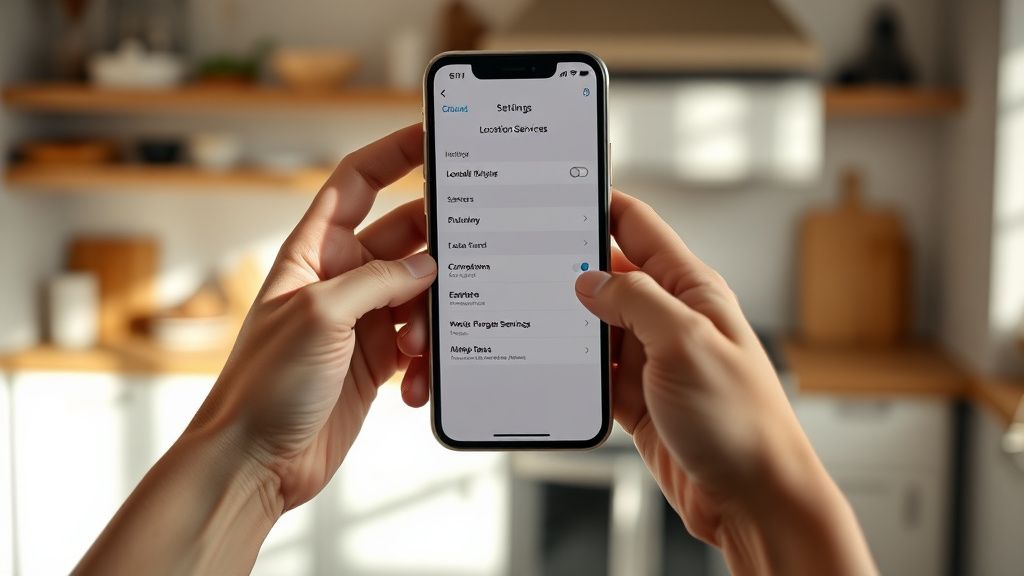
Go to Settings → Privacy & Security → Location Services.
The critical distinction is between:
- "While Using" — only active when the app is open
- "Always" — active at all times, including background
- "Ask Next Time"
Apps that default to "Always" when you weren't paying attention during setup: navigation apps, fitness trackers, food delivery apps, weather apps, some social platforms. Instagram, for a period, was discovered to be accessing location far more aggressively than its stated permissions implied—a pattern documented by researchers and covered by outlets including the Washington Post.
Practical action: Set everything to "While Using" unless there's a specific operational reason for background access. The only category where "Always" genuinely makes sense: Find My, and possibly a running or cycling app where you want automatic session tracking.
Also check System Services (at the bottom of the Location Services list). Disable:
- Significant Locations (unless you use it deliberately)
- iPhone Analytics
- Routing & Traffic (unless you use Apple Maps heavily)
- Improve Maps
These are quiet data collection processes that run even when you think nothing is happening.
Step 3: Background App Refresh — The Misunderstood Feature
Background App Refresh sounds benign. In practice, it's one of the more aggressive battery consumers on iOS, particularly for apps that use it as a vector to phone home, load ads, or re-sync data you didn't ask for.
Settings → General → Background App Refresh
You can disable it globally (fastest option) or per-app (more surgical). A common community observation: most apps that claim to need Background App Refresh for "better experience" are actually using it for engagement re-targeting, not for anything that benefits you. The only apps where background refresh provides genuine value are messaging apps with unreliable push notifications, and apps like flight trackers or calendar apps where you actually want pre-loaded content.
There's a subtlety here worth noting: when you kill an app from the app switcher on iOS, it can still be "woken up" by Background App Refresh unless that feature is specifically disabled for it. This is a behavior many iPhone users don't understand—they assume killing the app is a complete stop. It isn't.
Step 4: ProMotion 120Hz Display and Always-On Display Behavior
The iPhone 16 Pro features Apple's ProMotion technology, which dynamically adjusts the refresh rate between 1Hz and 120Hz. In theory, this is efficient—the display drops to 1Hz when showing static content. In practice, the system doesn't always drop as aggressively as it should, especially with certain apps running.
There is no direct option to cap the display at 60Hz in iOS 18 (Apple removed this option that existed briefly in earlier developer betas). What you can do:
- Reduce Motion (Settings → Accessibility → Motion → Reduce Motion): This doesn't cap refresh rate, but it reduces the frequency of animations that trigger higher refresh states
- Auto-Lock settings: Set to 30 seconds or 1 minute if you're experiencing passive drain from an active display
The Always-On Display (AOD) on iPhone 16 Pro operates nominally at 1Hz when showing the lock screen, but it still consumes meaningful power over 16+ waking hours. Community tests have estimated that AOD contributes somewhere between 8-12% of total daily drain for average users, though Apple has not published official figures and independent lab tests vary. If you're in a battery-critical situation, disabling AOD (Settings → Display & Brightness → Always On) is one of the more impactful single toggles.
Step 5: Rogue Apps, MatterSoft Processes, and the Third-Party Problem
This is where battery drain gets genuinely messy, because Apple's visibility into third-party app behavior is limited, and third-party developers are not always transparent about what their apps do in the background.
Common offender categories:
Social media apps — Facebook, Instagram, TikTok, and LinkedIn have historically been flagged for aggressive background activity. TikTok in particular has been the subject of multiple independent analyses showing unusual background network activity. Whether this is malicious or simply architectural sloppiness is a matter of ongoing debate, but the power cost is real.
Poorly optimized apps after an iOS update — Every major iOS release breaks some apps in ways that cause excessive CPU usage. An app in an infinite retry loop, attempting to sync to a server that's returning error codes, can consume enormous battery. The user never sees this. It just gets warm in your pocket.
Fitness and health tracking apps — Apps connected to Apple Health that continuously poll sensor data (step count, heart rate, blood glucose integrations) create sustained low-level hardware activity. This is often legitimate, but the cumulative effect across three or four health apps can be significant.
Practical diagnostic: If your phone is warm and draining fast and you can't identify a visible culprit, try this: Restart the phone, then immediately leave it on standby without opening any apps for 30 minutes. Check how much battery it consumed. If it's more than 1-2%, you have a background process problem. Then, systematically force-quit apps and repeat. This is tedious but it works.
Step 6: Connectivity Settings — 5G, Wi-Fi Assist, and Bluetooth Overhead
5G is a significant power consumer, particularly mmWave 5G in dense urban environments where the phone is constantly switching between cell towers and frequency bands. The iPhone 16 Pro handles this more efficiently than previous generations, but it's still not free.
Settings → Cellular → Cellular Data Options → Voice & Data
Options:
- 5G On — uses 5G whenever available (most aggressive on battery)
- 5G Auto — uses 5G only when performance benefit justifies the cost (Apple's recommended balance)
- LTE — drops to 4G LTE only (best for battery, worst for speed)
Most users benefit from 5G Auto rather than 5G On, unless they specifically need 5G throughput consistently.
Wi-Fi Assist (Settings → Cellular, scroll to bottom) is a feature that automatically uses cellular data when Wi-Fi is weak. It sounds helpful. In practice, it means your phone can be simultaneously maintaining a weak Wi-Fi connection AND pulling cellular data, running two radios that might otherwise rest. In fringe Wi-Fi zones—the edge of your home network, a weak café signal—this creates sustained dual-radio activity that's harder on the battery than just dropping to cellular cleanly.
Bluetooth: Leaving Bluetooth enabled doesn't by itself destroy battery life, but having multiple active Bluetooth connections (AirPods, Apple Watch, a car connection, a speaker) creates a non-trivial overhead. If you're in battery preservation mode, disconnect non-essential Bluetooth devices rather than just toggling Bluetooth off (which also disconnects Apple Watch, a trade-off most people don't want to make).
Step 7: Optimized Battery Charging and Charge Cycles
Apple's Optimized Battery Charging feature (Settings → Battery → Battery Health & Charging → Optimized Battery Charging) is worth understanding in detail. It learns your charging routine and delays the final charge to 100% until shortly before you typically unplug—keeping the battery at 80% longer, which reduces long-term degradation.
For users with inconsistent schedules, this feature can backfire: you unplug the phone at 80% because you're leaving unexpectedly, and iOS hasn't yet pushed it to 100%. This is a genuinely frustrating edge case that generates significant complaint volume on Apple Support forums. The workaround is to long-press the battery notification in the charging screen and select "Charge Now"—but this isn't well-documented, and Apple has never surfaced it prominently.
The 80% Charge Limit option (introduced in iOS 17, available on iPhone 15 Pro and 16 Pro) caps charging at 80% permanently if you want maximum long-term cell preservation. This is appropriate for users who are nearly always near a charger. For users who rely on a single charge per day, it's too constraining.
Step 8: iOS Version — The Update Paradox
iOS updates are a double-edged issue for battery performance. Apple patches battery-draining bugs, but new iOS versions also sometimes introduce their own drain regressions—particularly in the first two to four weeks post-release, when background processes like Spotlight reindexing, Photos library analysis, and on-device ML model updates are running continuously.
The community pattern is predictable: iOS X.0 launches, battery complaints spike on Reddit and Apple Support forums, Apple releases X.0.1 or X.1 addressing specific drain issues, the cycle repeats.
iOS 18.0 had documented issues with increased background process activity on iPhone 16 Pro. iOS 18.1 included specific battery optimization work. iOS 18.2 brought further refinements to the A18 Pro's efficiency cores.
Practical recommendation: If you just updated to a major iOS release and drain suddenly worsened, give the phone 48-72 hours before diagnosing aggressively. The post-update reindexing will complete, and drain will often normalize. If it doesn't normalize after 72 hours, then you have a structural configuration problem.
Real Field Reports: What Actual iPhone 16 Pro Users Have Experienced
On Reddit's r/iphone, a thread from early 2025 titled "iPhone 16 Pro battery worse after iOS 18.2 update — not placebo, screenshots" accumulated over 400 comments and was one of the more rigorous community diagnosis threads. Users comparing battery logs identified that the Maps app was responsible for significant background drain—specifically, a background refresh behavior tied to Proactive Suggestions that was waking the app far more frequently than intended.
A user on the Apple Developer Forums (thread referenced in multiple community posts) documented a case where "iPhone Analytics" was running a local ML inference job every 12 minutes, triggered by an interaction with Core ML-based features in Siri. Disabling iPhone Analytics eliminated that specific cycle.
On MacRumors forums, a power user reported that their Phone app was listed as consuming 34% of battery over 24 hours—on a day they never made a phone call. Investigation revealed a stuck Background App Refresh call related to spam call detection. A hard reset plus disabling Background App Refresh for Phone resolved it.
These aren't edge cases in the sense of being rare. They're edge cases in the sense of being hard to reproduce on demand—which is why Apple's support documentation often can't capture them cleanly.
Counter-Criticism and Industry Debate: Is Apple Being Honest About Battery Life?
There's a legitimate argument—made in different forms by consumer advocates, battery researchers, and tech journalists—that Apple's official battery life claims are structurally misleading. The "27 hours of video playback" figure is measured with specific brightness levels, specific content formats, and specific radio conditions that don't match how anyone actually uses a phone.
The EU has been pushing for standardized battery life testing across manufacturers (similar to how car fuel economy is standardized), and Apple has consistently lobbied against such mandates. The counterargument from Apple and its defenders is that standardized tests would be "worse" at capturing real-world diversity than Apple's scenario testing. This argument has some technical merit but conveniently also allows Apple to continue publishing favorable lab numbers.
There's also a more uncomfortable question: Apple's push toward more features—ProMotion, AOD, ProRes video, spatial audio processing, on-device AI—creates inherent tension with battery life claims. Each generation adds power-consuming features and then claims efficiency improvements that net out to "the same or better" battery life. Whether those claims are validated by real-world experience
Bu makale affiliate linkleri içermektedir.