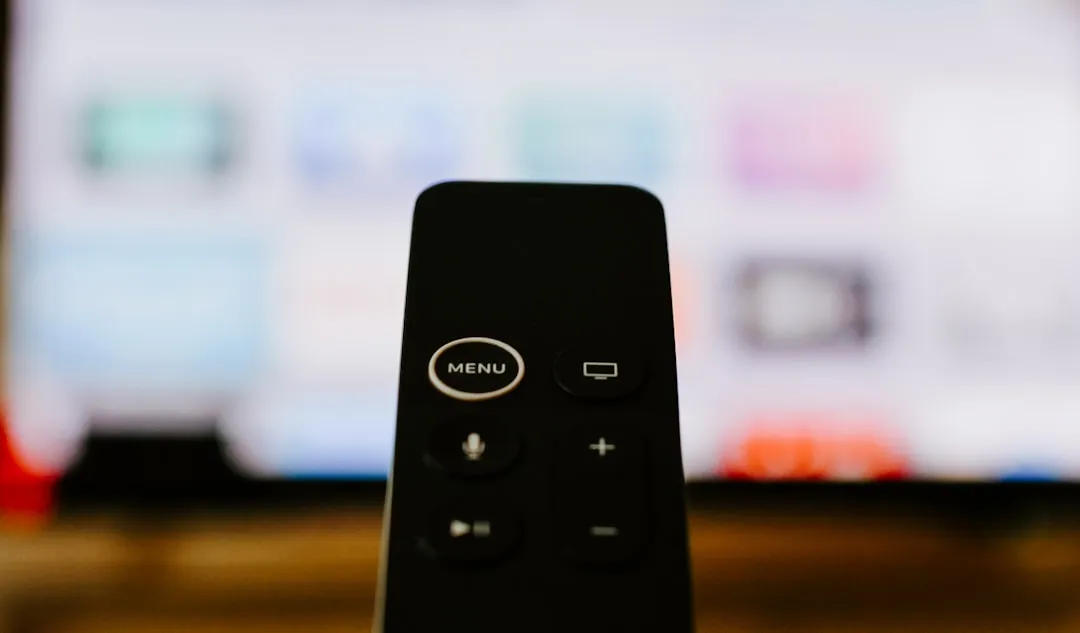
If your Roku Streaming Stick 4K remote has stopped responding, the fastest fix is usually a "power cycle" reset: unplug the Roku device from the wall outlet, remove the batteries from the remote, wait 60 seconds, reconnect the Roku, and insert the batteries only after the home screen appears. If that fails, check for wireless interference or perform a forced pairing mode reset.
The Roku Streaming Stick 4K is a marvel of modern miniaturization, but its reliance on a proprietary Wi-Fi Direct connection creates a "black box" ecosystem where connectivity failures often baffle even seasoned users. Unlike traditional IR (infrared) remotes that require line-of-sight, the Roku remote operates on a 2.4GHz radio frequency. This shift in technology is the root cause of most "pairing" issues—it is not merely a signal transmission problem; it is a handshake negotiation between two computing devices that frequently fails in the messy, high-noise radio environment of a modern living room.
The Anatomy of a Pairing Failure: Signal Contention and Wi-Fi Interference
At the hardware level, the Roku Streaming Stick 4K remote acts as a Wi-Fi Direct client. When you push a button, it isn’t just firing a pulse of light; it’s sending a packet of data. If your home network is congested, or if your streaming stick is tucked behind a bulky television set that acts as a physical RF shield, the handshake between the remote and the stick is prone to dropped packets. Wi-Fi interference can cause a range of connection drops for various devices.
Users on subreddits like r/Roku frequently report that moving the stick to a different HDMI port—or worse, using the "included" short HDMI extender—is the only thing that saves them from a complete factory reset. The engineering compromise here is significant: by hiding the antenna inside the stick, Roku saves on manufacturing costs and aesthetic bulk, but they sacrifice the signal stability that an external IR sensor would offer.
The "Power Cycle" Ritual: Why It Actually Works (Or Doesn't)
When you scour support forums, you will find the "unplug everything" advice repeated ad nauseam. While it sounds like a placebo, it is grounded in hardware logic. By unplugging the Roku, you clear the volatile memory (RAM) where the temporary pairing tokens are stored. By removing the batteries from the remote, you force the remote's internal controller to dump its cache and reset its radio transceiver.
However, a failure to pair often indicates an "out-of-sync" state. If the remote thinks it is paired to a device that is no longer broadcasting the same security handshake, it will sit in a low-power mode, refusing to pair again.
Steps for a Successful Hard Reset:
- Unplug the Roku: Do not just turn off the TV; pull the USB power cable from the wall.
- Battery Extraction: Pull the batteries from the remote.
- The Buffer Period: Wait for at least one minute. This is essential for capacitor discharge.
- Boot Sequence: Plug the Roku back in. Wait until the Roku home screen is fully loaded and stable.
- Re-insertion: Insert the batteries. You should see a pairing light blinking on the remote. If you don’t, the remote is likely dead or the pairing button is physically compromised.
Real Field Report: The "Dead Remote" Myth vs. Reality
In many documented GitHub issues and community tech logs, users often confuse a "not paired" remote with a "dead" remote. One specific, widely discussed failure point is the quality of the included batteries. Roku provides low-cost, non-alkaline batteries in the box. Many users report that these batteries can cause intermittent pairing issues within the first week of use because they lack the steady voltage required to maintain a consistent 2.4GHz radio broadcast.
"I spent three hours resetting my Roku because I assumed it was a software glitch. It turned out the included batteries were leaking slightly, creating enough resistance to prevent the remote from entering pairing mode, but still enough to light up the tiny status LED." — Forum User, TechSupportHaven
This highlights a major critique of the Roku ecosystem: the reliance on proprietary, cost-cut components often leads to unnecessary troubleshooting labor for the consumer. When a $50 device acts like a legacy server that needs constant re-handshaking, the user experience (UX) suffers dramatically.
When the Pairing Button Itself Becomes the Problem
Behind the battery cover of your Roku remote, there is a small, tactile micro-switch. This is a low-cost, surface-mounted component that is notorious for failing under pressure. If you have ever dropped your remote on a hardwood floor, that switch may be stuck in the "engaged" position or physically broken.
If you press the button and feel no "click," or if the button feels mushy, your pairing issue is not software-based—it is a physical failure. There is no software patch for a broken mechanical switch. In these instances, users often resort to the Roku Mobile App as a permanent "workaround."
The Fragmentation of Roku Remotes: Understanding Hardware Versions
Not all Roku remotes are identical. The remote that comes with the Streaming Stick 4K is not compatible with all older Roku models, and vice-versa. If you have purchased a replacement remote from a third-party seller on Amazon or eBay, you may be dealing with a "compatible" unit that uses a different frequency band or firmware version.
Operational Reality Check:
- Standard IR Remotes: These will never pair with a Streaming Stick 4K.
- RF Remotes: These are the only ones that work.
- The "Universal" Trap: Many third-party remotes advertised as "Roku compatible" are actually IR-based units that require a direct line of sight. If your remote doesn't have a pairing button under the battery cover, it is likely an IR remote and will not work with a device hidden behind your TV.
Counter-Criticism: Why Roku’s Platform Policy Limits You
A common frustration among power users is the "walled garden" approach to remote management. Unlike Android TV, where you can pair almost any Bluetooth peripheral, Roku locks you into their proprietary remote ecosystem. When the official remote dies or fails to pair, you cannot simply pair a high-quality third-party Bluetooth controller.
Critics argue this is a "dark pattern" designed to force consumers back into the ecosystem to purchase official branded replacements, which are often priced disproportionately high compared to the cost of the streaming stick itself. The operational friction here is intentional: by limiting the hardware stack, Roku maintains a "simplicity" that they claim prevents support fragmentation, but the reality is a brittle ecosystem that breaks easily and costs the user time and money to repair.
Managing Wireless Interference and Network Congestion
If you’ve successfully paired your remote but it constantly disconnects or becomes "laggy," the culprit is often your own home Wi-Fi network. The Roku remote uses the same 2.4GHz spectrum as many older Wi-Fi routers, microwaves, and Bluetooth devices.
- Change Your Router Channel: If your router is set to "Auto" for its 2.4GHz channel, it might be hopping frequencies and causing your Roku remote to drop its handshake. Try setting your router to a fixed channel (1, 6, or 11).
- The HDMI Shielding Issue: HDMI cables themselves can emit interference. If you are using a cheap, unshielded HDMI extension cable, it can create enough localized EM noise to disrupt the remote’s signal. Switching to a higher-quality, shielded HDMI extender is a "pro-tip" often found in expert AV installation threads.
The Future of Remote Troubleshooting: The Mobile App as a Lifecycle Savior
As Roku moves further into the "app-first" era, the physical remote is slowly becoming a secondary device. The Roku Mobile App serves as a perfect backup. If you are stuck in a "can't pair" loop, downloading the app is your most reliable path to regaining control. It allows you to navigate to the "Remotes" settings menu, where you can check the connection status and, in some cases, update the remote's internal firmware.
However, the dependency on a smartphone to fix a TV peripheral introduces another layer of failure: if your phone is not on the same Wi-Fi network as the Roku (or if the Roku has "forgotten" the Wi-Fi credentials during a reset), you are effectively locked out of your own device. This is a classic "chicken-and-egg" failure that many users find incredibly frustrating.
Why does my Roku remote stop working every few weeks?
This is usually due to the remote entering a deep-sleep state to preserve battery or a failure to maintain a persistent connection with the stick. Ensure your router's 2.4GHz band is not overly congested and that your Roku stick is positioned away from metal objects or heavy AV equipment that could cause signal diffraction.
Can I use any Roku remote for my Streaming Stick 4K?
No. Your device specifically requires an RF-capable remote (with a pairing button). IR remotes will not function with the Streaming Stick 4K because the stick is designed to be hidden behind the TV, out of line-of-sight. Always check for the pairing button under the battery cover before assuming a remote is compatible.
What should I do if the pairing light never flashes?
If the LED does not blink after pressing the pairing button, your remote is either experiencing a total power failure or the physical button switch is damaged. Replace the batteries with high-quality alkaline cells. If that fails, the remote is likely at its end-of-life and needs to be replaced.
Is there a "secret" diagnostic menu for remotes?
Roku does have a "Secret Menu" accessible via specific remote button sequences (usually involving the Home, Back, and Rewind buttons), but there are no publicly documented sequences that force a remote to "re-learn" its pairing key outside of the standard pairing process. Most "secret" hacks you see online are either placebo or obsolete.
Why is my remote laggy after an update?
Firmware updates often reset the handshake parameters between the remote and the stick. If you notice lag, perform the full power cycle reset mentioned earlier. This forces the hardware to renegotiate its connection protocol, which often clears up "stuttering" or "delayed" input issues caused by corrupted cache files in the post-update environment.
Bu makale affiliate linkleri içermektedir.