Quick Answer: Windows 11 blue screen loops are most commonly caused by corrupted system files, faulty drivers, failed Windows updates, bad RAM, or dying storage hardware. Boot into Safe Mode or Windows Recovery Environment, run
sfc /scannowandDISMrepair commands, roll back recent driver updates, and check hardware health. In persistent cases, a clean reinstall with preserved data is the fastest resolution path.
There's a particular kind of dread that comes with a Windows 11 blue screen loop. Not the one-off BSOD that sends you a stop code and reboots cleanly — but the loop. The machine starts, gets halfway through loading, dies, restarts, and does it again. Over and over. Sometimes the stop code changes, much like the persistent hardware errors users encounter when their PS5 Pro experiences the CE-108255-1 crash. Sometimes it's the same three-word error on repeat. Sometimes it's a blank blue screen with a spinning circle that just never stops spinning.
This is not a niche failure mode, as technical frustration is universal—whether you are dealing with a BSOD loop, debugging DAO treasury errors, or repairing household appliances. Forums like Reddit's r/techsupport and r/Windows11 accumulate dozens of these threads every week. The tone is often the same: someone updated overnight, woke up, and now their machine won't boot. Or they installed a new GPU driver. Or they ran Windows Update and something in the cumulative patch broke an interaction with a third-party antivirus or a legacy peripheral driver.
What makes BSOD loops particularly brutal is the access problem. The system you need to fix is the system that won't let you in, a paradox familiar to anyone trying to fix a Home Assistant Green that won't boot or recalibrate faulty smart devices. Every repair tool, every command-line utility, every recovery option — it all requires you to work around the loop first. That's the hard part most guides skip over or handle in one sentence.
This guide doesn't.
Understanding What a Blue Screen Loop Actually Is at the OS Level
Windows 11 triggers a blue screen — technically a kernel panic — when the operating system encounters a condition it cannot safely recover from. These include memory access violations, kernel-mode driver crashes, and hardware communication failures, which can be just as complex as resolving Roomba i7 Error 31 or fixing connectivity gaps in wearable tech like when your Oura Ring Gen 4 isn't syncing.
The loop happens when the condition that caused the crash hasn't been resolved, and Windows restores to the same broken state on every boot. Automatic repair attempts may fire, but if they can't identify the root cause, they give up and restart — completing the cycle.
Windows 11 has an automatic recovery mechanism called Windows Recovery Environment (WinRE), which is supposed to catch this loop after two or three failed boots and offer repair options. In practice, this mechanism is less reliable than it sounds. Several documented cases in Microsoft's own Feedback Hub show WinRE failing to trigger, or triggering but presenting only the "Startup Repair" option — which then runs, reports it "couldn't repair your PC," and sends the machine back into the loop.
"Startup Repair has literally never fixed anything for me in 15 years of using Windows. It feels like a UI placeholder that runs for 3 minutes and then gives up." — typical Hacker News sentiment, echoed across dozens of threads
The stop codes matter, but they're not always reliable diagnostics, similar to how generic error lights on coffee machines require more specific troubleshooting, such as fixing DeLonghi Magnifica S flashing lights. CRITICAL_PROCESS_DIED, SYSTEM_SERVICE_EXCEPTION, INACCESSIBLE_BOOT_DEVICE, DRIVER_IRQL_NOT_LESS_OR_EQUAL, MEMORY_MANAGEMENT — each of these points in a general direction, not to a specific file or driver. And because Windows 11's crash dump analysis requires you to be inside Windows to run WinDbg properly, most users are locked out of their best diagnostic tool before they even start.
Phase One: Breaking the Loop Before You Can Fix Anything
Forcing Access to the Windows Recovery Environment—an essential skill for those also looking to recover an Xbox Series X from a green screen of death.
Before any repair is possible, you need to interrupt the boot cycle and get into WinRE. The intended method is to let Windows detect the loop automatically. The more reliable method is to force it manually.
Force WinRE manually: During startup — as soon as you see any screen activity or the spinning Windows logo appears — hold the power button until the machine cuts off. Do this three times in a row. On the third failed boot attempt, Windows should detect an abnormal shutdown pattern and route you to WinRE automatically, presenting the "Preparing Automatic Repair" screen.
If this doesn't work after three attempts, you need external media.
Creating a Windows 11 Recovery USB from another machine:
- Download the Media Creation Tool from Microsoft's official site on any working Windows machine
- Create a bootable USB (minimum 8GB)
- Boot the affected machine from USB — you'll need to access the BIOS/UEFI boot menu (usually F2, F12, Del, or Esc depending on manufacturer)
- Select "Repair your computer" instead of "Install now"
The USB recovery path is more reliable than relying on WinRE, because it bypasses whatever local recovery partition may itself be corrupted or inaccessible.
Navigating WinRE: What's Actually Useful
WinRE presents several options. Most of them are less useful than they appear. Here's an honest assessment:
- Startup Repair — runs automated fix attempts. Occasionally resolves simple bootloader issues. Fails silently on everything else.
- Go back to the previous version — only available if you upgraded recently and rollback data still exists. High value when available.
- System Restore — requires restore points to exist. Many systems have System Restore disabled by default in Windows 11. Often unavailable.
- Uninstall Updates — actually useful. Can roll back the last quality update or feature update that may have triggered the loop.
- Command Prompt — the most powerful option here. This is where real repair work happens.
Phase Two: Command-Line Repair — The Real Work
Running SFC and DISM Without Being Inside Windows
From the WinRE Command Prompt, running sfc /scannow won't work as expected — it needs to run against an offline Windows installation. You need to identify your Windows drive letter first.
diskpart
list volume
exit
Look for the volume that's around 50-100GB+ with an NTFS filesystem and a recognizable label. It may not be C: in the recovery environment. Let's assume it's D: for this example.
sfc /scannow /offbootdir=D:\ /offwindir=D:\Windows
Then run DISM against the offline image:
DISM /Image:D:\ /Cleanup-Image /RestoreHealth /Source:esd:D:\Windows\System32\Recovery\install.esd /LimitAccess
This attempts to repair corrupted Windows component store files by pulling clean versions from the local recovery image. If the local recovery image is itself corrupted, you'll need to point DISM at your USB recovery media (usually mounted as a different drive letter).
Be aware: these commands take time. DISM can run for 15–30 minutes. In a WinRE Command Prompt on stressed hardware, it can feel like it's stalled. It usually isn't. Don't interrupt it.
Fixing the Bootloader
A significant number of BSOD loops — particularly those where the stop code is INACCESSIBLE_BOOT_DEVICE or where Startup Repair specifically mentions "BCD" — are bootloader corruption issues rather than Windows system file issues.
bootrec /fixmbr
bootrec /fixboot
bootrec /scanos
bootrec /rebuildbcd
Run these in sequence. The rebuildbcd command scans for Windows installations and offers to add them to the boot configuration. If it says "Total identified Windows installations: 0," you have a more serious problem — either the Windows partition isn't being seen, or there's a storage hardware issue.
Also worth running:
chkdsk D: /f /r /x
This forces a full disk check on the Windows partition, marks bad sectors, and attempts file system repair. On an NVMe drive this might take 10 minutes. On an aging HDD it can run for hours.
Phase Three: Driver Rollback and Update Removal
When an Update Broke Everything
One of the most common BSOD loop triggers in recent Windows 11 history has been cumulative update interactions. A notable example: the KB5012170 Secure Boot DBX update rollout in mid-2022 caused boot failures on a range of systems, particularly those running certain Lenovo, Dell, and HP firmware versions. Microsoft acknowledged the issue but the fix required manual intervention that many users couldn't easily perform.
More recent examples include graphics driver updates from NVIDIA that introduced DPC_WATCHDOG_VIOLATION crashes, and AMD chipset driver packages that conflicted with Windows 11's power management subsystem.
From WinRE:
Navigate to: Advanced Options → Uninstall Updates → Uninstall latest quality update
If that doesn't restore boot, try "Uninstall latest feature update" if a version upgrade recently occurred.
For driver-specific rollbacks, you need to get far enough into Windows to access Device Manager — which means you need Safe Mode.
Getting Into Safe Mode from WinRE
Troubleshoot → Advanced Options → Startup Settings → Restart
After restart, press 4 for Safe Mode or 5 for Safe Mode with Networking.
Safe Mode loads Windows with minimal drivers — no third-party graphics drivers, no antivirus, no peripheral extensions. If the machine boots cleanly into Safe Mode, the loop is almost certainly driver-related.
Once in Safe Mode:
- Open Device Manager (right-click Start → Device Manager)
- Look for any devices with yellow warning icons
- Right-click the display adapter, network adapter, or any recently updated device
- Select Properties → Driver → Roll Back Driver
Also worth checking: Event Viewer → Windows Logs → System — look for critical errors timestamped just before the crash. This can identify specific driver files or services that are dying at boot.
Phase Four: Hardware Diagnostics — When It's Not Software
RAM Failure
Faulty RAM is one of the most underdiagnosed causes of BSOD loops. The MEMORY_MANAGEMENT, PAGE_FAULT_IN_NONPAGED_AREA, and UNEXPECTED_KERNEL_MODE_TRAP stop codes often point here. Even RAM that passes basic POST tests can fail under load or have marginal signal integrity that shows up as random corruption.
Windows Memory Diagnostic (accessible from WinRE or by searching in Windows) runs overnight and flags errors. For more thorough testing, MemTest86 — a bootable utility that runs outside of Windows entirely — is considered more reliable by most hardware technicians. It can take 4–8 hours for a full pass on modern DRAM capacities.
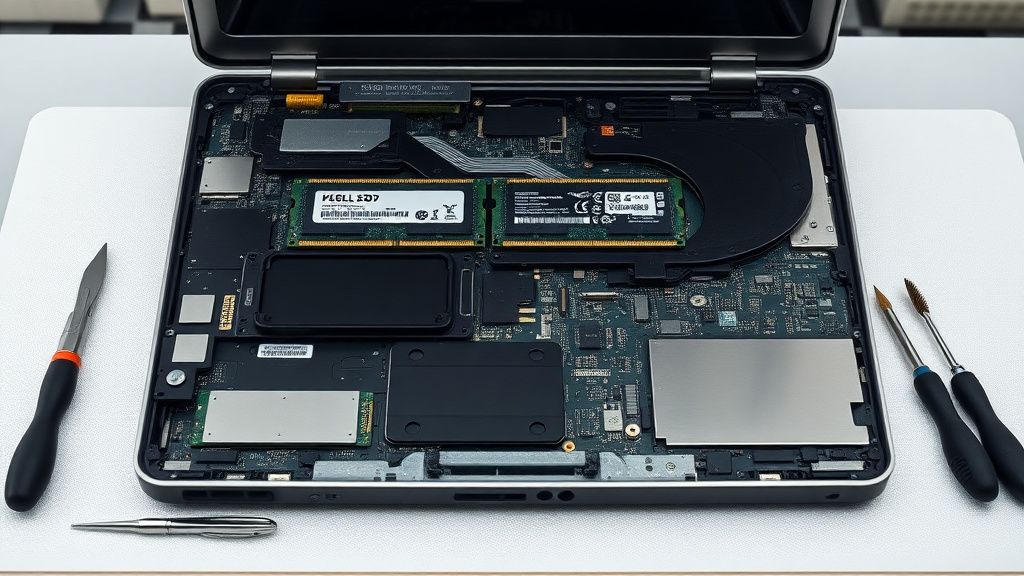
A fast workaround diagnostic: if you have multiple RAM sticks, try booting with only one. Then the other. Then swap slots. The slot matters — sometimes the slot is the fault, not the DIMM.
Storage Health
An NVMe or SSD that's failing can cause BSOD loops in ways that look indistinguishable from software corruption — because the corruption is real, it's just being generated by failing flash cells rather than a bad update.
From WinRE Command Prompt:
wmic diskdrive get status
This gives a basic health read. For deeper analysis, tools like CrystalDiskInfo (needs Windows) or manufacturer-specific diagnostics (Samsung Magician, Western Digital Dashboard, Seagate SeaTools) provide SMART data including reallocated sector counts, uncorrectable error counts, and write endurance remaining.
If SMART shows Caution or Bad status, you're looking at potential imminent drive failure. Data recovery becomes the priority before further repair attempts.
Phase Five: Nuclear Option — Clean Install With Data Preservation
When Repair Paths Fail
At some point — usually after two failed SFC passes, a DISM that reports clean but doesn't resolve the loop, and Safe Mode that works but normal boot still fails — the cost-benefit analysis shifts. The time spent on incremental repair attempts exceeds the time a clean install would take.
Windows 11 offers a Reset this PC option in WinRE under Troubleshoot. The "Keep my files" option reinstalls Windows while preserving the user profile and personal files. Applications and settings are removed, but documents, photos, and user data in typical locations survive.
Realistic caveats:
- "Keep my files" has a non-trivial failure rate when the existing installation is heavily corrupted
- If the storage device itself has failing sectors, a reset can fail partway through and leave the machine in a worse state
- If WinRE can't access the recovery partition, the reset option may not be available
The safest path when hardware is confirmed healthy: boot from USB, choose "Install now," accept the upgrade-install option (not custom/clean), which will reinstall Windows while keeping files. This is a different path than the WinRE reset and is often more reliable.
For a true clean install, ensure critical data is backed up first — either via WinRE Command Prompt copying files to an external drive, or by removing the drive and connecting it to another machine as a secondary disk.
Real Field Reports: What Actually Happens in Practice
A recurring theme in community support threads — r/techsupport, Microsoft Answers, the Lenovo and Dell community forums — is the gap between what Microsoft's official troubleshooting documentation says should happen and what actually happens.
Several threads document the "repair loop within the recovery loop": WinRE launches Startup Repair, which runs, fails, offers to send a diagnostic report, and then returns to the WinRE menu — which then offers Startup Repair again. Users report clicking through this cycle four or five times before giving up.
There's also a well-documented issue with Secure Boot and TPM 2.0 interactions in Windows 11. Some BSOD loops — particularly SYSTEM_SERVICE_EXCEPTION with tcpip.sys or ntoskrnl.exe as the faulting module — have been traced back to TPM firmware states that become inconsistent after certain update sequences. The fix involves clearing the TPM from UEFI settings, which Microsoft doesn't surface anywhere in WinRE and which many users don't know is accessible.
Another pattern: third-party antivirus products — particularly older versions of Avast, AVG, Bitdefender, and Kaspersky — have caused BSOD loops on Windows 11 during major version upgrades (22H2 to 23H2 transitions, for example). The antivirus kernel driver conflicts with the updated Windows security subsystem. The fix is to boot into Safe Mode and uninstall the AV software before attempting further repair. But because Safe Mode with Networking doesn't load the AV kernel driver, the AV's uninstaller sometimes refuses to run fully, leaving orphaned driver files that continue to load on normal boot.
"spent 6 hours on this. turns out it was bitdefender's kernel driver. uninstalled through safe mode, windows booted immediately. the error was SYSTEM_SERVICE_EXCEPTION which points to literally everything and nothing at the same time." — r/techsupport, paraphrased from a recurring class of posts
Counter-Criticism and Debate: Is Microsoft's Recovery Architecture Actually Fit for Purpose?
There's a legitimate argument — made regularly in technical communities — that Windows 11's recovery architecture is structurally insufficient for its user base.
WinRE hasn't been meaningfully redesigned in years. It still presents a touchscreen-unfriendly interface with small buttons, vague error descriptions, and recovery options that frequently fail silently. The Command Prompt escape hatch is powerful but requires technical knowledge most users don't have. The documentation Microsoft provides in the recovery flow is minimal.
Critics point to macOS Recovery as a comparison point: Apple Silicon Macs boot into a clean, capable recovery mode that handles reinstallation, Time Machine restoration, Disk Utility operations, and firmware repair through a polished interface. The comparison isn't entirely fair — Apple controls the full hardware stack, which makes recovery architecture dramatically simpler — but the gap in user experience is real.
The counter-argument from the Windows ecosystem is scalability: Microsoft supports thousands of hardware configurations, driver ecosystems, and firmware environments. Building a recovery system that handles all of them gracefully is an engineering problem of entirely different magnitude than Apple's vertical integration allows.
Still, the practical result is that millions of users hit BSOD loops every year and end up in support forums, YouTube tutorials, and repair shops for problems that, in theory, WinRE should be able to resolve automatically.
There's also a legitimate debate about Windows Update quality control. The cadence of Patch Tuesday has produced several high-profile breakages in Windows 11's lifecycle. The known issue where KB5028185 caused display driver crashes on certain Qualcomm
Bu makale affiliate linkleri içermektedir.