Quick Answer: Connecting a Ring camera to Wi-Fi 7 requires the Ring app, a stable power source, and a Wi-Fi 7 router broadcasting on compatible bands (2.4 GHz or 5 GHz — Ring devices don't yet natively support 6 GHz). Open Ring app → Set Up a Device → follow the pairing flow. Expect friction. This guide explains why, how to resolve it, and if you are dealing with persistent connection issues, you can learn more about how to stop Wi-Fi 7 latency spikes via a pro guide to tuning Multi-Link Operation.
There's a gap between what the marketing materials imply and what actually happens when you try to connect a Ring camera to a Wi-Fi 7 router for the first time. The box shows a clean illustration of a smartphone and a camera. The app walkthrough looks polished. And then you stand in your driveway for forty minutes watching a blinking orange light that means absolutely nothing useful.
This isn't a criticism of Ring specifically. It's the operational reality of consumer IoT in 2024–2025, where hardware generations have outpaced firmware support, where Wi-Fi 7 (802.11be) is being deployed in homes faster than device ecosystems can catch up, and where the phrase "works with your network" is doing a lot of heavy lifting in product descriptions.
This guide is about what actually happens — the technical constraints, the failure modes, the workarounds the community has developed, and where things genuinely do work well.
What Wi-Fi 7 Actually Is, and Why Ring Cameras Don't Fully Use It
Wi-Fi 7, formally ratified as IEEE 802.11be in early 2024, introduces Multi-Link Operation (MLO), 320 MHz channel widths, 4K-QAM modulation, and support for the 6 GHz band alongside 2.4 GHz and 5 GHz. The headline numbers are impressive — theoretical throughput well above 40 Gbps under ideal conditions — but the practical story for IoT is more constrained.
As of mid-2025, no Ring camera model natively supports Wi-Fi 7. The current generation — Ring Video Doorbell 4, Ring Spotlight Cam Pro, Ring Floodlight Cam Wired Pro — uses Wi-Fi 5 (802.11ac) chipsets in the higher-end models, and Wi-Fi 4 (802.11n) in the budget line. Ring's indoor cameras like the Indoor Cam (2nd Gen) operate on 2.4 GHz 802.11n exclusively.
This matters because Wi-Fi 7 routers — from TP-Link Archer BE900, ASUS RT-BE96U, Netgear Nighthawk RS700S, and others — are still primarily backward compatible. They broadcast on 2.4 GHz and 5 GHz alongside the new 6 GHz band. Ring cameras can connect to the older bands. The issue is that Wi-Fi 7 routers have introduced new default settings, band steering behaviors, and security protocols that create unexpected friction for legacy IoT devices.
The community has noticed. A thread on the Ring Community Forums titled "Ring camera won't connect after upgrading to Wi-Fi 7 router" has accumulated hundreds of replies since late 2023. The pattern is consistent: upgrade the router, Ring devices start dropping offline, or won't reconnect during initial setup, a frustration often linked to network instability as detailed in our guide on why your Wi-Fi 7 is dropping packets and how to fix MLO jitter.
Before You Start: The Hidden Prerequisites Nobody Tells You
Most setup guides skip straight to "open the Ring app," but if you are experiencing complex network issues that go beyond simple app setups, you might find it helpful to troubleshoot Wi-Fi 7 packet loss, latency, and router settings. They shouldn't.
Network prerequisites that actually matter:
WPA3 compatibility issues: Wi-Fi 7 routers often default to WPA3 or WPA3/WPA2 transition mode. Older Ring camera firmware has documented issues with WPA3. Specifically, Ring devices using Broadcom BCM43362 or BCM43340 Wi-Fi chips — common in earlier models — have poor or broken WPA3 handshake support. If your router is set to WPA3-only, Ring will fail silently or return a generic "connection error."
Band steering and SSID consolidation: Many modern routers merge 2.4 GHz and 5 GHz under a single SSID and use band steering to assign devices automatically. Ring cameras — particularly battery-powered models — often can't negotiate this properly during setup. The camera may attempt to connect to 5 GHz, fail because of signal distance, and the app gives you no actionable error.
SSID character length and special characters: A long-standing issue across IoT devices, not just Ring. SSIDs with spaces, special characters, or lengths over 32 characters cause connection failures. This isn't hypothetical; it's a recurrent GitHub issue in the open-source Ring API wrapper communities and shows up regularly in Ring's own support threads.
Router firewall and IoT isolation: Some Wi-Fi 7 routers ship with more aggressive default firewall settings or automatic IoT VLAN features that can block the UDP traffic Ring devices use for cloud communication.
The Actual Setup Process: Step by Step With the Real Friction Points
Step 1: Router Preparation — The Part Most Guides Skip
Before touching the Ring app, configure your router.
Set WPA2/WPA3 transition mode (not WPA3-only). On most Wi-Fi 7 routers this is in Wireless → Security Settings. Look for "WPA2/WPA3 Personal" or "SAE Transition Mode."
Create a dedicated 2.4 GHz SSID if your router supports it. Separate SSIDs for 2.4 GHz and 5 GHz eliminates band-steering ambiguity. Name it something simple — no spaces, no special characters, under 20 characters. If your router only supports combined SSIDs, disable band steering for the setup process (you can re-enable it after the camera is connected and has cached the network credentials).
Disable 6 GHz isolation or check that 6 GHz traffic doesn't interfere: Some routers treat 6 GHz as a separate logical network by default. Ensure your 2.4 GHz network is properly accessible and not being redirected.
Check DHCP lease settings: A few Wi-Fi 7 routers have shipped with aggressive DHCP lease recycling. Ring devices use static or semi-static IP behaviors and can lose connectivity if DHCP leases expire unexpectedly. Set minimum lease time to 24 hours for IoT devices.
PMF (Protected Management Frames): Wi-Fi 7 mandates PMF. Some older Ring firmware versions negotiate PMF poorly. Check Ring's support documentation for your specific device model — there have been firmware updates specifically addressing PMF compatibility, but not all devices auto-update.
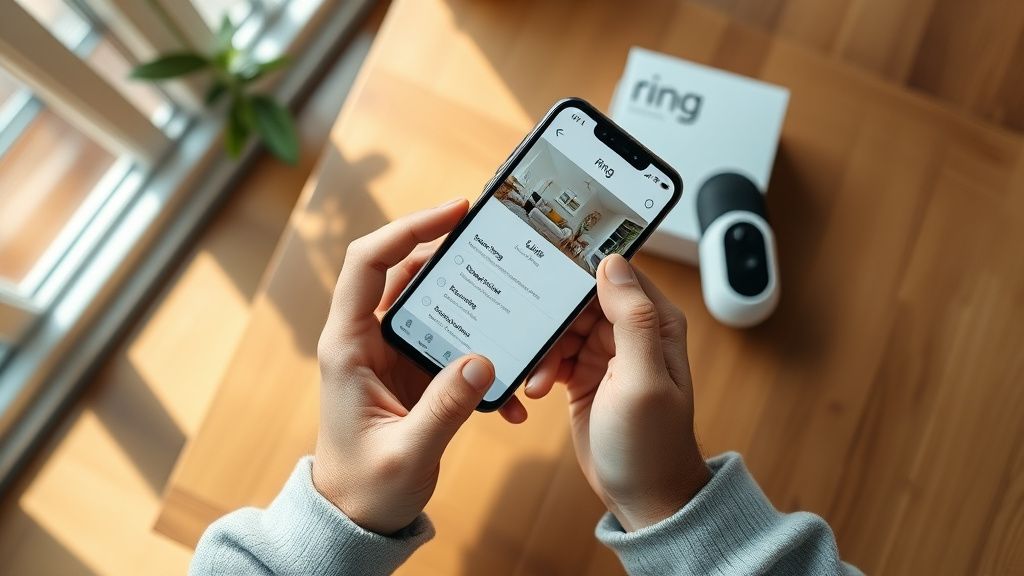
Step 2: App Setup and Device Pairing
Download or update the Ring app (iOS or Android). The app has had its own share of update problems — a widely-cited Reddit thread from r/Ring documented a broken Android update in late 2023 that caused the QR code scanner in the setup flow to malfunction on certain devices. Make sure you're on the latest version.
Open the app → tap the menu icon (≡) → Set Up a Device → select your device category.
The app will ask you to scan the QR code on the camera or enter the device's serial number manually. The QR codes on Ring devices can be difficult to scan in low light or if the sticker is worn. The manual serial entry is often faster and more reliable.
You'll be prompted to put the camera into setup mode — typically by pressing and holding the orange setup button until the light ring blinks. Different models have different behaviors here:
- Ring Video Doorbell (wired): press the orange button on the back, hold for 10 seconds
- Ring Spotlight Cam Battery: press and hold the setup button on top of the camera
- Ring Floodlight Cam Wired: press the setup button on the device
The app creates a temporary Wi-Fi hotspot connection between your phone and the camera to transmit network credentials. This is where most failures happen on Wi-Fi 7 setups.
Step 3: The Credential Transfer — Where Wi-Fi 7 Creates Problems
The Ring setup process temporarily connects your phone to the camera's own Wi-Fi network (an ad-hoc or SoftAP network broadcast by the camera). Your phone needs to leave its normal Wi-Fi connection to do this.
On iOS, this usually works because iOS handles Wi-Fi network switching during app setup flows. On Android, this is notoriously unreliable because Android's Wi-Fi behavior varies by manufacturer and Android version. Android 12 and later added stricter Wi-Fi permission handling, and some devices refuse to automatically switch to the camera's temporary network.
Additionally: if your Wi-Fi 7 router is using Wi-Fi Enhanced Open (OWE) or Opportunistic Wireless Encryption on the 2.4 GHz network, the Ring camera's temporary SoftAP network (which is unencrypted) can confuse the phone's network stack. Several users on the Ring Community Forums reported that disabling OWE on the router resolved this specific failure mode.
Once credentials are transferred:
- The camera disconnects from the SoftAP
- Attempts to connect to your home SSID
- The app polls Ring's cloud API to confirm the camera came online
If the cloud confirmation step times out — a 30-second window in the current app version — the app declares setup failed even if the camera is actually connecting. The camera may be online by the time you reset everything and try again. Check the Device Health screen in the app before initiating a full retry.
Real Field Reports: What's Actually Happening Out There
The theoretical process and the real-world experience have diverged enough that it's worth documenting what the community reports.
On r/Ring (Reddit): A thread titled "Finally got Ring working on Wi-Fi 7 after 3 days of trying" from early 2024 describes the following working configuration: TP-Link BE800 router, separate 2.4 GHz SSID named without special characters, WPA2 security only (not transition mode), PMF set to "capable" not "required." The user's summary: "Ring's setup flow is clearly built for WPA2 networks from 2018. Everything else is just hoping the backward compatibility holds."
On the Ring Community Forums (community.ring.com): A thread from September 2023, "Ring offline after upgrading to Wi-Fi 7 router — Eero Max 7," documents multiple users with the same issue. The pattern: cameras that were previously working went offline after the router upgrade and couldn't be reconnected. The workaround that worked for most: factory reset the Ring camera, create a guest network on the Eero with WPA2, connect Ring to the guest network, then migrate to the main SSID using the app's network change feature. Time cost per camera: 20–40 minutes.
GitHub (ring_doorbell community library, issue #847, now closed): A developer integrating Ring devices into Home Assistant documented firmware negotiation failures on Ring Video Doorbell Pro 2 with routers using WPA3 Transition Mode. The conclusion: Ring's firmware as of version 4.x on that device doesn't correctly handle the transition mode's authentication sequence under certain router configurations. The issue was filed in 2023 and Ring has not publicly acknowledged it.
On Hacker News (thread from December 2023): A comment from user _devnull_iot that gained significant upvotes: "The fundamental problem is that Ring's cloud-dependent setup process has a single point of failure that nobody can debug — the cloud polling step. If Ring's setup servers are slow or the camera's cloud registration is delayed, setup fails with zero diagnostic information. This is a design choice that saves Ring engineering time and costs users hours."
This isn't a marginal complaint. Ring's setup architecture routes credential transfer and device registration through Ring's cloud infrastructure. Compare this to competitors like UniFi Protect, which can function entirely on a local network without cloud dependency. The tradeoff Ring made — simpler app UX at the cost of resilience — is a real one with real consequences.
Troubleshooting: The Actual Decision Tree
Most Ring support documentation presents troubleshooting as a linear checklist. Reality is more like a decision tree with several branching failure modes.
Camera won't enter setup mode
- Check power: battery cameras need at least 20% charge for setup to work reliably. Ring's own support documentation notes this, buried in an FAQ.
- For wired cameras: confirm transformer voltage. Ring Video Doorbell Pro requires 16–24 VAC. Lower voltage causes erratic behavior during setup.
- If the light ring blinks but never stabilizes: the camera may have a corrupted setup state from a previous failed attempt. Hold the setup button for 20+ seconds to force factory reset.
App can't connect to camera's setup network
- Disable mobile data on your phone during setup. Android will sometimes route traffic through cellular rather than the camera's SoftAP network, causing the credential transfer to fail silently.
- If on iPhone: go to Settings → Privacy & Security → Location Services → Ring → set to "While Using." The app requires location permissions to manage Wi-Fi network switching on iOS 14 and later.
- Try a different phone if possible. Multiple users report that the Ring app's setup flow works correctly on one device and fails entirely on another, suggesting device-specific Wi-Fi stack compatibility issues.
Camera connects but goes offline repeatedly
- Check signal strength in Device Health. Ring reports RSSI. Values below -70 dBm are problematic. Below -80 dBm and you'll see constant disconnections.
- Check for router firmware updates. Several early Wi-Fi 7 router firmware versions had keep-alive timer issues that disconnected clients with IoT-typical low-traffic patterns.
- Check IP conflict: Ring cameras use mDNS for some local features. If another device on the network has the same IP, conflicts occur. Enable DHCP static lease for Ring devices.
Setup succeeds but camera appears offline in app
- Wait 5 minutes before assuming failure. Cloud registration can be slow.
- Check Ring's service status at status.ring.com — Ring has had multiple cloud outages affecting device registration.
- Log out of the Ring app and back in. There's a known caching issue in the Android app where newly registered devices don't appear until the session is refreshed.
The 6 GHz Problem: Why Ring and Wi-Fi 7's Best Feature Don't Talk
Wi-Fi 7's primary innovation — 6 GHz band support with 320 MHz channels — is entirely unavailable to Ring cameras. Every current Ring device is incapable of using 6 GHz. This creates a subtle but real problem that almost no setup guide addresses.
Some Wi-Fi 7 routers, particularly in aggressive band-steering configurations, have been observed de-prioritizing 2.4 GHz and 5 GHz clients in favor of 6 GHz capable devices. While the routers still technically serve 2.4 GHz, the antenna attention, beamforming resources, and channel management can be less optimized for legacy clients on these bands.
More practically: if your household has several Wi-Fi 7 devices consuming bandwidth on 6 GHz, and your Ring cameras are sitting on congested 2.4 GHz with legacy Wi-Fi 4 chipsets, you may see quality degradation — delayed motion alerts, dropped live views — that isn't a Ring problem per se, but an ecosystem mismatch problem.
The fix isn't elegant: it requires either dedicating a mesh node or range extender specifically to IoT traffic, or accepting that Ring cameras are living as second-class citizens on a Wi-Fi 7 network built for newer hardware.
Counter-Criticism: Is This Actually Wi-Fi 7's Fault?
It's worth being precise about where the blame lies, because the community conversation sometimes collapses into "Wi-Fi 7 broke my Ring cameras" without examining the actual failure mode.
Wi-Fi 7 routers are backward compatible by design. The IEEE 802.11be specification explicitly requires support for 802.11n/ac clients. The connectivity issues documented above are not Wi-Fi 7 failures — they're failures at the intersection of:
- Ring firmware that hasn't been updated to handle modern router security defaults (WPA3 transition, PMF, OWE)
- Router manufacturers shipping aggressive default configurations that technically comply with backward compatibility but break IoT devices that were coded against more permissive 2018-era router defaults
- Ring's cloud-dependent setup architecture that introduces failure modes invisible to the user
Amazon (Ring's parent company) has shipped firmware updates addressing some of these issues, but the update process itself is opaque — Ring doesn't publish detailed changelogs, firmware updates are pushed