Quick Answer: If your Whoop 4.0 won't pair, start by force-closing the Whoop app, toggling Bluetooth off and on, and restarting your phone. If that fails, hold the device button for 10 seconds to force a hardware reset. Persistent issues usually trace to firmware conflicts, corrupted pairing records, or Bluetooth stack instability — all fixable with the steps below.
There's a particular kind of frustration that comes with wearable technology failures. It's not the dramatic kind — not a shattered screen or a dead battery. It's the quiet, maddening kind where a device that's supposed to silently track your sleep, your heart rate variability, your recovery — just sits there, refusing to talk to the phone in your hand, much like when Peloton heart rate sensors drop connection. The Whoop 4.0 is supposed to disappear into your life. When it doesn't pair, it becomes all you can think about.
The Whoop 4.0 launched in 2021 as a significant hardware revision — smaller form factor, on-wrist charging, improved sensor array — but the software and connectivity stack underneath it inherited complications that were never fully resolved. Indeed, Bluetooth pairing in wearables is, in practice, far messier than any product demo suggests, presenting challenges similar to those faced when a Roku remote won't pair. The Bluetooth Low Energy (BLE) protocol that governs these connections is a standard that was designed for simplicity, but its real-world behavior across different phone firmware versions, iOS builds, Android OEM customizations, and Whoop's own app releases creates a combinatorial explosion of failure modes that no QA team has ever fully mapped.
This guide is about those failure modes. Not the superficial ones — the "have you tried restarting?" tier that fills every support thread — but the actual operational reasons why a Whoop 4.0 refuses to pair, what's happening at a system level when it does, and how to systematically diagnose and fix it. Including the cases where nothing works and you're dealing with a hardware problem that no firmware update will solve.
Why Bluetooth Pairing in Wearables Is Structurally Broken (And Has Been for Years)
Before diving into specific fixes, it's worth understanding why this problem exists at all — because the Whoop 4.0 pairing failure isn't really a Whoop-specific story. It's a wearables industry story.
Bluetooth Low Energy was ratified by the Bluetooth Special Interest Group in 2010. The protocol was elegant in theory: low power consumption, simple connection handshakes, fast reconnection after disconnection. The problem is that BLE's reconnection and bonding logic was designed for relatively static hardware environments. Modern smartphones are anything but static.
iOS updates frequently modify the Bluetooth stack behavior, leading to challenges not unlike those seen when an Oura Ring Gen 4 is not syncing. Android OEM manufacturers — Samsung, Google, OnePlus, Xiaomi — all ship custom Bluetooth implementations that diverge from AOSP (Android Open Source Project) in ways that are poorly documented even internally. When Whoop's firmware communicates with its app via BLE GATT (Generic Attribute Profile) services, it's doing so through a stack that might have changed in a software update neither Whoop nor the user initiated or anticipated.
There's also a ghost-bonding problem. When a Whoop device is paired to a phone, both the device and the phone store a bonding record — essentially a shared cryptographic key that allows them to reconnect without re-authenticating. If this record becomes inconsistent (say, the Whoop's flash storage gets corrupted during a charging cycle, or the phone's Bluetooth cache gets cleared without removing the bonding record), the two devices attempt to reconnect using incompatible keys. The result looks like a pairing failure, but it's actually a bonding conflict.
This is one of the reasons why "delete the device from Bluetooth settings and re-pair" is the most commonly effective fix. You're not just re-pairing. You're clearing the ghost bond.
The Operational Failure Taxonomy: What's Actually Going Wrong
Not all pairing failures are the same. Treating them the same is why most support thread advice fails half the users who try it. Here's how to categorize the failure before attempting fixes.
Failure Type 1: Device Not Appearing in Discovery
The Whoop 4.0 never shows up in the app's pairing screen or in the phone's Bluetooth scan. This almost always means one of three things:
- The device is not in pairing/advertising mode
- The phone's Bluetooth radio is in a degraded state
- The Whoop's BLE advertising stack has crashed
The Whoop 4.0 enters pairing mode when it's newly unboxed, after a factory reset, or when manually triggered. If you're trying to pair a device that was previously connected to another phone (or another Whoop account), it may not be advertising because it still believes it has an active bond.
Failure Type 2: Discovered But Won't Connect
The device appears in the scan, you tap it, and the app either hangs on "Connecting…" indefinitely or throws an error. This is the ghost bonding scenario described above, or a GATT service discovery timeout. The Whoop app has a known behavior — documented in user reports across Reddit's r/whoop community going back to 2022 — where it will silently fail GATT service discovery without giving the user a meaningful error message. The app just sits there.
Failure Type 3: Connects But Doesn't Sync
This is arguably the most disorienting failure. The device shows as connected in the app. You can see it listed. But no data syncs. Strain, sleep, HRV — nothing comes through. This is usually a firmware-level handshake failure where the app and device have established a BLE connection but the data transfer protocol has failed to initialize. It can also indicate that the Whoop's internal storage is full or corrupted — something that happens more often on devices that have gone extended periods without syncing.
Failure Type 4: Intermittent Disconnection
The device pairs successfully but drops connection constantly. This suggests RF interference, a phone-side Bluetooth driver issue, or — more troublingly — a failing BLE radio in the Whoop hardware itself.
Systematic Fix Ladder: From Obvious to Surgical
The correct approach is sequential. Do not skip steps. Each step addresses a specific failure type, and skipping them makes diagnosis harder.
Step 1: Confirm the Device Has Power and Is Active
This sounds obvious. It isn't. The Whoop 4.0's battery indicator is subtle — a brief LED flash on the sensor side. If the device is completely discharged, it will not advertise over BLE at all. Connect it to the charging cable for at least 20 minutes before attempting any pairing. If the LED doesn't respond to a button press after charging, you may be dealing with a hardware fault unrelated to pairing logic.
Step 2: Hard Reset the Phone's Bluetooth Stack
Do not just toggle Bluetooth off and on in Control Center or the Android quick panel. That doesn't restart the Bluetooth stack — it just disconnects active connections. To actually restart the stack:
On iOS: Go to Settings → General → Shut Down. Power the phone completely off. Wait 30 seconds. Power back on. This forces the BLE stack to reinitialize from a clean state.
On Android: The equivalent is a full restart, but on Samsung devices running One UI, there's an additional step worth knowing: Settings → Apps → three-dot menu → Show system apps → find "Bluetooth" and force stop it before restarting. This clears cached Bluetooth state that a normal restart sometimes doesn't.
Step 3: Remove the Whoop From All Bluetooth Pairing Records
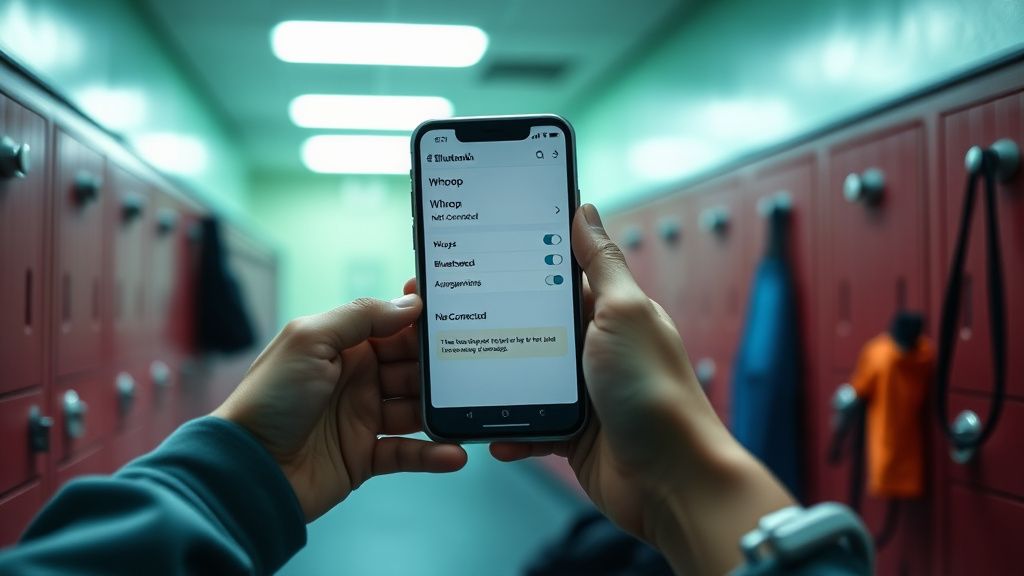
Go to your phone's Bluetooth settings (not the Whoop app — the system Bluetooth settings). Find the Whoop device in your paired devices list. Forget/unpair it. Then go to the Whoop app and attempt to pair fresh.
The sequencing matters. Many users try to re-pair from the app without first clearing the system-level bonding record. The app's re-pair flow and the OS-level bonding are separate subsystems that can get out of sync with each other.
Step 4: Clear the Whoop App Cache
On Android: Settings → Apps → Whoop → Storage → Clear Cache (not Clear Data, unless you're prepared to log back in). This removes any locally corrupted pairing state the app may have stored.
On iOS: There's no direct cache-clear option. The functional equivalent is to offload the app (Settings → General → iPhone Storage → Whoop → Offload App) and reinstall it. This preserves your account credentials while removing cached application state.
Step 5: Factory Reset the Whoop 4.0
This is the nuclear option at the device level, and it's more finicky than it should be. To factory reset a Whoop 4.0:
Press and hold the button on the device for approximately 10 seconds. The LED will flash in a specific pattern — typically a series of rapid flashes followed by a pause. Release. The device will reboot into a clean state and begin advertising as a new, unpaired device.
The complication: if your device has pending unsynced data, this reset will erase it. Whoop stores up to 30 days of data on the device itself, but a factory reset clears this local buffer. This is a real cost, and the Whoop support documentation doesn't surface this consequence prominently. Users on the r/whoop subreddit have posted about losing weeks of recovery data because they factory reset without realizing the implications.
"Did the factory reset per support's advice. Lost three weeks of sleep data. They said the cloud backup would have it. It didn't. The device hadn't synced because it wasn't pairing. Circular problem." — Reddit, r/whoop, 2023
Step 6: Check for Conflicting BLE Devices
If you have multiple Bluetooth devices active — earbuds, a smartwatch, a bike sensor, a heart rate monitor — some phones have known issues with BLE scanning when there are too many active bonded devices. iOS has historically had better handling of this than Android, but neither is immune. Temporarily disable other Bluetooth devices and attempt pairing in isolation.
Step 7: Address Android-Specific Battery Optimization Conflicts
This is one of the most underdiagnosed causes of persistent pairing and sync failures on Android. Android OEMs — particularly Samsung, Huawei, Xiaomi, and OPPO — aggressively kill background processes to optimize battery life. The Whoop app needs to run in the background to maintain BLE connection and sync data. If the system kills it, the BLE connection drops.
Navigate to Settings → Apps → Whoop → Battery → set to "Unrestricted" or "Don't optimize." On Samsung devices, you'll also want to check Settings → Device Care → Battery → Background usage limits and ensure Whoop is not on the "Sleeping apps" list.
This doesn't fix initial pairing, but it explains why users report that pairing "works" but the device constantly drops and re-syncs unreliably.
The Firmware Update Problem
Whoop pushes firmware updates to the 4.0 silently, over-the-air, during sync. This is generally fine, but there's a known failure mode where a firmware update initiates while the BLE connection is unstable. The update may partially transfer, leaving the device in an indeterminate state where the old firmware is partially overwritten and the new firmware is incomplete.
The device won't report this as an error to the app. It will just behave strangely — sometimes pairing normally, sometimes refusing to pair, sometimes connecting but not syncing. The internal storage state is inconsistent.
The fix for this is a factory reset, which creates the data-loss paradox described above. Whoop's engineering team has been aware of this failure mode — it's been reported in support tickets going back to at least 2022 — but as of this writing, there's no user-visible firmware update status indicator in the app that would let you see if an update is in progress or stuck.
This is a design choice with real costs. The "invisible" update experience that feels seamless when it works becomes genuinely opaque when it fails.
Edge Cases and Unusual Failure Modes
The "Wrong Account" Trap
If a Whoop device was previously assigned to a different Whoop account, it may refuse to pair to a new account even after a factory reset. This is because Whoop's device management system ties devices to accounts at the backend level, not just at the device level. If you bought a used Whoop 4.0 and the previous owner didn't properly remove it from their account, the device will appear to pair but will fail to authenticate with Whoop's servers.
The fix requires contacting Whoop support and providing proof of ownership. This is a known friction point for the secondary market. Whoop's support response time varies significantly — users report anywhere from a few hours to several days for this type of resolution.
Multi-Phone Conflicts
A Whoop 4.0 is designed to pair with one phone at a time. If you switch phones without properly unpairing — which happens constantly when people upgrade devices — the new phone's Whoop app may think the device is paired (because the account association exists in the cloud) while the device itself still thinks it's bonded to the old phone's Bluetooth hardware. The ghost bond exists on the device side, not the account side.
This is one of the reasons Whoop's "switch to new phone" flow needs to be explicit about clearing the device's Bluetooth bond first, not just logging into the app on the new phone. The documentation exists but isn't surfaced prominently enough.
Environmental RF Interference
Gyms are RF-hostile environments. 2.4GHz WiFi networks, other Bluetooth devices, microwave-based equipment, and crowded BLE advertising from dozens of other wearables all create interference. The Whoop 4.0 uses adaptive frequency hopping, as required by the BLE spec, but in very dense RF environments, users do report sync instability. This isn't a bug, exactly — it's a real-world limitation of the radio technology. The fix is to sync in a quieter RF environment or ensure the phone and device are physically close (within 30cm) during sync.
Real Field Reports: What's Actually Happening Out There
The r/whoop subreddit, which has over 200,000 members, functions as an informal bug tracker for the product. Scrolling through it reveals persistent patterns that official support documentation doesn't acknowledge clearly.
One common thread: the Whoop app's pairing flow breaks after major iOS version updates. In the weeks following iOS 16 and iOS 17 releases, r/whoop saw significant spikes in pairing failure reports. Whoop's response was typically to push an app update within one to two weeks, but users in the gap period were left troubleshooting with advice that didn't address the root cause — a BLE stack behavior change in the new iOS version.
Another recurring report: the Android app's Bluetooth scanning behavior fails silently on certain devices. Google Pixel 6 and 7 series users reported that the Whoop app would start scanning and then simply stop without finding the device, even with the device in pairing mode and in close proximity. The underlying issue appeared to be related to the Pixel's BLE scanning rate limiting, which Google implemented to reduce battery drain. The Whoop app's scanning timeout didn't account for this rate limiting, so it would time out before receiving the Whoop's advertisement packets.
A maintainer-level response from Whoop's developer team appeared briefly in the Whoop Community forums acknowledging "scanning improvements for select Android devices" in a release note — the kind of opaque language that tells experienced developers something meaningful and tells regular users nothing at all.
Counter-Criticism and the Honest Assessment
It's worth being direct about something: some of what gets attributed to "pairing bugs" is user-side workflow problems. People don't complete the unpairing process when switching phones. People don't update the app. People factory reset the device without understanding the data implications and then blame Whoop for data loss.
But the more interesting failure modes are genuinely Whoop's responsibility. The firmware update transparency problem is a design decision. The GATT failure silent error is a UX failure. The Android battery optimization conflict is something Whoop's Android team could address with better onboarding documentation and in-app prompts. The secondary market account-lock issue is a policy decision that creates real friction for legitimate users.
Whoop's subscription model — the device is essentially subsidized by a monthly membership — creates a specific kind of institutional pressure around the support experience. When users are paying monthly, unresolved technical issues erode retention in ways that a one-time hardware purchase doesn't. This should incentivize faster resolution. Whether it actually does is a question the public data can't answer clearly.
What the community data