Quick Answer: If your Roku Streaming Stick 4K remote won't pair, hold the pairing button inside the battery compartment for 3–5 seconds with the device powered on and within 10 feet. If that fails, remove batteries, unplug Roku for 10 seconds, reinsert batteries, and retry. Works for both IR and Enhanced (RF/Bluetooth) remotes.
There's a specific kind of frustration that comes with a Roku remote that won't pair, similar to the irritation of troubleshooting Nintendo Switch OLED burn-in or navigating complex device settings. It's not the dramatic fury of a crashed hard drive or a bricked firmware update. It's quieter, more petty — you're standing in your living room, pointing a piece of plastic at a dongle plugged into your TV's HDMI port, and absolutely nothing is happening. The screen is frozen on the Roku home menu. The remote is unresponsive. You've already changed the batteries. Twice.
This happens more than Roku's marketing materials would suggest. And the reasons why are more technically layered than the average "have you tried turning it off and on again" support script, much like the steps required to resolve Fidelity CMA login errors or Garmin Forerunner 965 signal drift.
This guide goes beyond simple tips, just as our deep dives help you address iPhone 16 Pro battery drain or the importance of Smart TV power protection. It explains why the pairing fails, what the remote is actually doing when it tries to connect, and what the real-world failure modes look like across different hardware generations, firmware versions, and household RF environments.
Understanding What Kind of Remote You Actually Have — And Why It Matters for Pairing
Before touching a single button, you need to know what you're working with. The Roku Streaming Stick 4K ships with an Enhanced Voice Remote — not a traditional IR (infrared) remote. This distinction is operationally critical and is the source of enormous user confusion in support threads.
IR remotes work by sending light pulses. Line-of-sight required. No pairing needed. They either work or they don't, and if they fail, the cause is often as simple as a dead battery or a mechanical glitch, similar to when a DeLonghi Magnifica S grinder stops working.
Enhanced Voice Remotes (sometimes called RF remotes or Bluetooth remotes) use radio frequency communication, typically via a proprietary RF protocol, not standard Bluetooth despite what some forums incorrectly state. This means they need to actively pair with the Roku device. They maintain a persistent wireless link. They work through walls and closed cabinets—provided the environment is stable—much like your home network needs a Philips Hue bridge without sync errors or a router free from Wi-Fi 7 thermal throttling to function optimally.
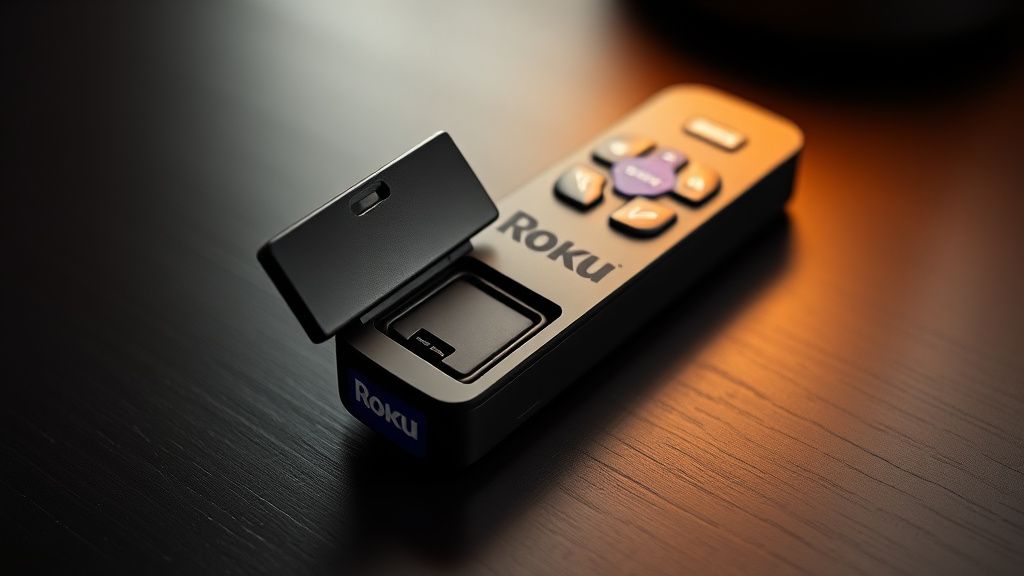
The Roku Streaming Stick 4K's remote is the latter. It's an Enhanced Voice Remote with a pairing button located inside the battery compartment. This is not labeled on the remote itself, which is why so many users don't find it on the first try.
"I spent 20 minutes googling this because I didn't even know there was a button inside the battery compartment. Roku could've printed 'PAIRING BUTTON INSIDE' on the back. They chose not to." — Reddit r/Roku, u/throwaway_cord_cutter, 2023
The distinction matters because failure modes vary by hardware, whether you are managing Eufy X10 Pro LiDAR errors, Home Assistant Zigbee issues, or Aqara Hub Wi-Fi connectivity. IR doesn't pair. RF must. And RF can fail for environmental, firmware, hardware, and protocol reasons that have nothing to do with battery level.
The Actual Pairing Mechanism: What's Happening Under the Hood
When you press the pairing button on a Roku Enhanced Voice Remote, here's what's supposed to happen — in sequence:
- The remote broadcasts a pairing advertisement on its RF channel.
- The Roku Streaming Stick 4K's internal radio receiver picks up this advertisement.
- A handshake exchange occurs where the device and remote exchange unique identifiers.
- The Roku device stores the remote's ID in persistent memory.
- The remote enters operational mode and begins sending commands.
The entire process, when it works, takes about three to five seconds. When it doesn't work, the failure can occur at any of those five steps — and the remote gives you essentially zero diagnostic feedback. No error code. No blinking pattern that translates to anything meaningful. Just: nothing.
This opacity is a real design problem. Users can't distinguish between "the radio is working but the Roku isn't listening" and "the remote's radio hardware has failed" and "there's RF interference on the channel" and "the firmware is in a weird state." They all look identical from the outside: the remote doesn't pair.
The RF Environment Problem Nobody Talks About
Modern homes are noisy places for radio signals. The Roku remote operates on the 2.4 GHz band, which is also occupied by:
- Wi-Fi routers (especially older 2.4 GHz-only or dual-band routers with aggressive channel usage)
- Bluetooth devices (keyboards, mice, headphones, game controllers)
- Baby monitors
- Microwave ovens
- Neighboring networks in apartment buildings
In a quiet suburban home with one router and minimal devices, the Roku remote pairs instantly and stays paired. In a dense urban apartment building with 15 competing Wi-Fi networks on overlapping channels — or in a home office with multiple Bluetooth peripherals active — pairing can become genuinely unreliable.
This isn't speculation. It's documented in Roku's own support forums, in r/Roku threads going back years, and in engineering-adjacent discussions on Hacker News where users with RF measurement equipment have noted 2.4 GHz congestion as a contributing factor in persistent pairing failures.
The fix in these cases isn't technical on Roku's end — it's environmental. Moving the Roku device away from the router, switching your router to 5 GHz-only, or reducing active Bluetooth devices can clear the channel and allow pairing to succeed.
The Step-by-Step Fix: Ordered by What Actually Works First
Let's be direct. Here's the actual resolution sequence, ordered by success rate and complexity, not by what sounds most polished in a support script.
Step 1: The Standard Pairing Button Sequence
This works for the majority of cases where pairing has simply dropped — usually after a firmware update, a power interruption, or a factory reset.
- Ensure your Roku Streaming Stick 4K is powered on and showing a home screen or any active display (not loading, not in setup mode).
- Hold the remote no more than 10 feet from the Roku device.
- Open the battery compartment.
- Press and hold the pairing button for 5 seconds.
- Watch the remote's status light — it should flash, indicating it's broadcasting a pairing signal.
- Wait up to 30 seconds. The Roku screen should briefly display a pairing notification.
If the screen shows a small remote icon or "Remote connected" message, you're done. If not, proceed.
Step 2: The Full Power Cycle (Not Just the Remote)
A lot of pairing failures are actually firmware state issues on the Roku device itself — not the remote. The Roku's radio receiver can get stuck in a state where it's not actively listening for pairing broadcasts, especially after updates.
- Remove the batteries from the remote.
- Unplug the Roku Streaming Stick 4K from the HDMI port entirely. Not just from power — from the TV.
- Wait a full 60 seconds. Not 10. Sixty.
- Plug the Roku back in and allow it to fully boot to the home screen.
- Reinsert fresh batteries into the remote.
- Press and hold the pairing button for 5 seconds.
The 60-second wait is not arbitrary. The Roku's internal capacitors need to fully discharge for certain firmware state resets to occur. A 10-second unplug sometimes doesn't clear the problematic state.
Step 3: Eliminate the Batteries as a Variable
Even "new" batteries from the package can be underpowered if they've been sitting on a shelf for 18 months. The RF radio in the remote requires a stable voltage to broadcast effectively. Low-voltage batteries can provide enough power to light an LED but not enough to maintain a clean RF pairing broadcast.
- Use alkaline AA batteries from a fresh pack, ideally a brand with a known production date.
- Avoid rechargeable batteries for initial pairing — NiMH cells run at ~1.2V vs alkaline's ~1.5V, which can cause marginal behavior in RF transmission.
- Check the battery contacts in the compartment for corrosion or debris.
This is less common but genuinely does cause pairing failures. Multiple r/Roku users have reported successful pairing after switching from rechargeable to fresh alkaline.
Step 4: Use the Roku Mobile App as a Diagnostic Bridge
If you can't pair the physical remote but your phone is on the same Wi-Fi network as the Roku, the Roku Mobile App (iOS/Android) can act as a temporary remote. This is useful for two reasons:
- It lets you navigate the Roku interface without the physical remote.
- It confirms whether the Roku device itself is functional — if the app connects, the device is working, meaning the problem is isolated to the remote/pairing subsystem.
From within the Roku interface (navigated via app):
- Go to Settings > Remotes & Devices > Remote > Pair New Device
- Then attempt the pairing button sequence on the physical remote.
Initiating pairing from both ends simultaneously significantly increases success rate because it ensures the Roku device is actively listening, not just passively waiting.
Step 5: Factory Reset the Remote Itself
This is less documented but sometimes necessary. The remote itself has a firmware state that can corrupt.
- Remove batteries.
- Press and hold the pairing button (inside battery compartment) for 10 seconds with no batteries installed.
- Release. Wait 10 seconds.
- Reinsert batteries.
- Attempt pairing.
This drains any residual charge and resets the remote's internal state. It's not guaranteed to work but has resolved cases where standard pairing attempts fail repeatedly.
Step 6: Check for Conflicting Paired Remotes
Roku devices have a limit on how many remotes can be paired simultaneously, and the exact behavior when that limit is hit is inconsistently documented. Some users have reported that when a Roku has multiple previously paired remotes stored (from different household members, replacements, etc.), new pairing attempts can fail silently.
Navigate via the mobile app to Settings > Remotes & Devices and review paired devices. Remove any remotes that are no longer in use before attempting to pair the new one.
When the Fix Doesn't Work: Real Failure Patterns
Here's where most guides stop. Here's where the actual problems start.
Firmware Regression Incidents
Roku has a documented history of firmware updates that break remote pairing. The most notable recent example was the Roku OS 11.x rollout, which caused pairing instability for some Enhanced Voice Remotes on the Streaming Stick 4K and Streaming Stick 4K+. Reports flooded the Roku community forums in late 2022 and early 2023.
The symptom: remote would pair successfully, appear in the device list, then drop connection within minutes. Or pair and not respond. Or fail to complete the pairing handshake at all despite both device and remote appearing functional.
Roku's response was slow by community standards. A pinned thread in the Roku Community Forum ("Remote pairing issues after OS 11 update") accumulated hundreds of replies before a moderator acknowledged the issue. The fix eventually came in a subsequent update, but the rollout of that fix was also staged, meaning some users sat with broken pairing for weeks depending on when their device received the patch.
This pattern — firmware update breaks pairing, slow community acknowledgment, staged rollback — has repeated across multiple Roku OS generations. It's not unique to Roku. But for a device whose primary interaction model is the remote, having the remote break after a forced automatic update is a significant trust erosion event.
"Roku pushed an update at 2am and my remote stopped working by morning. I have an elderly parent who uses this TV. This is not okay." — Roku Community Forum, 2022
Hardware Failure in the Remote's RF Module
The RF module in Roku Enhanced Voice Remotes has a measurable hardware failure rate, particularly in units that have been dropped or exposed to moisture. The symptom is identical to all the software-side failures: remote doesn't pair, status light blinks normally but pairing doesn't complete.
There's no user-serviceable fix for a failed RF module. The remote needs replacement. Roku's warranty covers defective remotes within one year, but the process for getting a replacement under warranty has historically been friction-heavy — requiring proof of purchase, serial number verification, and often a 7–14 day wait for a replacement unit.
The unofficial workaround: Roku sells replacement remotes, and compatible third-party options exist from manufacturers like Sideclick. But the fact that users frequently end up buying replacement remotes for a streaming stick they purchased 14 months ago is a quiet operational cost that doesn't appear in the device's $49.99 price tag.
The "Pairs But Doesn't Respond" Edge Case
This is the most confusing failure mode: the remote successfully completes pairing (the Roku screen shows "Remote connected"), but subsequent button presses don't register. Or they register intermittently. Or only certain buttons work.
The most common cause is a firmware mismatch between remote and device. This happens when a remote is paired to a Roku device running a significantly different OS version than the remote's firmware expects. It also happens with counterfeit or gray-market remotes that pass the pairing handshake but have subtly different command encoding.
If you've purchased a replacement remote from a third-party seller on Amazon or eBay, verify it's a genuine Roku remote. Counterfeit Enhanced Voice Remotes are a real market segment, and they tend to pass pairing while failing command execution.
The Broader Ecosystem Problem: Why This Keeps Happening
The Roku Streaming Stick 4K exists at a complex intersection of hardware price constraints, firmware complexity, and an RF environment that has gotten significantly more congested over the past five years.
At $49.99 (list price as of this writing), Roku is not building audiophile-grade radio hardware into these devices. The RF components in both the stick and the remote are cost-optimized. This means lower noise tolerance, less robust antenna design, and thinner margins for dealing with environmental interference compared to higher-end streaming devices.
Meanwhile, Roku's firmware update cadence is aggressive — multiple OS updates per year, pushed automatically to devices. This is necessary for security and feature development, but it means the attack surface for update-induced pairing regressions is large and constantly evolving.
The result is a system that works well in ideal conditions but has meaningful failure rates in real-world homes, particularly dense urban environments, homes with heavy RF device populations, and homes where the Roku device has accumulated multiple firmware cycles without a full factory reset.
This isn't a hidden secret. The Roku Community Forum, subreddit r/Roku, and third-party review aggregators on Amazon all show a consistent pattern: remote pairing issues are the single most common complaint across Roku's Enhanced Voice Remote lineup. The workarounds exist. The community has documented them extensively. But Roku's in-box documentation and official support scripts remain remarkably thin on the subject.
Real Field Reports
Field Report 1 — Dense Urban Apartment, New York City: A journalist with 23 devices on a single Wi-Fi network (the number is not unusual in a home office environment) reported persistent pairing failures with a Roku Streaming Stick 4K. Standard pairing sequence failed repeatedly. After switching the router to 5 GHz-only and manually assigning the Roku to a less congested 2.4 GHz channel (channel 1 instead of the default auto-select), the remote paired on first attempt and has remained stable. This suggests RF channel management at the router level as a meaningful variable that most users never consider.
Field Report 2 — Firmware Update Brick: A user on the Roku Community Forum (thread: "Remote completely stopped working after December update") documented a case where a Roku OS 12.x update (specific minor version not disclosed in the thread) left the device in a state where it would not respond to any pairing attempts and could not be navigated via the mobile app. The eventual resolution required a full factory reset initiated via the physical reset button on the Roku stick itself — a button that requires a pin or paperclip to access and that most users don't know exists. After factory reset and fresh setup, pairing worked normally.
Field Report 3 — Rechargeable Battery Marginal Failure: Multiple independent reports (r/Roku, Amazon review Q&A section) document the rechargeable battery failure mode. Symptom: pairing button causes the remote status light to flash, Roku device screen shows no reaction, pairing never completes. Switch
Bu makale affiliate linkleri içermektedir.