Quick Answer: Brother printer showing "Offline" on Windows or macOS? In most cases, the fix takes under five minutes: check the USB or network connection, set the printer as default, disable "Use Printer Offline" mode in the print queue, and restart both the printer and the print spooler service. If that doesn't work, a driver reinstall almost always resolves it.
There's a particular kind of frustration reserved for the moment when you need to print something urgently — a boarding pass, a contract, a kid's school form — and Windows confidently informs you that your Brother printer is "Offline." The printer is sitting right there. The power light is on. You can see it. The USB cable is plugged in. And yet the operating system insists the device doesn't exist in any functional sense.
This is one of the most common support threads on r/techsupport, one of the most-searched printer-related queries year after year, and — if you read through Brother's own community forums — a problem that has been producing nearly identical complaints since at least Windows Vista. The answers are almost always the same. The causes are almost always the same, just as there are common root causes for connectivity dropouts, such as Why Your Netgear Nighthawk Keeps Dropping Connection (And How to Fix It). And yet the "offline" status continues to trap people in diagnostic loops for hours, because the actual system behavior is more chaotic than any official troubleshooting document suggests.
This guide goes deeper than the standard "restart your printer" advice, much like how you might consult a guide on How to Fix Ghosting and Motion Blur on Your Samsung QLED TV when your display acts up. It maps the real failure architecture of Brother's offline status problem, explains why Windows and macOS handle printer state so differently, and covers the edge cases that official documentation quietly ignores.
Why "Offline" Doesn't Actually Mean What You Think It Does
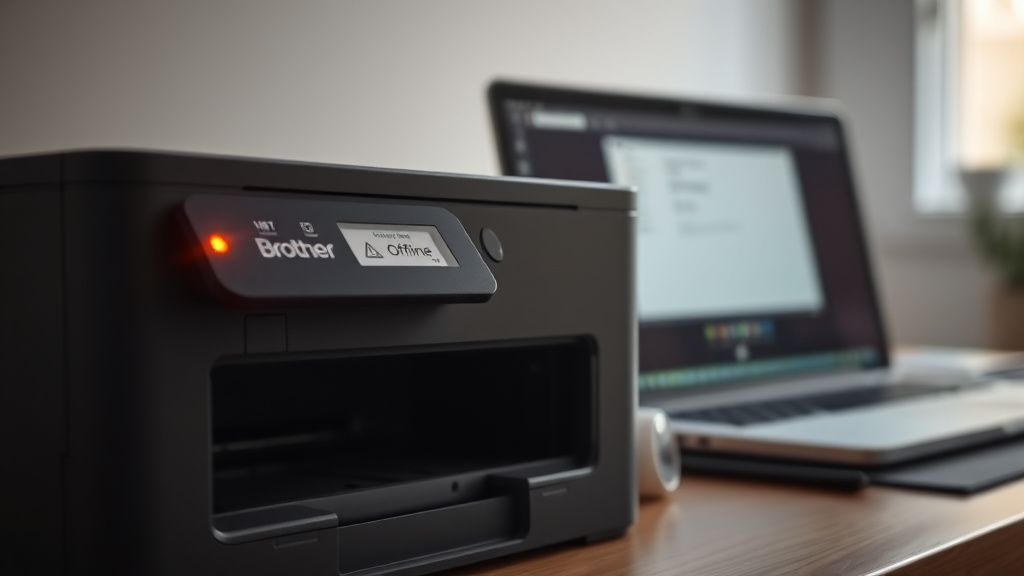
The word "offline" in a Windows print queue is one of the most misleading status messages in consumer computing. It implies a connection problem. A physical disconnection. Something tangibly broken. But in reality, the Windows print spooler — the service that manages print jobs — uses "offline" to flag a much wider category of states, many of which have nothing to do with whether the printer is physically connected.
The print spooler can mark a printer offline for various reasons, a complexity mirrored in appliances that fail to heat, as detailed in Why Your Gaggia Classic Pro Isn't Heating: A Repair Guide for Common Thermal Failures.
- A previous print job failed silently, much like the frustration of encountering OLED Vertical Banding: Is Your TV Defective or Just Normal?.
- The spooler service itself crashed and didn't reinitialize the port correctly
- The printer's IP address changed on the network, or perhaps you are facing other tech glitches like Is Your iPhone 16 Pro Battery Draining Fast? Here Is the Real Fix.
- Windows detected a brief connection interruption and never recovered the state, an issue similar to troubleshooting Is Your Eufy X10 Pro Omni Lost? How to Fix Persistent LiDAR Errors.
- The driver entered a fault state after a Windows update
- The "Use Printer Offline" mode was accidentally enabled — and stays enabled persistently even after reconnection
That last one is particularly insidious. Windows has a manual "Use Printer Offline" toggle buried inside the print queue. Once enabled — sometimes by a misclick, sometimes triggered by a failed job — it doesn't clear automatically when the printer comes back online. It just stays there. The printer could be fully functional, perfectly connected, ready to print, and Windows will still refuse to send jobs because that checkbox remains ticked. Users have spent hours checking cables and reinstalling drivers when the fix was a single menu item.
"The spooler architecture hasn't fundamentally changed since Windows XP in terms of how it handles offline state recovery," wrote a developer in a 2019 Hacker News thread discussing persistent printer bugs. "It's genuinely one of the oldest pieces of still-running code in the Windows ecosystem."
The Brother-Specific Layer of Complexity
Brother printers add their own layer of complexity on top of Windows' already fragmented printer management system. Brother ships multiple parallel driver packages for most of its printer models — a "full driver" package, a "basic" driver, sometimes a "BR-Script" PostScript driver, and increasingly, a Universal Print Driver. These can coexist on a system, sometimes in conflicting configurations, especially after Windows updates or system migrations.
On Windows 10 and Windows 11, Windows Update occasionally silently replaces a Brother driver with a generic "Microsoft IPP Class Driver" — a streamlined, minimal driver that Microsoft has been aggressively pushing as part of its effort to reduce driver-related system instability. The Microsoft IPP driver works adequately for basic printing but often lacks access to Brother-specific features: duplex settings, paper tray selection, toner save mode, scan-to-email functions. More critically, it sometimes handles offline/online state transitions differently from the official Brother driver, which can create persistent "offline" ghost states.
Users on Brother's community forum have documented cases where a Windows 11 cumulative update silently downgraded their Brother driver to the IPP version, after which the printer showed intermittent offline status — functioning sometimes, not others, with no obvious pattern. The fix in those cases was manually forcing the Brother full driver reinstall and preventing Windows Update from touching the driver again (via Group Policy or the pnputil command).
This isn't a conspiracy. Microsoft's push toward IPP is an engineering decision aimed at reducing driver-related BSODs and security vulnerabilities — driver code runs at kernel level, and third-party printer drivers have historically been a significant source of system crashes. But the operational reality for end users is that their printer works differently after an update they didn't ask for, and the error message they receive gives them no indication of why.
Real Field Reports: What Actually Goes Wrong
Case Study: The DHCP IP Address Drift Problem
A small law firm running roughly fifteen Brother MFC-series multifunction printers across a floor reported to their IT consultant that two or three printers would randomly show as offline each morning, requiring staff to manually "right-click > See what's printing > Printer > Use Printer Online" every day. The printers were connected over Wi-Fi. The fix took the consultant about ten minutes once he identified the root cause: the office router was assigning IP addresses via DHCP without reservations, and the printers were occasionally getting new IPs after overnight power cycling.
The print ports on each Windows workstation were configured with static IP addresses pointing to where the printers used to be, not where they were now. Because the IP no longer matched, the spooler marked the printer offline. The permanent fix was either assigning static IPs to the printers from the router's DHCP reservation table or updating the printer port to use the printer's hostname (via mDNS/Bonjour) rather than a hardcoded IP.
This is an incredibly common scenario in small business environments. It's almost never documented in Brother's official troubleshooting material. The official guide says to check the IP address. It doesn't explain what to do architecturally to prevent the problem from recurring.
Case Study: The Windows 11 22H2 Driver Regression
After Microsoft released Windows 11 version 22H2 in late 2022, a wave of Brother printer offline reports flooded the r/Windows11 and r/Brother subreddits. The pattern was consistent: printer worked fine before the update, showed persistently offline after. Print spooler restarts helped temporarily but the state would revert.
The underlying issue was traced by several technically capable users to a change in how 22H2 handled bi-directional communication (BiDi) between the spooler and USB-connected printers. Some Brother models — particularly older Brother HL-series monochrome laser printers — had drivers that expected a specific response protocol during the initial handshake. The 22H2 change altered the timing of that handshake sequence, causing the driver to conclude the printer was unresponsive.
Brother eventually updated their drivers. But the update took weeks to propagate, during which time forum threads accumulated hundreds of "same problem here" replies, and Brother's official support line was reportedly advising users to perform full driver reinstalls — which temporarily worked but didn't address the root cause.
"The update didn't break my printer. It broke Windows' relationship with my printer. Different problem, same result." — Reddit user u/print_admin_tired, r/Windows11, October 2022

The Step-by-Step Architecture of a Proper Fix
Most guides list steps without explaining the why behind them. Here's the full diagnostic tree, with the reasoning included.
Step 1 — Physical and Connection State Verification
Before touching software, eliminate hardware.
USB connections: Swap the USB cable if possible. USB cables degrade and cause intermittent connection drops that Windows interprets as printer disconnection. USB 2.0 printer cables are particularly susceptible to this over time. Brother printers typically use USB Type-B (the square connector). Try a different USB port on the computer — some USB ports are power-limited or have hardware-level issues.
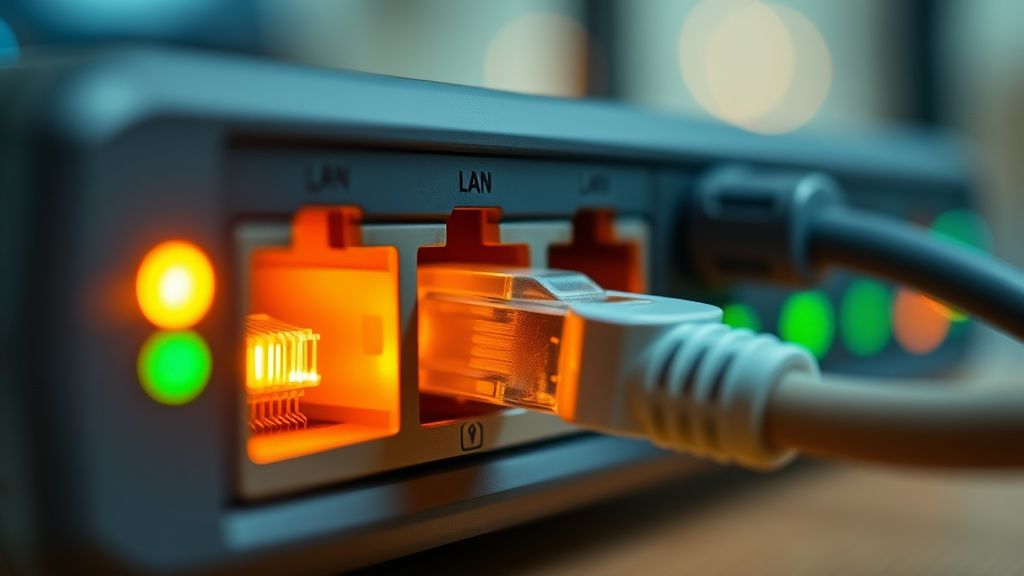
Network connections (Wi-Fi or Ethernet): Print a network configuration page from the printer itself (typically accessible via the printer's menu system or by holding certain buttons at startup — consult the model-specific manual). This page shows the printer's current IP address. Compare it with what's configured in your Windows printer port.
Power cycle with intention: Don't just turn the printer off and on. Turn it off, wait 30 seconds, turn it on, wait for it to fully initialize (all indicators stable), then check the status in Windows. The initialization sequence matters — a printer that appears ready but hasn't completed its internal startup can still show as offline.
Step 2 — Clear the "Use Printer Offline" Flag
This is the most commonly missed step in mainstream guides.
- Open Settings > Bluetooth & devices > Printers & scanners (Windows 11) or Control Panel > Devices and Printers (Windows 10)
- Click on your Brother printer
- Select Open print queue
- In the print queue window, click Printer in the menu bar
- If "Use Printer Offline" has a checkmark next to it, click it to uncheck it
This toggle is a legacy Windows feature originally designed to let users queue print jobs when they know the printer is temporarily unavailable (e.g., a laptop user preparing documents before connecting to a printer). It's useful in theory. In practice, it gets accidentally enabled and then silently prevents all printing with no clear error message.
Step 3 — Restart the Print Spooler Service
The print spooler is a Windows service (spoolsv.exe) that manages all print job queuing. It crashes, hangs, and gets into corrupt states more often than Microsoft's documentation acknowledges.
Via Services console (most thorough method):
- Press
Win + R, typeservices.msc, press Enter - Scroll to Print Spooler
- Right-click → Stop
- Navigate to
C:\Windows\System32\spool\PRINTERS - Delete all files in this folder (not the folder itself) — these are queued print jobs, many of which may be corrupted
- Return to Services, right-click Print Spooler → Start
Via Command Prompt (faster for technical users):
net stop spooler
del /Q /F /S "%systemroot%\System32\spool\PRINTERS\*.*"
net start spooler
Clearing the spool folder is critical. Guides that tell you to just restart the spooler without clearing the queue are setting you up for a recurrence — the corrupted job reloads when the service starts, and you're back to square one.
Step 4 — Set the Printer as Default and Remove Duplicate Entries
Windows sometimes creates multiple entries for the same physical printer — one from the original driver installation, one from a Windows Update driver replacement, sometimes a third from a reinstall that didn't properly clean up the previous instance. These duplicate entries confuse the spooler's port assignment logic.
Go to Printers & scanners and look for multiple Brother entries with similar names. Remove all but the one you want to use. Then right-click the remaining entry and set it as the default printer.
Also, in Printers & scanners settings, scroll down and ensure "Let Windows manage my default printer" is turned off if you want your choice to stick. When this setting is on, Windows automatically changes the default printer to the last one used — which can mean it switches away from your Brother printer to a PDF or fax driver after you use one of those, then the Brother shows "offline" next time because it's no longer default.
Step 5 — Verify and Update the Printer Port
For network-connected printers, the port address is where most persistent offline problems originate.
- Go to Control Panel > Devices and Printers
- Right-click your Brother printer → Printer properties
- Click the Ports tab
- Find the highlighted (active) port and note its IP address
- Compare this against the IP shown on your printer's configuration page
If they don't match: click Configure Port and update the IP address, or — better — add a new Standard TCP/IP port using the printer's current IP, then select that new port in the Ports tab.
For long-term stability on a network with DHCP: configure a DHCP reservation in your router settings for the printer's MAC address (also shown on the configuration page). This ensures the printer always gets the same IP without requiring you to manually configure static IP on the printer itself.
Step 6 — Driver Reinstallation (The Nuclear Option That Often Isn't Overkill)
If the above steps haven't resolved the issue, the driver stack is likely in a corrupted or conflicted state. A clean reinstall is warranted.
The correct reinstall process (most guides skip critical steps here):
Download the full driver package for your specific model from Brother's official support site (
support.brother.com). Don't use the disc. The disc version is almost certainly outdated.Before running the installer: go to Settings > Apps (Windows 11) or Control Panel > Programs and uninstall all Brother-named software entries.
Go to Devices and Printers, delete the Brother printer entry.
Open Device Manager, enable "View > Show hidden devices," and look under Printers for any remaining Brother entries (they may appear grayed out). Delete them.
Open Print Management (type it in Start search — available on Windows Pro/Enterprise), and under Drivers, manually remove all Brother driver entries.
Run the driver package you downloaded. During installation, when it asks for connection method, choose the correct one (USB vs. network). For network printers, allow the installer to detect the printer rather than manually entering an IP — the installer's detection is usually more reliable.
This full clean procedure takes about fifteen minutes but has a dramatically higher success rate than running the installer over an existing installation.
macOS: A Different Architecture, Different Failure Modes
macOS handles printers through CUPS (Common Unix Printing System), and the failure modes are different — though equally frustrating in their own ways.
On macOS, Brother printers going offline is frequently caused by:
AirPrint vs. dedicated driver conflicts: macOS Ventura and later versions strongly push AirPrint for Brother printers. AirPrint works well for basic printing but some users report that when a Brother printer is configured via AirPrint and the dedicated Brother driver is also installed, the system intermittently loses track of which queue is which.
CUPS queue corruption: Similar to Windows' spooler, CUPS maintains a queue that can get corrupted. The fix is similar: delete pending jobs, restart the CUPS service via Terminal (
sudo launchctl stop org.cups.cupsd && sudo launchctl start org.cups.cupsd).Sleep/wake network recovery failures: When a Mac wakes from sleep, the network stack sometimes reinitializes in a way that briefly disrupts mDNS (Bonjour) discovery. Brother printers configured via Bonjour hostname can appear offline for 30-60 seconds. If the print job fires during that window, it fails and the printer shows offline. This is a known macOS networking edge case that Apple has never fully addressed.
SSID roaming issues: On Macs using Wi-Fi, if the machine roams between access points on the same network (common in homes with mesh systems), the printer's mDNS advertisement can briefly disappear, causing the same issue.
Counter-Criticism and Debate: Is This Really Brother's Problem?
There's a legitimate argument — one you'll find in nearly every extended forum thread on this topic — that Brother's printers are fundamentally fine, and that the "offline" problem is almost entirely a Windows/macOS driver management issue that Brother, as a third-party hardware vendor, cannot fully control.
This argument has real merit. Microsoft's printer driver ecosystem is genuinely chaotic. The history of Windows silently replacing manufacturer drivers with generic alternatives, of print spooler instability (a PrintNightmare vulnerability in 2021 made global news and required emergency patches), of the OS failing to recover gracefully from brief connectivity interruptions — none of this is Brother's fault.
But the counter-argument also has weight: Brother's installer packages are not always clean uninstallers. They leave registry entries
Bu makale affiliate linkleri içermektedir.