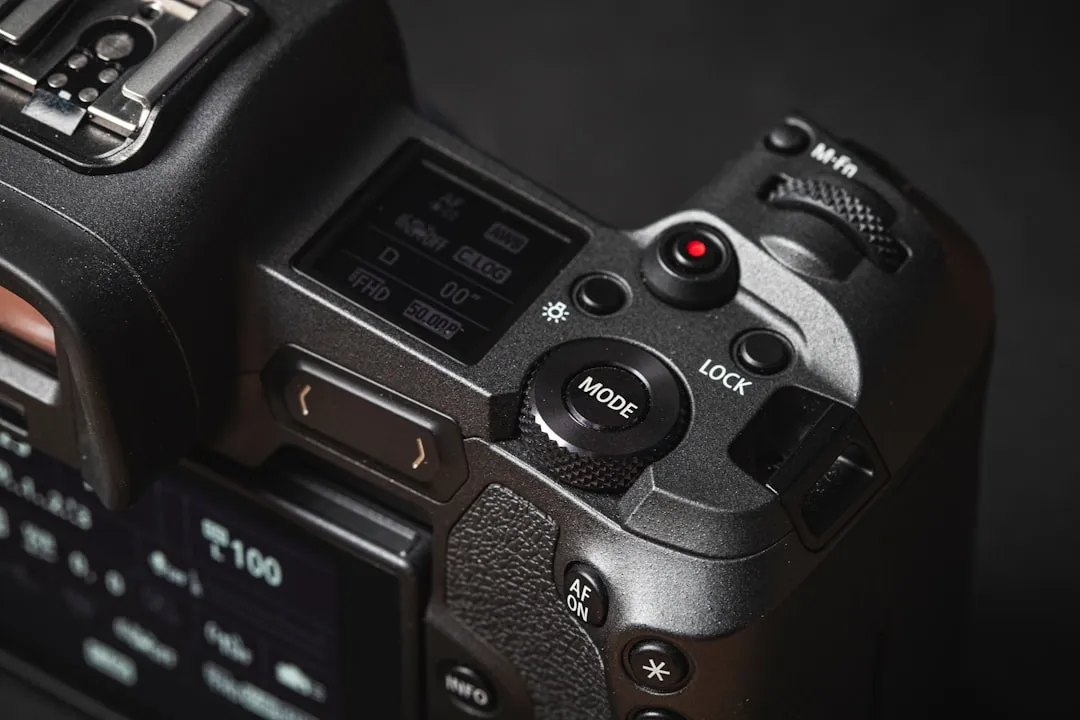
To resolve USB-C connectivity issues on your Canon EOS R6 Mark II, first verify the cable is a high-speed data transfer cable (10Gbps+), not just a charging cable. Disable "Wi-Fi/Bluetooth" in the network settings, ensure your firmware is updated to the latest version, and attempt a hard reset by removing the battery while the camera is connected.
The Canon EOS R6 Mark II is a triumph of hybrid engineering, balancing 40fps electronic shutter bursts with refined 6K oversampled video. Yet, when you are standing in a studio with a client watching the monitor, the "USB Connection Error" prompt is not just a bug; it is an existential threat to your workflow. The USB-C port on the R6 Mark II is a high-bandwidth gateway for tethering, firmware updates, and direct-to-drive recording. When it fails, it rarely stems from a single source. It is usually a collision of protocol mismatches, physical wear, and firmware handshake failures.
The Anatomy of the USB-C Handshake Failure
The USB-C port on the R6 Mark II is not merely a plug; it is a complex controller managing Power Delivery (PD) protocols, DisplayPort Alt Mode, and high-speed data throughput. When you plug a cable in, the camera's internal processor (the DIGIC X) must negotiate a handshake with the host computer (Windows or macOS) or the storage device.
This handshake is frequently interrupted. If the cable you are using is a budget "charging-only" USB-C cable, it lacks the data lanes required for the EOS Utility or Capture One to "see" the camera. You might be getting power, which gives you a false sense of security, but the data lines are non-existent. On forums like DPReview and the Canon Community, users often report that their camera "charges fine but won't connect," a classic indicator of a missing data-pair cable.
Troubleshooting the Physical Layer: Beyond the Cable
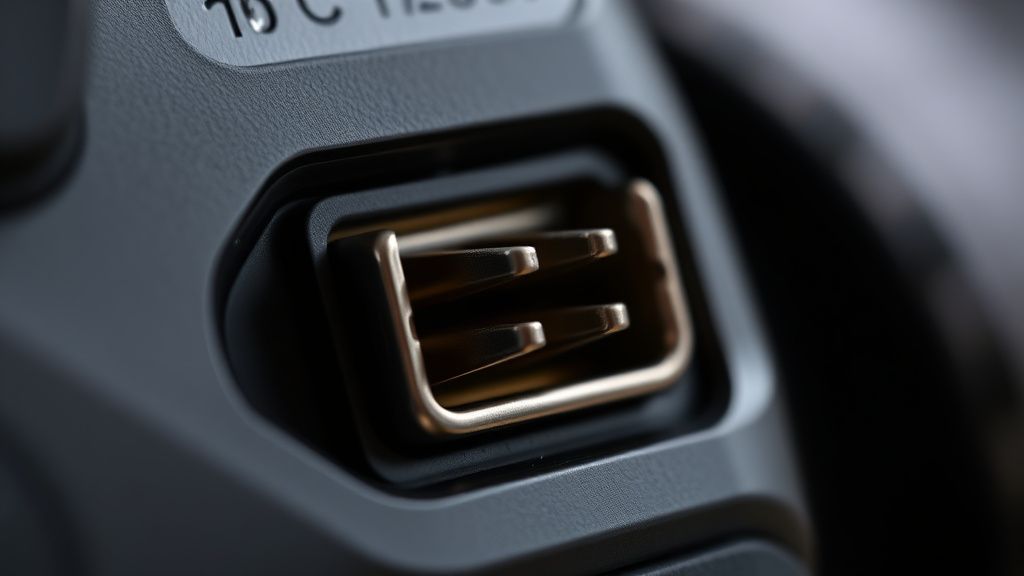
Before diving into software, we must address the "dust and lint" factor. The USB-C port is a cavern that traps pocket lint and ambient dust. If your camera lives in a gear bag—as it should—the port is prone to debris buildup. When you insert a cable, this debris acts as a spacer, preventing the gold pins from making a clean connection.
Operational Reality Check: Do not use metal tweezers to clean the port. I have seen more than one user bridge the pins, effectively shorting the USB controller. Use a non-conductive plastic dental pick or a blast of filtered compressed air. If the cable feels "mushy" or wiggles excessively when seated, your port’s mounting tabs inside the camera body may have loosened—a common repair ticket item for heavy tether shooters.
Firmware and Protocol Conflicts (The Software Nightmare)
Canon’s EOS Utility software is notoriously finicky. If you are running an outdated version of the utility, it may not recognize the R6 Mark II’s newer communication protocol, even if the hardware is functioning perfectly.
- The OS Lockdown: macOS (specifically Apple Silicon M-series chips) has introduced "Secure Enclave" and permission-based hardware access. If you haven't explicitly granted "Input Monitoring" or "Full Disk Access" to the EOS Utility, the OS may silently block the camera's communication bridge.
- The Power Delivery Conflict: The R6 Mark II can draw power via USB-C. Occasionally, the camera attempts to prioritize charging over data transfer. If you are using a powered USB hub, the camera might get "confused" between drawing power from the hub and trying to send data to the PC. Always connect directly to the computer’s primary Thunderbolt/USB-C port whenever possible.
Real Field Reports: The "Tethering While Charging" Paradox
In a recent thread on a prominent professional photography Discord server, a user noted: "Everything works great until I turn on the constant power adapter, then the camera drops the USB connection every ten minutes."
This highlights an often overlooked reality: the R6 Mark II's USB controller is sensitive to voltage fluctuations. When the camera is under heavy load—high-res raw transfers coupled with the camera trying to manage power distribution—it can hit a thermal or power threshold that causes the USB controller to reset.
The Workaround: If you are shooting long sessions, use a dummy battery (DC Coupler DR-E6) instead of relying on USB-C power delivery. This isolates the data port from the power regulation system, effectively "cleaning" the signal path.
Analyzing the "Broken Promise" of USB-C Standards
The "USB-C" label is technically a form factor, not a performance specification. This is the single biggest source of user frustration. You can buy a $5 USB-C cable that supports USB 2.0 speeds (480Mbps) and a $50 cable that supports Thunderbolt 4 (40Gbps). They look identical.
When troubleshooting connection errors:
- Check for "Data Transfer" certification: If the packaging doesn't explicitly mention data speeds (5Gbps or 10Gbps), it is a charging cable.
- Avoid Hubs if Possible: Passive USB hubs are the graveyard of tethered connections. They introduce signal latency that the EOS Utility interprets as a "timeout," causing the connection to drop.
- Cable Length: USB-C signal attenuation is real. Beyond 2 meters, you must use an active cable. Passive cables longer than 6 feet are a lottery; they might work today and fail tomorrow as the signal degrades.
The Role of EOS Utility and Capture One
If you are a professional, you are likely using Capture One or Adobe Lightroom for tethering. Both rely on the Canon SDK (Software Development Kit). When Canon pushes a firmware update, it often modifies how the camera speaks to the SDK.
The Cycle of Incompatibility:
- Firmware Update: Canon releases v1.2.0.
- SDK Lag: Adobe or Capture One has not yet updated their plugin to handle the new protocol shifts.
- The Result: The connection drops, or "No Camera Detected" errors proliferate.
If you find yourself in this cycle, the solution is rarely a "fix" on your end; it is a downgrade of the software or a temporary reversion to SD-card-based shooting until the software vendors release a hotfix. Monitor the Capture One Community Forums for "Camera Not Found" reports after every Canon firmware release.
Deep-Dive: System Constraints and Scaling Problems
Why does the R6 Mark II disconnect during a large batch transfer? The internal buffer in the camera is fast, but the USB controller must manage the file system overhead. If the SD card in the camera is slow (e.g., a low-rated V30 card), the camera may prioritize writing to the card over the USB bus, leading to a buffer bottleneck. This causes the USB handshake to appear "stalled," which the computer interprets as a lost connection.
Pro-Tip: Always use high-speed V60 or V90 SD cards if you are shooting tethered. The camera’s ability to clear its buffer directly influences the stability of your tethered stream.
When to Suspect Hardware Failure
If you have swapped cables, updated firmware, tested on multiple computers, and the camera still won't mount as a drive or connect to the utility, you are looking at an internal hardware failure.
Common failure points:
- Solder joint fracture: Repeated tugging on the USB cable (especially if you aren't using a tether block or cable clamp) puts immense stress on the logic board’s solder points.
- ESD (Electrostatic Discharge) damage: If you are working in dry environments, a spark from the cable tip to the port housing can fry the port’s ESD protection diode.
At this point, "troubleshooting" ends, and "service" begins. Canon’s professional service centers typically replace the entire mainboard if the USB-C daughterboard is integrated, which is a costly repair.
Counter-Criticism: Why Modern USB-C Implementation is Flawed
There is a growing chorus of criticism within the pro-photography community regarding the "consumerization" of pro-grade ports. By forcing a single USB-C port to act as charging, data, and video-out, manufacturers are creating a single point of failure that is physically fragile.
Critics argue that Canon should have included a dedicated, heavy-duty data port (like a proprietary multi-pin connector) or a secondary USB-C port for power specifically, to separate the critical data path from the volatile power path. Instead, the market has settled for a "good enough" solution that creates a massive support overhead for IT-literate photographers who find themselves becoming part-time cable testers just to get their work done.
How do I know if my USB-C cable is a data cable?
There is no universal visual indicator, which is the core of the problem. A "charging-only" cable has only two pins connected for power. A data cable has extra shielded wires for high-speed signals. If the cable is thick and stiff, it is likely shielded for data. If it is thin and flexible, assume it is for charging only. Use "System Information" on Mac or "Device Manager" on Windows to check if the camera appears as an external device when plugged in; if not, your cable is likely the issue.
My camera connects for 30 seconds then drops. What is happening?
This is usually a power-draw issue or a signal attenuation issue. If you are powering the camera via USB-C while shooting, the camera’s internal voltage regulator might be overheating or struggling to balance charging and data. Try disconnecting the USB power delivery or using a dedicated wall-powered dummy battery.
Does the SD card speed impact the USB connection?
Yes. The camera's processor manages the data stream. If the write speed to your SD card is slow, the camera cannot clear its buffer fast enough to send the image over USB. This creates a "backpressure" effect that can crash the USB handshake. Use V90 cards for stable tethering.
Can a firmware update brick my USB port?
Rarely, but a firmware update can change the USB communication protocol to be more "stringent." If your cable was borderline-compliant before the update, it might fail afterward. Always use the original Canon-supplied cable (or a certified Thunderbolt 4 cable) when performing firmware updates to avoid data corruption.
Is it possible to use a USB-C hub with the R6 Mark II?
While possible, it is highly unreliable. If you must use a hub, ensure it is a powered, high-bandwidth USB 3.2 Gen 2 hub. Passive hubs lack the signal amplification needed to maintain a stable tethered connection for extended periods.
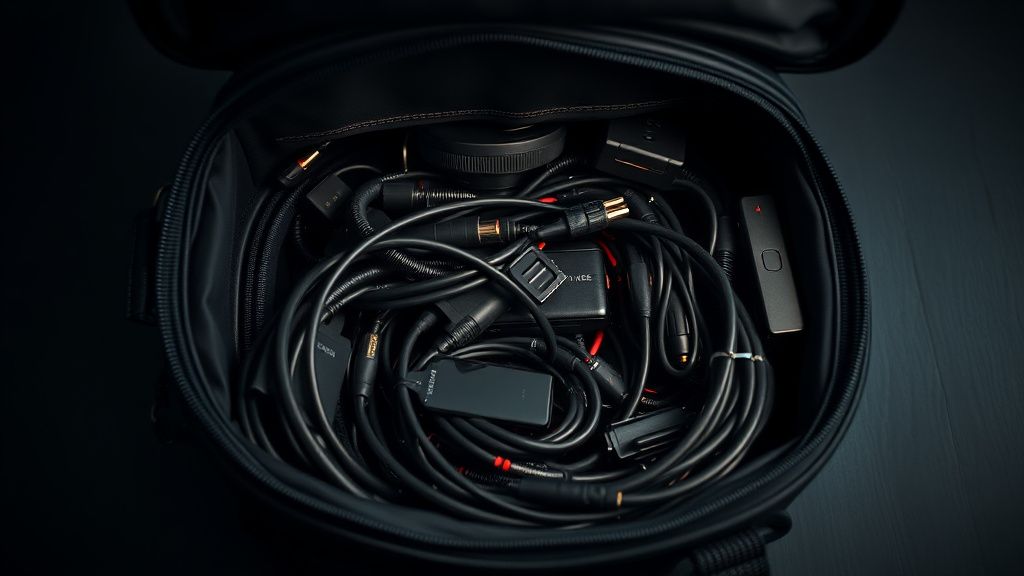
The Verdict on Tethering Stability
The EOS R6 Mark II is an exceptional tool, but it demands an disciplined infrastructure. Your workflow should treat the USB-C connection as a critical component, equal in importance to your lens glass or your sensor cleanliness. If you are experiencing repeated errors, stop trying to "fix" the software settings and start by replacing your cable with an active, high-speed certified data cable. Most "system" errors are simply communication failures caused by the chaotic reality of cheap, unmarked USB-C accessories that have flooded the market. Treat your hardware with the respect it requires, and the data will flow.