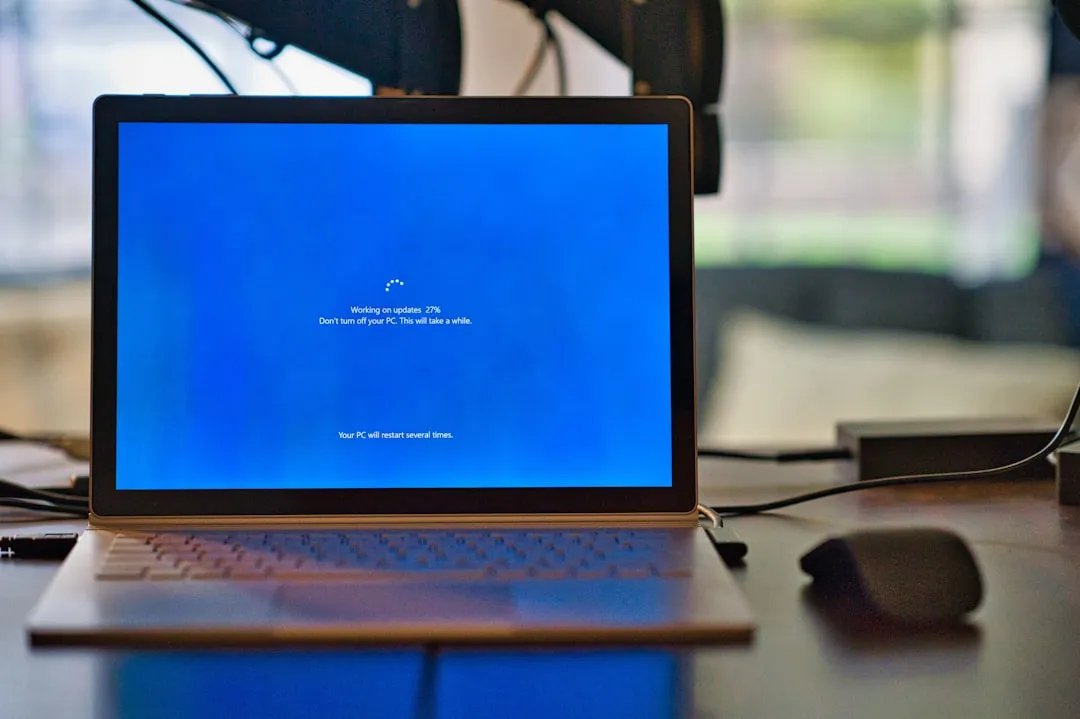
If your Microsoft Surface Laptop refuses to wake from sleep, you are likely dealing with a "black screen of death" state caused by a power state transition failure, much like when a Surface Laptop 7 encounters a black screen. This is often a result of firmware-level mismanagement during Modern Standby (S0 Low Power Idle). To fix it, perform a two-button force shutdown, check your Intel/AMD display driver stability, and disable "Fast Startup" in Windows Power Options to prevent memory dump corruption.
The Architecture of the "Stuck" State: Why Modern Standby Fails
Modern Standby, introduced by Microsoft to mimic the instant-on capability of smartphones, is fundamentally different from the S3 sleep state of legacy laptops. In the traditional S3 model, the system cuts power to almost everything except RAM. In Modern Standby, the device enters a state of "connected idle," where the SoC (System on a Chip) remains partially active to sync emails and updates.
The operational friction arises when the hardware—specifically the Intel Iris Xe or AMD Radeon integrated graphics—fails to reinitialize the display output buffer when the CPU signals a wake event, similar to Dell XPS 13 OLED flickering issues that can arise from display output problems. Because the device never actually "shuts down," it often traps itself in a state of suspended animation. If you look at the Windows Event Viewer under System logs, you will frequently find "Kernel-Power" event ID 41, which is the system's way of saying it lost track of its own state.
The "Forced" Ritual: Handling Hardware Resets
When the UI layer vanishes and the keyboard backlight provides no feedback, your only point of interaction is the physical power button. However, simply tapping it does nothing. You need to force a hard interrupt at the Embedded Controller (EC) level.
- The 30-Second Hold: Press and hold the power button for a full 30 seconds. Do not let go until the logo appears, or until the device cycles completely.
- The Two-Button Reset (Legacy Surface Pro/Book models): On older units with volume buttons, holding Volume Up and Power simultaneously triggers a hard reset of the UEFI/BIOS settings without clearing your data.
- Peripheral Isolation: Disconnect the Surface Dock. Many "wake" issues are actually handshake failures between the Surface Connect port and external monitors. The USB-C/Surface Connect controller often hangs when it fails to negotiate power delivery during wake-up.
Analyzing the "Fast Startup" Conflict
Microsoft’s "Fast Startup" (Hybrid Boot) feature is often the silent culprit behind boot-looping and wake-failure. It functions by saving the state of the Windows kernel and drivers to a hibernation file (hiberfil.sys) instead of closing them. When the laptop wakes, it loads this "dirty" kernel state back into RAM. If a driver, such as the Intel Management Engine Interface, has a memory leak or a stalled thread, the system essentially resurrects a "frozen" environment.
How to disable the culprit:
- Navigate to Control Panel > Hardware and Sound > Power Options.
- Select "Choose what the power buttons do."
- Click "Change settings that are currently unavailable."
- Uncheck "Turn on fast startup."
By doing this, you force a "Cold Boot" every time. While your boot time might increase by 2–4 seconds, you effectively eliminate the recurring kernel corruption that causes the wake-up black screen.
Field Reports: The "Ghost" Issues in the Community
Looking at the Reddit threads on r/Surface or the various Microsoft Answer forums, a common pattern emerges: the "Surface Wake Issue" is rarely a single bug. It is a symptom of a fragmented ecosystem.
- The Discord/Slack Factor: Users often report that their laptops fail to wake after being put to sleep while a browser-based app (like Discord) is running in the background. The hardware acceleration in Chromium-based browsers often tries to request a GPU state update while the system is trying to enter a low-power mode, causing a deadlock.
- The Firmware Roulette: Every major Surface Firmware Update is a high-stakes gamble. Engineering teams at Microsoft often push UEFI updates that change how power states are handled. In some cases, these updates have been known to cause the "Surface Laptop 4" and "Surface Laptop 5" lines to suffer from intermittent wake-up failure until a subsequent patch is released.
- The "Held Together by Tape" Reality: Some users note that even after a motherboard replacement, the issue persists. This suggests that the problem is not necessarily a hardware failure but a deep-seated architectural flaw in how the Surface firmware interacts with Windows 11’s power management policies.
When Drivers Clash: The GPU/Firmware Imbalance
The Intel Graphics Command Center is a common source of frustration. When the system transitions from "Connected Idle" to "Active," the GPU driver must negotiate with the panel’s refresh rate. If you have "Dynamic Refresh Rate" (DRR) enabled, the system might struggle to switch from 60Hz to the lower refresh rate during sleep, causing the screen to remain black while the system is technically "awake."
Recommended Fix:
- DDU (Display Driver Uninstaller): In safe mode, completely strip the Intel or AMD display drivers.
- Manufacturer Source: Do not rely on Windows Update for display drivers. Download the specific driver bundle from the Microsoft Surface Support page. These bundles are tested specifically for the Surface thermal envelope and power management profiles.
- Disable DRR: Navigate to Display Settings and lock the refresh rate to a static 60Hz to rule out handshake issues.
The Economics of Support: Why This Stays Unfixed
Why hasn't Microsoft "fixed" this with a single magic patch? The reality is that the Surface hardware division operates under intense pressure to maintain battery life parity with the MacBook Air. Modern Standby is the only way to achieve that, even if it creates a fragile state-management system.
When you call support, you are usually routed through a flowchart that ends in a "factory reset" or "send us your device." They are not incentivized to debug your specific kernel state. The cost of a 10-minute diagnostic session is higher than the cost of a refurbished unit swap, leading to a culture where individual software bugs are ignored in favor of platform-wide hardware swaps.
The "Workaround" Culture: What Users Actually Do
Because official support is often glacial, a "workaround" culture has evolved on GitHub and Hacker News. Some users have resorted to using third-party scripts that forcefully disable certain sleep states (powercfg -h off) to prevent the device from ever entering Hibernation, effectively forcing the device into a state where it is either "On" or "Off."
- Hacker News Insight: Many power users argue that Microsoft should abandon Modern Standby for a more robust "S3 Sleep" option for business users. However, this contradicts the "Always Connected" vision of the Surface brand.
- Discord Discussion Logs: A frequent thread in developer communities involves disabling the "Network Connectivity in Standby" feature. By preventing the device from trying to poll for Wi-Fi packets while the lid is closed, many users have reported a 90% reduction in "Won't Wake Up" incidents.
Advanced Troubleshooting: The UEFI/BIOS Diagnostic
If you are still stuck, the UEFI interface is your final gateway. Access it by holding the Volume Up button while pressing the Power button during boot.
- Check for "Secure Boot" state: Sometimes, a failed Windows Update leaves the Secure Boot keys in a state of flux. Toggle this setting off and on to force the UEFI to re-verify the boot partition.
- SSD Health: While rare, a failing SSD can cause the system to freeze during the "Wake from Hibernation" process as it fails to read the
hiberfil.sysfile. Run the built-in Surface Diagnostic Toolkit.
Why does my Surface Laptop wake up but the screen remains black?
This is a "Display Handshake" failure. The system has returned to an active state, but the GPU has not re-initialized the external or internal display buffer. It is a common symptom of the "Modern Standby" power state failing to trigger a wake-up command for the monitor controller.
Is this a hardware failure or a software bug?
In 90% of cases, it is a software/firmware bug involving the power management policy of the Windows kernel. It is rarely a permanent hardware failure, though repeated forced shutdowns can, in extreme scenarios, lead to corruption in the file system.
Does "Fast Startup" really cause these issues?
Yes. Fast Startup saves the kernel state to the disk. If that state is corrupted or includes a hung driver thread, that "frozen" state is reloaded upon wake. Disabling Fast Startup ensures a clean boot every time, which is much more stable for long-term usage.
Will resetting my Surface fix this permanently?
A full factory reset often clears out corrupt cache files, but if the issue is a systemic bug in the current firmware version, it may return. Ensure you update your firmware via the Surface app before considering a factory wipe.
Should I keep my Surface plugged in while sleeping?
Keeping it plugged in provides a constant power rail to the components, which can prevent some "low power" state glitches. However, if the bug is related to the power management controller, this will not stop the issue from occurring.
Why do users say "never use sleep mode" on Surface?
Because of the inconsistency of Modern Standby, many power users prefer "Hibernate" or "Shut Down." These states represent a total power cutoff, which removes the system’s reliance on the fragile "Connected Idle" software layer.
The Verdict: Navigating the Uncertainty
The Surface Laptop remains a beautiful piece of engineering, but it is built on a complex foundation of power states that often conflict. The "Won't Wake Up" issue is a manifestation of the trade-off between battery efficiency and system stability. By managing your power settings—specifically disabling Fast Startup and being cautious with peripheral docks—you can mitigate the majority of these instances.
For the professional, the takeaway is simple: Treat your Surface with the same caution you would a high-performance workstation. Don't rely on the "instant-on" promise for critical meetings; allow it to enter a full hibernate state if you know you won't be using it for more than an hour. The technology is impressive, but it is not infallible. Stay vigilant, back up your kernel logs, and when in doubt, perform a hard power cycle.
Bu makale affiliate linkleri içermektedir.