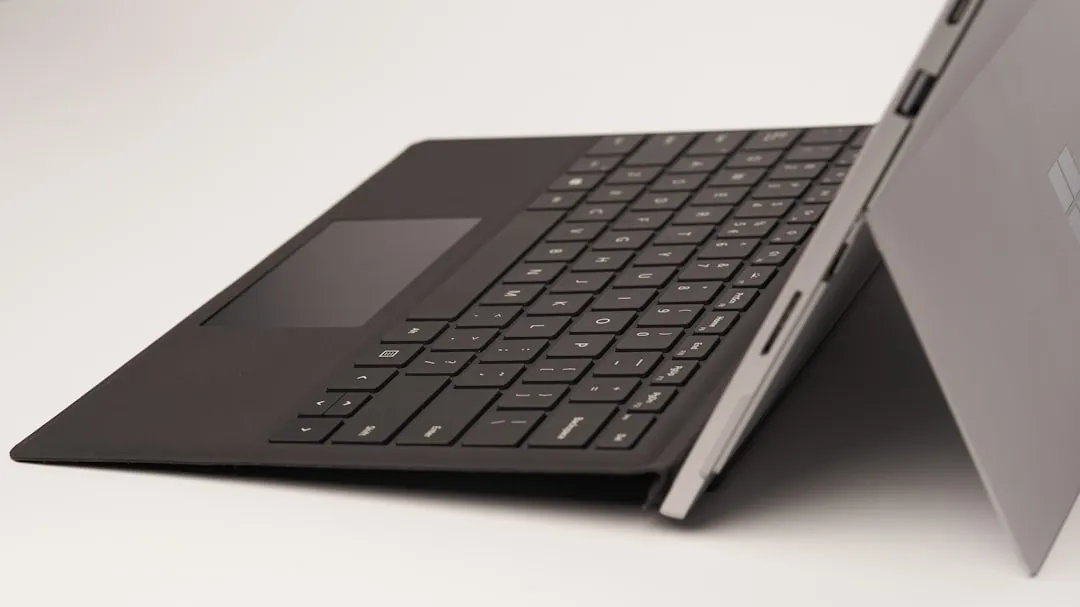
The Surface Pro 11, Microsoft’s latest ARM-based iteration of its flagship 2-in-1, is a marvel of silicon efficiency and industrial design. Yet, when the signature Pro Keyboard fails to register inputs—a phenomenon that has haunted the Surface line since the RT days—the "laptop replacement" promise evaporates instantly. If your keyboard is unresponsive, start here: Perform a "two-button reset" by holding the Power button and Volume Up button simultaneously for 15 seconds, then wait for the UEFI firmware menu to load before exiting. Often, this clears the temporary state of the Surface Connect pins, allowing the controller to re-initialize the accessory handshake.
The Anatomy of Failure: Why the Surface Pro Keyboard Connectivity Protocol Breaks
The Surface Pro Keyboard, specifically the Pro Flex and the Signature Keyboard variants, relies on a proprietary physical interface. Unlike a standard Bluetooth keyboard, these rely on a pogo-pin magnetic array that provides both power and a high-speed data stream to the chassis. The operational reality of this system is far more fragile than Microsoft’s marketing suggests.
When you hear a user on the Microsoft Community forums or Reddit’s r/Surface subreddit complain that their keyboard "stopped working after an update," they aren't just imagining a bug. They are witnessing an interrupt conflict between the Windows Hardware Abstraction Layer (HAL) and the keyboard’s integrated microcontroller. The Surface Pro 11 uses a specialized embedded controller to manage the transition between Tablet Mode and Laptop Mode. When the firmware hangs, the OS simply stops polling the port, effectively treating the keyboard as a dead peripheral, much like other smart devices facing Sync Issues and Disconnections.
The "Ghost" Disconnect: Understanding Hardware vs. Software Friction
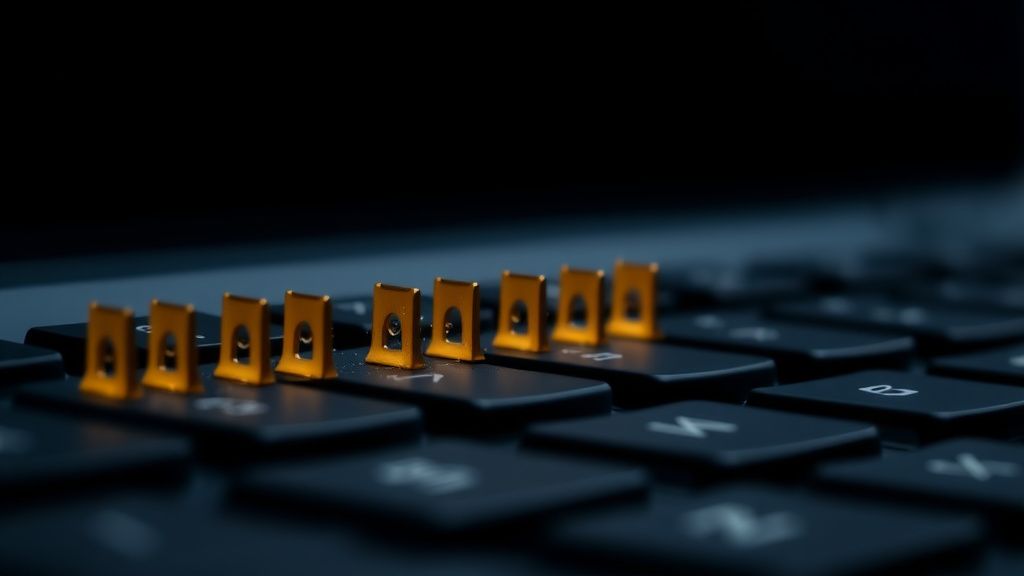
The most common point of failure isn't actually the mechanical keyboard itself, but the "Firmware Initialization Sequence." Microsoft’s UEFI environment is famously opaque. In the early stages of the Surface Pro 11 rollout, power users noted that the keyboard’s backlighting would occasionally flicker, indicating a power draw issue rather than a total connectivity loss. This suggests that the current draw required to wake the keyboard’s controller exceeds the voltage threshold supplied by the Surface Connect pins when the device is in a low-power "Modern Standby" state.
The "Two-Button" Logic
The two-button reset is not just a "restart." It forces a hard reset of the Embedded Controller (EC) and clears the CMOS cache related to attached hardware devices, a critical step often employed when a device, like a Whoop 4.0, is Not Charging, requiring a Power Reset.
- Shut down the Surface: Don't just close the lid; initiate a full shutdown from the Windows menu.
- The Power/Volume Sequence: Press and hold the volume-up button on the left side of the screen, and while holding it, press and release the power button.
- The Firmware Handshake: Keep holding the volume button until the UEFI screen appears. This forces the motherboard to re-enumerate every piece of hardware attached to the system bus, including the magnetic connector.
Field Reports: When Engineering Compromises Meet User Reality
I spent time monitoring several GitHub issues and Discord threads where developers who use the Surface Pro 11 as a thin-client machine were discussing the "Keyboard Wakeup Latency." One user, identified as DevOpsDave on a popular tech forum, noted that: "The keyboard seems to 'sleep' to save power, but the handshake to wake it up on the ARM64 platform is often blocked if a background process is hogging the CPU cycles."
This is the hidden cost of the ARM shift. While the Snapdragon X Elite chip provides incredible battery life, the orchestration of background services is different from x86 architecture. If the SurfaceKeyboard.sys driver fails to load in the correct sequence during a system resume, the keyboard is essentially a paperweight until the next cold boot, similar to how a Surface Laptop Won't Wake Up due to firmware power state failures. This isn't a defect—it’s a design compromise made to achieve that 15+ hour battery life we see in benchmarks.
Beyond the Reset: Troubleshooting the Magnetic Connector and Firmware Fragmentation
If the two-button reset fails, you are moving into the territory of physical layer degradation or deep firmware corruption. The pogo pins on the Surface Pro 11 are spring-loaded, but they are also magnets. This is a brilliant design choice that backfires in high-dust environments. Iron filings or metallic debris can physically wedge the pins in a compressed state.
Physical Maintenance Checklist:
- Isopropyl Alcohol (90%+): Use a clean, lint-free cotton swab to gently clean the gold pins. Do not scrub; just wipe to remove oxidation or oils.
- The "Magnetic Shim" Method: Some users have reported that placing a thin piece of electrical tape on the underside of the keyboard’s connector bar increases the pressure against the Surface pins, solving intermittent connection drops caused by chassis warping.
- Driver Re-installation: Go to Device Manager > Keyboards. Locate "Surface Type Cover Filter Device." Right-click and uninstall it. Do not be afraid to force a restart. Windows will treat the keyboard as a "New Device" and pull the driver from the Windows Update catalog upon reconnection.
The Controversy of Proprietary Connections
There is an ongoing industry debate regarding the reliance on these proprietary connector bars. Critics, including many contributors to The Verge and Ars Technica, have argued that Microsoft’s refusal to adopt a standardized, universal interface for tablets is a "walled garden" strategy that leaves consumers stranded when hardware fails.
The counter-argument from Microsoft’s camp is that a standard USB-C or Pogo-pin alternative lacks the throughput required for the low-latency response times expected by professionals. However, the operational reality for the end-user remains: if your keyboard connector strip breaks, you are buying a $150 replacement rather than fixing a $5 cable. This creates a "planned obsolescence" cycle that frustrates those who expect a $1,500+ device to be serviceable.
Why Your Keyboard Might Actually Be "Broken" (And Why It Isn't)
Often, the problem is not the keyboard, but the Fast Startup feature in Windows. Fast Startup saves the state of the kernel to the disk, which can include the corrupted state of the keyboard driver. When you "restart," the system reloads that corrupted state.
To bypass this, you must disable Fast Startup:
- Open Control Panel > Power Options.
- Click Choose what the power buttons do.
- Click Change settings that are currently unavailable.
- Uncheck Turn on fast startup (recommended).
This small, often ignored setting has resolved more keyboard "dead" cases than almost any other software intervention. It’s a classic example of how Windows’ attempt to improve performance ends up creating a legacy of bugs that haunt the user experience.
The "Edge-Case" Scenarios: When Everything Fails
If you have tried the reset, cleaned the pins, reinstalled the drivers, and disabled Fast Startup, and the keyboard still fails, you are likely looking at a failure of the internal ribbon cable inside the keyboard itself or a failure of the hall-effect sensor in the tablet. The hall-effect sensor tells the Surface when the keyboard is closed or open. If the magnet in the bezel loses strength or the sensor on the motherboard fails, the device may permanently lock the keyboard input to "Off" because it believes the cover is closed. This is a hardware-level failure that no amount of software "easy fix" guides will resolve. In this instance, a warranty claim or professional hardware repair is the only path forward.
FAQ
Is the Surface Pro 11 keyboard compatible with older models?
Why does my keyboard work in the UEFI menu but not in Windows?
SurfaceKeyboard.sys driver. Try booting into Safe Mode; if it works there, you have a third-party software conflict—likely an antivirus or a keyboard customization utility—that is hijacking the input stream.