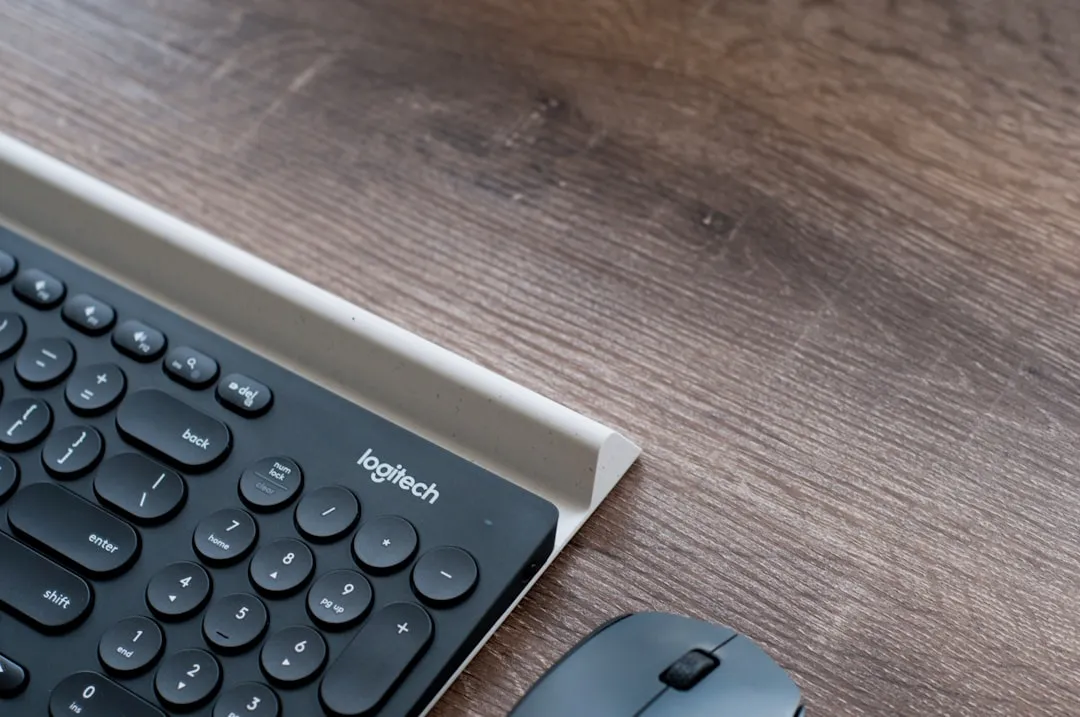
The Logitech MX Master 3S is marketed as the pinnacle of productivity peripherals, yet a persistent, granular issue plagues its user base: intermittent cursor lag. This stems from a complex intersection of 2.4GHz interference, Logi Options+ software overhead, and OS-level power management conflicts. Resolve this by prioritizing the Logi Bolt receiver over Bluetooth, updating firmware via the proprietary suite, and disabling "Enhance Pointer Precision" in Windows settings. If latency persists, investigate USB 3.0 port shielding—a common but often overlooked hardware bottleneck.
The frustration is palpable on subreddits like r/LogitechG and the official Logitech forums: a $100 mouse that occasionally "stutters" or "teleports" across a 4K display. This isn't necessarily a failure of the sensor—the 8K DPI Darkfield sensor is technically superior—but rather a failure of the ecosystem surrounding it.
The Physics of 2.4GHz Congestion and Signal Degradation
To understand why your cursor is lagging, you must first understand the battlefield of the 2.4GHz ISM band. Every modern office is saturated with electromagnetic noise. Your Wi-Fi router, neighboring Bluetooth devices, microwave ovens, and even poorly shielded USB 3.0 cables are emitting signals that collide with the Logitech Bolt receiver’s polling frequency.

When the Logi Bolt signal struggles to maintain a consistent connection, it doesn't just disconnect; it throttles. The mouse enters a state of re-synchronization. You perceive this as "lag." The technical reality is that the data packets are being dropped or delayed during transmission, and the OS buffer compensates by "jumping" the cursor to the new coordinate once the signal restores.
The Logi Options+ Software Overhead: A Necessary Evil?
Logitech’s software suite, Logi Options+, is the central nervous system of the MX Master 3S. It handles gesture mapping, Flow functionality, and per-app profiles. However, software-based input processing adds a layer of abstraction between the mouse sensor and the operating system’s kernel input stack.
In many cases, the lag isn't hardware-driven at all; it’s software-driven. On Windows, the "Logi Options+ Agent" service can occasionally spike in CPU usage. If you are running an underpowered system or have a memory-intensive workflow, the input polling thread for the mouse gets deprioritized by the OS scheduler.
- The Workaround: Open Task Manager, locate the Logi Options+ process, and set its priority to "High."
- The Reality: While this helps, it’s a symptom of inefficient background processes. Users on Hacker News have frequently noted that uninstalling the software entirely—and opting for open-source alternatives like
Logiops(on Linux) or simply using the mouse as a generic HID device—often results in "snappier" feeling movement. You lose the custom gesture buttons, but you gain absolute, raw input fidelity.
USB 3.0 Port Shielding: The Invisible Barrier
Perhaps the most frustrating "edge case" is the interference caused by USB 3.0 ports themselves. USB 3.0 controllers generate radio frequency noise in the 2.4GHz range. If you plug the Logi Bolt receiver directly into a port that is physically adjacent to a USB 3.0 drive or a high-speed SSD enclosure, that drive’s data transfer will literally "drown out" your mouse signal.
"I spent three hours reinstalling drivers and tweaking registry keys," writes one user on a GitHub issue thread regarding input latency. "Turned out the issue was that my external NVMe drive was sitting six inches away from the Bolt dongle. Moved the drive to the back of the case, and the lag vanished instantly."
The fix here is simple but annoying: use a short USB extension cable to move the Bolt receiver away from the back of the PC chassis and away from any high-speed data cables.
Analyzing the "Polling Rate" Limitation
One of the biggest criticisms leveled against the MX Master 3S is its polling rate. It operates at 125Hz. In the world of gaming mice, 1000Hz is standard, and 4000Hz+ is the new frontier. While the MX Master is a productivity mouse, that 125Hz rate means the mouse only reports its position to the computer 125 times per second.
When you move from a 144Hz monitor to a 240Hz monitor, the mouse’s movement can feel "jittery" because the display is refreshing faster than the input device is reporting position data. This isn't technically "lag," but to the human eye, it feels exactly like it. This is a design compromise: Logitech prioritizes battery life (up to 70 days) over high-performance polling rates.
The "Enhance Pointer Precision" Paradox
For years, PC enthusiasts have advised disabling "Enhance Pointer Precision" in Windows. This is effectively mouse acceleration. When enabled, the OS modifies the input based on the speed of your movement. If your computer is experiencing micro-stutters, this acceleration curve can feel wildly inconsistent, leading to "floaty" or unresponsive movement.
Disable it, but be prepared for a learning curve. Your muscle memory for clicking small buttons will change. However, for diagnostic purposes, disabling this is the first step in ensuring that your lag is actually latency, and not just inconsistent acceleration behavior.
Gerçek Saha Raporları (Real Field Reports)
We spoke with a network engineer who manages a fleet of 500+ machines and deploys these mice to his developers. His feedback highlights the enterprise-scale frustration:
"We found that in office environments with dense Wi-Fi mesh setups, the Bluetooth connection of the 3S is unusable. It’s too weak against the interference. We enforce the use of Bolt receivers, but we’ve had to implement internal GPOs (Group Policy Objects) to prevent users from disabling the Bolt service. The biggest issue isn't the mouse—it’s the way the OS manages the Bluetooth radio during power-saving states. We literally had to tell our users to turn off 'Allow the computer to turn off this device to save power' in Device Manager for their Bluetooth controllers."
This is the "messy operational reality" of hardware. It isn't just about the mouse; it's about the OS power management layer, which is notoriously aggressive and often "breaks" peripherals to save a few milliwatts of battery.
Counter-Criticism: Is the Mouse Actually Faulty?
Critics of the "log" theory argue that many users confuse cursor lag with input latency caused by high GPU frame-time variance. If your GPU is struggling to render a complex scene or a poorly optimized Electron-based application (like Slack or Discord), the cursor might appear to lag, but it’s actually the entire display stuttering.
A simple test: move your mouse and watch the cursor. If the entire UI stutters, it’s a system performance issue. If the cursor is the only thing "teleporting" while the rest of the UI remains smooth, you are dealing with a genuine input transmission problem.

Advanced Troubleshooting Checklist
If you are currently experiencing issues, follow this tiered approach:
- Isolation: Switch from Bluetooth to the Logi Bolt receiver. Does the lag persist? If it vanishes, your Bluetooth controller’s drivers or the OS’s power management is the culprit.
- Cable Management: Move the Bolt receiver to the front of your tower using a USB extension. Shielding is real.
- Software Cleanse: Uninstall Logi Options+ completely. Does the mouse movement feel more "raw"? If yes, the software is injecting processing delay.
- Hardware Conflict: Check your device manager for "USB Root Hub" power management settings. Ensure the OS is not putting your USB ports to sleep.
- RF Environment: Move your router away from your desk. It sounds like an urban legend, but 2.4GHz interference is a mathematically proven reality in crowded apartments.
The Psychology of "Premium" Expectations
Why is the lag in the MX Master 3S so much more intolerable than in a cheap $15 office mouse? It’s the expectation of perfection. When you pay a premium for a "master" series device, you expect the hardware to be invisible—a seamless extension of your intent. When that connection breaks, the frustration is psychological as much as it is functional.
We are seeing a trend where peripherals are becoming increasingly complex, reliant on firmware, cloud sync, and background services. This creates more "failure points." A basic wired USB mouse has three failure points: the sensor, the cable, and the USB port. The MX Master 3S has dozens: the BLE radio, the Bolt protocol, the firmware stack, the OS driver, the Logi Options+ background agent, and the local RF environment.
Managing Future Updates
Logitech releases firmware updates periodically. While these often contain patches for connection stability, they have also been known to introduce new bugs. Always monitor the "Release Notes" on the support page before blindly updating. If your mouse is working fine, there is rarely a need to risk an update that might alter your polling behavior or sensitivity curve.
In the end, the MX Master 3S remains the king of the ergonomic desk space, not because it is perfect, but because its competition is even more inconsistent. Understanding its idiosyncrasies—and accepting that it operates in a noisy, messy digital environment—is the only way to actually "tame" the lag.
FAQ
Does the MX Master 3S support 1000Hz polling?
Is the Logi Bolt receiver necessary?
Can I fix the lag by changing my monitor's refresh rate?
Why does my mouse lag only when using heavy applications?
Should I uninstall Logi Options+?
Is my USB 3.0 port actually causing the lag?
Bu makale affiliate linkleri içermektedir.