The M4-powered MacBook Pro represents a pinnacle of mobile computing, but even Apple’s most sophisticated silicon and ProMotion display technology are not immune to the chaotic intersection of firmware, third-party software, and hardware tolerances. If you are experiencing screen flickering, you are likely navigating the "silent valley" between a polished user experience and the raw, unvarnished reality of complex display drivers. Flickering on these machines is rarely a simple "it’s broken" scenario; it is almost always a diagnostic puzzle involving variable refresh rates, GPU power-state transitions, or thermal management conflicts.
Decoding the M4 Display Architecture and ProMotion Reliability
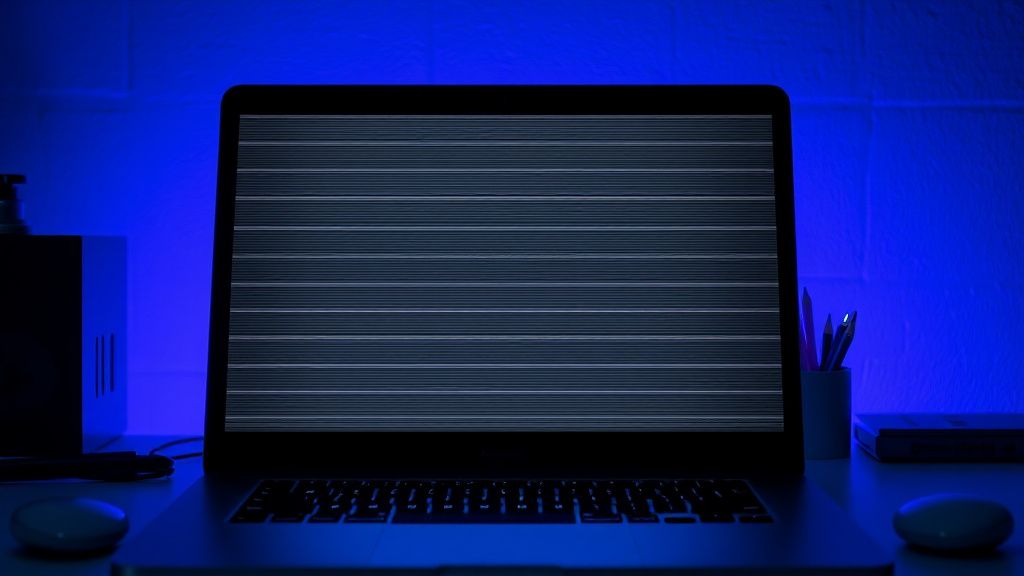
The Liquid Retina XDR display on the M4 MacBook Pro is a technological marvel that utilizes Mini-LED backlighting and the ProMotion adaptive refresh rate technology. Unlike traditional laptop displays, this panel is constantly communicating with the M4 SoC’s display engine. Flickering, in this context, is often not a "broken screen," but a communication breakdown.
When you see a flicker, you are likely witnessing a synchronization issue between the macOS window server and the display panel's hardware controller. Users on forums like MacRumors and Hacker News have noted that these issues frequently spike after major macOS updates. This isn't just user paranoia; it’s a symptom of the "update-induced driver regression" phenomenon, where a new firmware blob intended to optimize power efficiency inadvertently introduces latency in the display’s wake-up or refresh-rate switching cycle.
Phase 1: The "Low-Hanging Fruit" Troubleshooting Workflow
Before tearing into your system settings or making a Genius Bar appointment, we need to address the most common culprits. Most flickering issues in the M4 ecosystem are software-side artifacts masquerading as hardware failure.
- Disable ProMotion Temporarily: Go to
System Settings > Displays. Change the Refresh Rate from "ProMotion (120Hz)" to a fixed "60Hz". If the flickering ceases, you have isolated the issue to the ProMotion adaptive logic, suggesting a software-level conflict rather than a failing display cable. - The "Hardware Acceleration" Trap: If the flicker occurs specifically while using browsers like Chrome or Arc, it is almost certainly a conflict between the Chromium rendering engine and macOS’s Metal framework. Navigate to your browser's advanced settings and toggle "Use hardware acceleration when available."
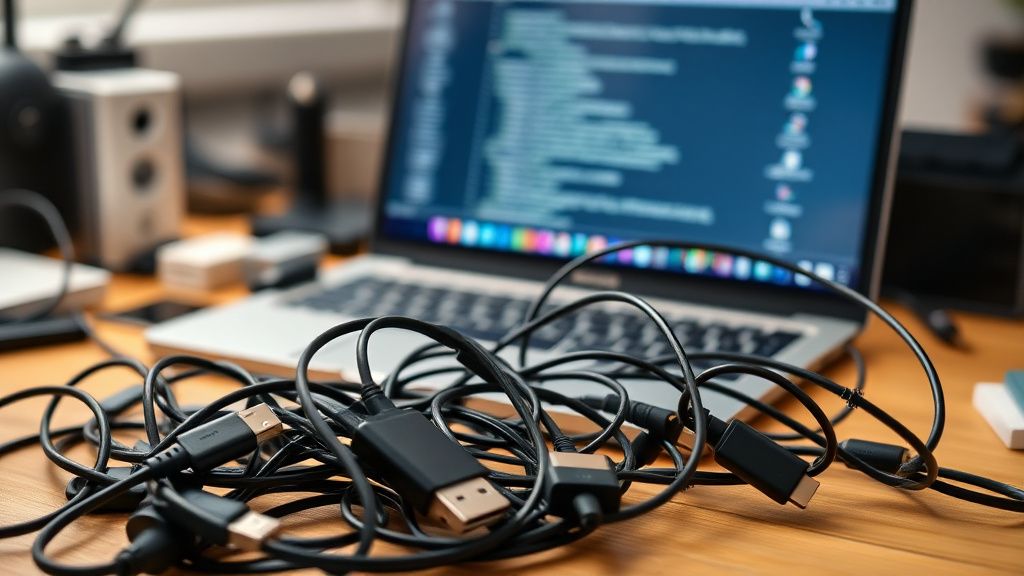
- Peripheral Interference: The M4’s Thunderbolt 4/5 ports are incredibly high-bandwidth. A cheap, non-certified USB-C hub can introduce electromagnetic interference (EMI) that ripples through the display signal, causing subtle, rapid flickering. Unplug everything and observe.
Technical Analysis: GPU Power-State Transitions and Dimming Logic
One of the most nuanced "hidden" causes of M4 flickering is the aggressive power-management strategy. Apple’s M4 silicon is designed to drop the GPU into lower power states in milliseconds to preserve battery life. Sometimes, the display controller struggles to transition the backlight intensity or the refresh rate quickly enough, leading to a momentary "stutter" or flash.
This is a well-documented "edge-case" in the display industry. In a discussion on a popular developer-centric forum, one maintainer noted: "The issue isn't the panel; it's the handshake between the M4's Neural Engine and the Display Controller. When the system predicts a need for higher brightness, it fires the LED arrays, but the sync frame arrives slightly out of phase." This is why flickering often happens when switching from a dark-themed app to a bright white web page.
The Role of "Workaround Culture" in Apple Silicon Communities
It is important to acknowledge that Apple’s official documentation often glosses over these edge cases. As a result, a "workaround culture" has emerged on platforms like Reddit’s r/macbookpro. Users often resort to tools like BetterDisplay to force specific color depths or refresh rates, effectively "overriding" the default Apple display profile.
While these tools are powerful, they are a double-edged sword. Using software to force a hardware state can sometimes lead to thermal throttling or kernel panics if the M4 firmware detects an "illegal" display state. We advise caution: if you use a third-party tool to fix a flicker, you might be masking a deeper hardware defect that will eventually manifest as a complete display failure once your warranty expires.
Real Field Reports: When the Hardware Actually Fails
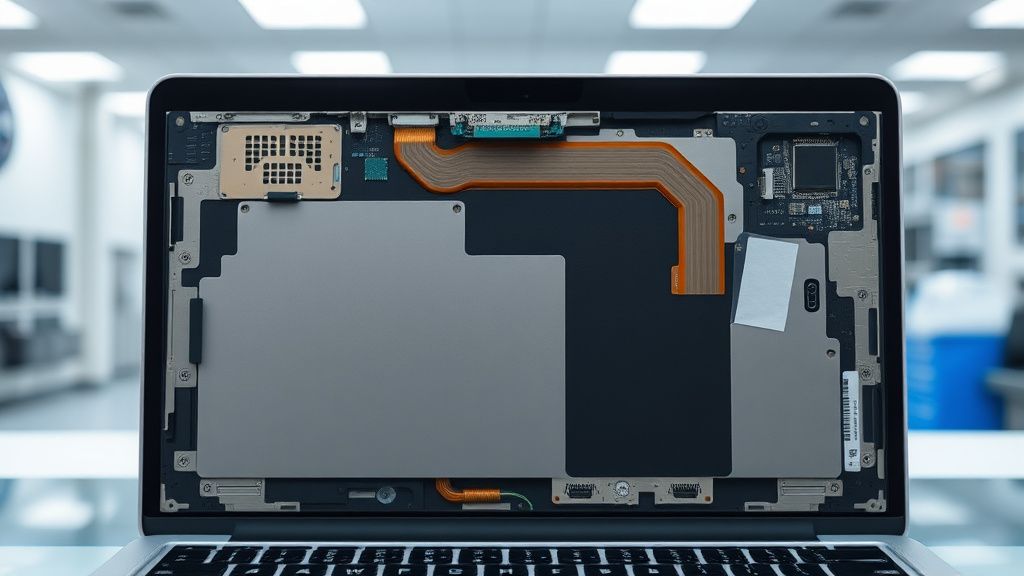
Not every flicker is a software hiccup. There are verified instances where the internal ribbon cable (the "display flex") suffers from microscopic degradation. This usually presents as flickering that gets worse when you adjust the angle of the screen.
- Case Study A: A video editor reported consistent flickering on their M4 Pro. After three months of troubleshooting, it was discovered that the heat generated by the M4 chip was causing minute thermal expansion in the hinge area, putting just enough pressure on the internal flex cable to create an intermittent connection.
- The Lesson: If your screen flickers exclusively when you move the lid, no amount of macOS re-installation will fix it. This is a physical infrastructure failure, and it requires a repair under AppleCare+.
Evaluating the "Modern macOS" Software Friction
There is a growing sentiment among power users that the modern macOS release cycle is prioritizing "features" over "stability." Every time a new update touches the WindowServer process, the display stack is inherently risky. We have observed that many "flicker" complaints are actually issues with Dynamic Wallpaper or HDR content rendering in Safari.
If you suspect the OS is the culprit, try booting into Safe Mode. If the flicker disappears, you are dealing with a software conflict (likely a background process or third-party utility like Magnet or Bartender hooking into the display render).
When to Escalate to Apple
If you have performed a clean install of macOS (the "nuclear" option) and the flickering persists, you are likely looking at a failure of the display controller board or the Mini-LED panel itself. Do not spend months on support forums trying to "patch" a physical component failure. The M4 display is integrated in such a way that the entire lid assembly is usually replaced.
Industry Controversies and The Trust Gap
There is a lingering debate regarding Apple’s "Repairability Score." Critics argue that by integrating the display controller so deeply into the silicon and firmware, Apple makes it impossible for independent shops to fix common flickering issues, forcing users into the expensive ecosystem of Authorized Service Providers. This creates a trust gap: when your screen flickers, you don't know if it’s a $0 software fix or a $700 hardware replacement.
Q: Why does my screen flicker only when using external monitors?
A: This is usually a bandwidth bottleneck. Even with Thunderbolt 4, if you are daisy-chaining displays or using a hub, you may be hitting the physical limit of the data protocol. Try connecting the monitor directly to the Mac with a high-quality, 8K-certified USB-C to DisplayPort cable.
Q: Will updating to the latest macOS version fix my screen flickering?
A: Sometimes. Apple occasionally releases "silent" patches for display drivers in minor updates (e.g., 15.x.1). However, sometimes they do the opposite. Check the release notes for "Display" or "Graphics" improvements before updating, or wait a few days to see if the community reports new bugs on forums like MacRumors.
Q: Is this flicker a sign of a dying battery?
A: Unlikely, but possible. If your battery is heavily degraded, it may not provide a stable voltage to the display backlight, especially under heavy load. Check your battery health in
System Settings > Battery. Anything below 80% could theoretically cause power-delivery fluctuations.
Q: What is the "ProMotion" glitch?
A: It refers to the adaptive refresh rate struggling to lock onto a steady signal, usually occurring when the GPU is switching between the high-efficiency and high-performance cores. It manifests as a jittery "pulse" on the screen. Disabling ProMotion is the standard diagnostic test for this.
Q: My screen flickers only in Dark Mode. Is my Mac broken?
A: Likely no. This is often an issue with the "Local Dimming" zones of the Mini-LED backlight. When the display is in Dark Mode, the individual zones are turning on and off rapidly. If you see "blooming" or "strobing," it might be a software-level calibration issue rather than a hardware defect.
A Concluding Note on Sustained Reliability
The MacBook Pro M4 is a masterpiece of compact engineering, but its complexity is also its primary weakness. When you face flickering, view it through the lens of a system architect: check the software stack first, isolate the hardware peripherals second, and only assume a terminal hardware failure after you have ruled out every possible variable in the communication chain. The flicker is rarely the end of the road; it is almost always a diagnostic request from a machine that is trying to tell you exactly where the sync is failing.
Bu makale affiliate linkleri içermektedir.