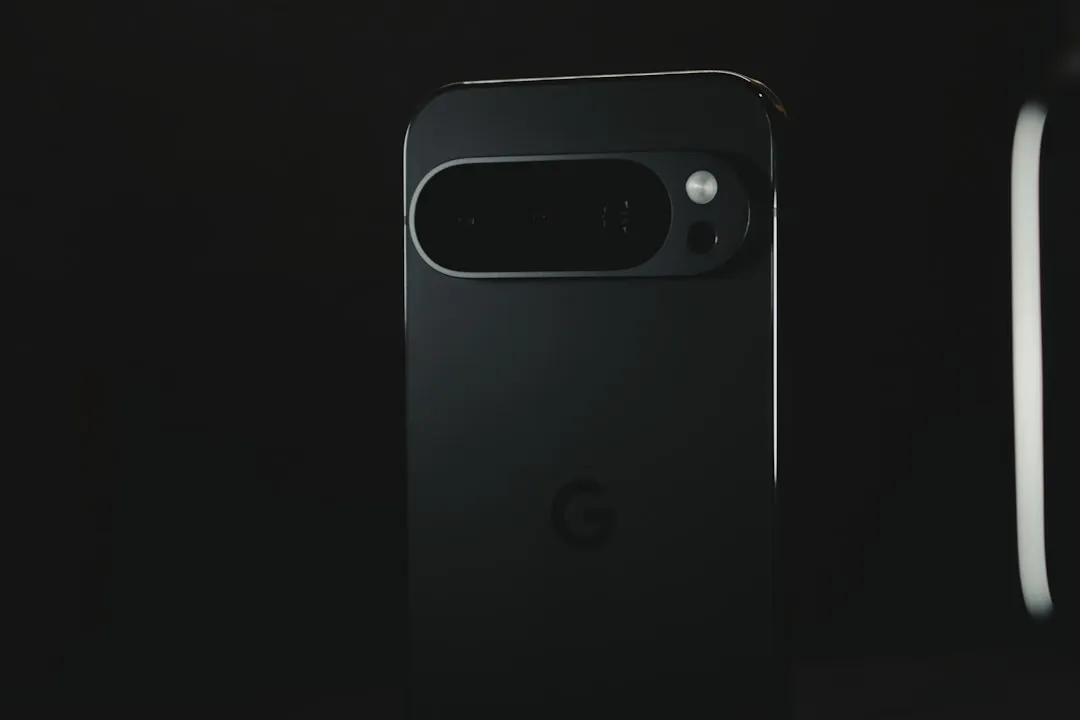
If your Pixel 9 Pro camera app is freezing, the fastest fix is to navigate to Settings > Apps > See all apps > Camera > Storage & cache and select Clear cache. This forces the app to dump temporary session data without deleting your photos or videos. A quick restart of the device afterward is recommended.
The narrative surrounding Google’s Pixel hardware has always been one of "software-defined excellence." When you buy a Pixel 9 Pro, you aren't just buying a sensor—you are buying an computational photography engine that leverages Google’s Tensor G4 silicon to perform miracles. However, the operational reality of this system is far more fragile than marketing materials suggest, highlighting that even sophisticated software, like many mobile apps, can experience crashes or freezing. When the camera app freezes, it is rarely a sign of a broken lens; it is a manifestation of a 'process collision' where the heavy lifting of real-time image processing, HDR+ computation, and thermal management hit a software bottleneck, a common issue also seen with Samsung Galaxy S24 Ultra camera lag.
The Anatomy of a Camera Freeze: Why Software-Defined Hardware Fails
The camera app on a Pixel 9 Pro is a sprawling monolith of code. It manages real-time viewfinder previews, frame-stacking algorithms, background processing for Video Boost, and integration with the Android System Intelligence framework. When you experience a "freeze"—a hang where the viewfinder stops moving or the shutter button becomes unresponsive—you are usually witnessing a "deadlock" or an I/O timeout.
In technical terms, this often occurs because the Camera Service (an Android system process) has lost its handshake with the HAL (Hardware Abstraction Layer). When the software tries to write a complex RAW+JPEG file to the UFS 4.0 storage while simultaneously handling a UI transition and a thermal throttling event, the app might simply stop responding.
Understanding the Cache: More Than Just Temporary Files
Many users treat "Clear Cache" like a magic reset button, but its function is specific. Your cache stores temporary data that helps the app launch faster and keep metadata organized. When this cache becomes corrupted—often due to a botched background update from the Google Play Store—the app tries to read "stale" or non-existent file pointers.
By clearing the cache, you are essentially telling the system: “Discard your current map of the file system and rebuild the index from scratch.” It does not touch your user data (photos, videos), which are stored in the media gallery databases. If the freezing persists after this, the underlying issue may reside in the Google Photos integration or a conflict with the Android 15 (or latest OS build) background task scheduler.
Beyond the Cache: The Thermal and Scaling Struggle
One of the most persistent, yet rarely discussed, issues with the Pixel 9 Pro is the thermal sensitivity of the computational stack. When shooting 8K or even 4K 60fps video, the device’s internal temperature rises sharply. The thermal management system (T-mon) will then attempt to "throttle" the app to prevent damage to the motherboard components.
Users on forums like r/GooglePixel have reported that the app doesn't always provide a clear "Too Hot" warning before freezing. Instead, it enters a state of perpetual "pending" where the processing queue is backed up.
Real Field Report: The "Event Horizon" Issue
Observation from a user on a community forum:
"I was at a wedding last month. Every time I hit the shutter in high-zoom mode, the app would hang for three seconds. Then, it would just force close. I had to clear the cache three times during the ceremony. It felt like the phone couldn't decide whether to save the photo or keep the live view running."
This specific behavior is an example of an edge-case failure. The system’s priority queue is likely over-weighted toward AI processing (like Super Res Zoom) over UI responsiveness. When the RAM is crowded by other background apps, the camera’s buffer becomes the first victim.
How to Execute a Clean System Cache Purge
To properly resolve these issues, follow this refined diagnostic process. Do not stop at just the camera app; follow the breadcrumbs.
- Stop the Process: Do not just exit the app; go to Settings > Apps > Camera > Force Stop. This kills the ghost process that might still be hanging in the memory.
- Clear the Cache: Clear the cache within the Camera app settings.
- Clear System Media Cache: Sometimes, the freeze isn't the Camera app itself but the media database that stores the photos. You may need to navigate to Google Photos > Settings > Backup and ensure your upload status isn't "stuck" in a perpetual loop, which consumes system resources.
- Check for "Stale" Updates: Go to the Play Store, find "Camera," and check if an update is pending. A mismatched version of the Google Camera app and the Android System Intelligence module is a classic source of instability.
The Hidden Costs of Constant Updates
A major critique of the Pixel ecosystem is the "rollout fragmentation." Google pushes updates to components like the Camera app independently of the main Android system updates. This creates a scenario where the Camera app might be expecting an API hook from the latest Android security patch that your device hasn't fully integrated yet.
Industry analysts at sites like 404 Media have noted that the sheer complexity of the "Pixel experience" is a double-edged sword. You get the latest features, but the system is in a constant state of flux. If your device is running a beta version of the software, you are essentially testing for them. The price of that "cutting edge" feature is the risk of a frozen UI.
Counter-Criticism: Is It Really the App or the User?
There is a segment of the tech community, often found on Hacker News, that argues these freezes are actually user-error in disguise. They suggest that keeping a thousand open tabs, or having dozens of apps with "Background Activity" permissions, is what exhausts the Pixel's memory management.
However, this ignores the "operational reality." A flagship phone costing upwards of $1,000 should handle the memory load of an average user without the primary input tool—the camera—ceasing to function. When the user is forced to clear the cache regularly, that is not a feature; it is an operational friction.

Advanced Troubleshooting: When Cache Clearing Fails
If you have cleared the cache and the camera still freezes, consider these "nuclear" options:
- Safe Mode Diagnostic: Boot into Safe Mode (Hold power, long press "Restart"). If the camera works perfectly in Safe Mode, you have a third-party app (like a social media app or a filter app) that is interfering with the Camera HAL.
- The "Clearing the Lens" Theory: Some users report that certain third-party camera apps (like Lightroom Mobile) "hijack" the camera sensors. If you have "Camera Access" enabled for third-party apps, try revoking those permissions in Settings > Privacy > Permission Manager.
- Storage Health: If your phone’s storage is 95% full, you are going to encounter I/O freezes. The camera needs room to write temporary cache files. Free up at least 10GB and observe if the freezing decreases.
Future Perspectives: Will AI Solve or Aggravate This?
Looking ahead, Google’s move toward "on-device Gemini" integration suggests the camera app will become even more complex. As the phone attempts to identify objects in real-time, tag them, and suggest edits before you even take the shot, the processing demand on the Tensor chip will skyrocket.
The risk is clear: the system might move from "occasional freezing" to "system-wide lag." The future of the Pixel camera depends on Google’s ability to optimize the kernel, not just add more AI features. If the underlying software stack is not lightweight enough to manage these background demands, users will continue to rely on the "Clear Cache" workaround as an essential part of their ownership experience.
Q: Does clearing the camera cache delete my photos?
No. Clearing the cache only deletes temporary data, thumbnails, and session logs. Your original photos are stored in a different database protected from this action. However, do not click "Clear Storage" or "Clear Data" unless you are prepared to reset your camera settings to default (like grid lines, location settings, and storage preferences).
Q: Why does my camera freeze only when I switch to Video mode?
Video processing requires sustained high performance. If the camera app freezes when switching modes, it is likely because the hardware is struggling to reallocate power to the video encoding engine. Check if your phone is overheating or if you have "Video Boost" enabled, which is a massive computational load on the processor.
Q: How often should I clear the camera cache?
There is no set schedule. You should only clear the cache if you encounter performance issues, such as freezing, stuttering, or an app crash. Clearing it preventatively offers no tangible benefit to performance and may actually slow down the initial launch of the app for a few cycles as it rebuilds the cache.
Q: Could a custom launcher be causing the camera to freeze?
Yes. Third-party launchers like Nova or Niagara can sometimes conflict with the default Android system gestures and camera shortcuts. If you are experiencing constant freezes, switch back to the default Pixel Launcher temporarily to see if the behavior persists. If the problem disappears, you have your culprit.
Q: Is there a bug in the latest Android 15 release for Pixel 9 Pro?
As of the latest reports, there are ongoing discussions in developer forums regarding the camera's thermal management in the current Android build. If you find that the issue began immediately after an OS update, it is highly likely a known bug. Check the official Google Issue Tracker before attempting a factory reset.

Final Observations on Platform Stability
The "Pixel Experience" is currently at a crossroads. It is undoubtedly the smartest camera on the market, but its reliance on software-heavy image pipelines creates a brittleness that is increasingly visible to the average user. While clearing the cache remains the "gold standard" for quick fixes, the need for such a manual intervention highlights the tension between consumer expectations and the reality of complex, modern mobile operating systems.
For the power user, the workaround culture is a way of life. For the casual user, it is a point of deep frustration. If Google wants to maintain the Pixel 9 Pro's reputation as a premium creative tool, they must address the underlying resource management in the camera HAL. Until then, remember: the cache is not just a storage bin; it’s a scoreboard for your system’s health. When the game slows down, you have to reset the board.