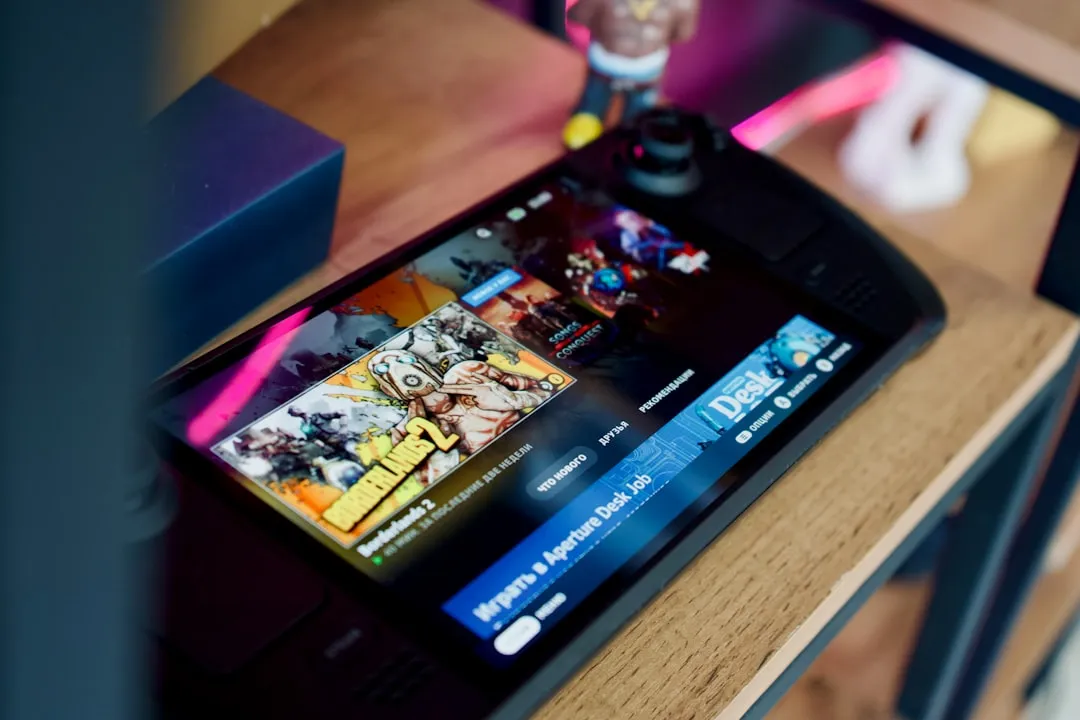
The transition from the original Steam Deck’s 7-inch LCD panel to the 7.4-inch HDR OLED display was a watershed moment for Valve’s handheld ecosystem. However, for a vocal subset of the community, this "upgrade" arrived with a specific, intermittent ghost: screen flickering. If your display is stuttering, strobing, or exhibiting erratic brightness shifts, you aren’t necessarily looking at a terminal hardware failure. You are likely staring at the intersection of aggressive power management, firmware-level display controller conflicts, and the idiosyncrasies of OLED refresh rate synchronization. Before you initiate an RMA process that could leave you without a device for weeks, let’s unpack the reality of this flicker.
If you are experiencing sudden, rhythmic flickering, immediately disable "Adaptive Brightness" in the Display settings and toggle the "Frame Limit" and "Refresh Rate" sliders to their default values (60Hz). Often, the flicker is not a dead panel but a handshake failure between the APU’s compositor and the OLED’s variable refresh rate (VRR) logic.
The Anatomy of a Flicker: Beyond Simple Panel Failure
When users report flickering on the Steam Deck OLED, a display anomaly that can sometimes be as frustrating as a green line issue on a Galaxy S24 Ultra, the tendency on forums like r/SteamDeck or the Steam Support subreddits is to diagnose a "bad cable" or a "faulty display ribbon." While physical damage is possible—especially if the unit has been dropped—most flicker issues in the OLED model are fundamentally software-driven artifacts.
The OLED panel on the Steam Deck utilizes a 90Hz refresh rate with a sophisticated DC dimming approach for lower brightness levels. When the SteamOS compositor struggles to keep the frame pacing synchronized with the display controller, the result is a visible strobing, a display malfunction that, while different from a Fitbit Charge 6's black screen, still points to underlying display or system control issues. This is often exacerbated by the "Allow Tearing" setting being toggled on while simultaneously using a frame rate cap. The GPU attempts to push frames at a rate that the display controller, attempting to preserve battery via OLED-specific power states, cannot perfectly map.
The "Adaptive Brightness" Trap and OS-Level Conflicts
Perhaps the most common source of "flickering" is the Adaptive Brightness feature. In the Steam Deck OLED, this sensor-based adjustment is far more aggressive than in the LCD variant. Because OLED pixels are self-emissive, rapid changes in brightness can lead to what looks like "gamma flickering"—where the transition between brightness levels is not smooth, but stuttered.
Many users on the Steam Community forums have noted that this behavior is particularly prominent when playing titles that switch between heavy cinematic sequences and gameplay menus. The system effectively "guesses" the ambient light intensity and modifies the panel voltage in milliseconds. If you notice the flicker occurring primarily during scene transitions, keep the brightness fixed.
Why Firmware Updates Create Fragmentation
Valve’s rollout strategy for SteamOS (specifically the Stable vs. Beta/Preview branches) often introduces regressions. A firmware update intended to optimize battery life might incidentally change the voltage curve sent to the OLED panel’s driver chip.
- The Case of Version 3.5.x: When SteamOS 3.5 was introduced, the community saw a surge in reports of "flickering during standby wake." This was eventually traced back to the display controller failing to reset its timing controller (T-CON) correctly after waking from a deep sleep state.
- The Workaround Culture: Users began using the "Steam + B" button combination to force-restart the UI, essentially flushing the display state. This is a classic example of how modern handheld hardware is often "held together" by software patches that the average user is expected to navigate.
Refresh Rate Synchronization and VRR Misalignment
The Steam Deck OLED supports a 90Hz refresh rate, but it does not support adaptive sync in the way a modern desktop G-Sync monitor does. When you set your frame limit to, say, 45fps, the Steam Deck forces a 90Hz refresh rate and sends every frame twice. If the frame pacing is off by even a few milliseconds, the OLED panel—which has near-instant pixel response times—will show a "stutter-flicker."
To troubleshoot this:
- Set Refresh Rate to 90Hz: Ensure the system is not forcing a non-divisible refresh rate.
- Toggle Frame Rate Limit: If the flicker persists at 45fps, try 30fps or 60fps to see if the display controller stabilizes.
- Disable "Allow Tearing": While tearing is less noticeable on an OLED, the compositor’s interaction with the display driver can become unstable when tearing is allowed, leading to inconsistent frame delivery times.
Infrastructure Stress: When Performance Overlays Lie
One of the most persistent issues in the Steam Deck ecosystem is the reliance on the built-in performance overlay to judge system health. Many users report "flickering" when in reality, they are looking at the overlay itself lagging behind the frame rate.
If you suspect your flickering is actually an overlay artifact:
- Turn off the Performance Overlay: Move the toggle to "Off" in the Quick Access Menu.
- Observe the Scene: Often, the screen is perfectly stable, but the GPU usage graph or FPS counter is stuttering. This is a common point of contention on GitHub's
SteamOSissue tracker. Users frequently confuse "UI stutter" for "Display flicker."
The "Cold Boot" Phenomenon
There is a subset of units that exhibit a "cold flickering" symptom, occurring only when the device has been off for a long period. This points to a capacitive issue on the display board. When the capacitors are fully discharged, the initial power draw during the boot sequence causes a voltage drop that manifests as a flicker.
If this happens every time you power on the device, it is rarely a sign of a dying unit, but rather a quirk of the display controller’s power-on self-test (POST). However, if the flickering remains after the device has been running for 10 minutes, you are looking at a potential hardware defect in the display ribbon connector.
The Ribbon Cable Factor
While software is the primary suspect, we cannot ignore the physical reality of the Steam Deck’s assembly. The internal display ribbon cable is notoriously fragile. If the unit was assembled with a slight crimp in the cable, thermal expansion during heavy gaming (e.g., running Cyberpunk 2077 at high TDP) can cause a micro-interruption in data transmission.
This is the "invisible" failure point. If you have tried every software fix—including a full Factory Reset—and the flicker remains even in the Steam BIOS menu, you have a hardware issue. At this stage, software tweaking is futile.
Analyzing the "Valve Support" Experience
The community's relationship with Valve’s support is… complicated. On one hand, Valve is legendary for cross-shipping replacements. On the other hand, the support process often involves a "triage script" where users are asked to perform the same three steps (Reboot, Update, Factory Reset) regardless of their actual issue.
When you contact support about a flickering screen, be prepared to share a video of the problem. However, recording an OLED screen flickering is notoriously difficult because phone cameras often trigger their own "flicker reduction" or "shutter speed adjustment" features, which can smooth out the very problem you are trying to document. Use a high-shutter-speed camera if possible; otherwise, the support team might mistake your footage for an artifact of the video recording process itself.
Counter-Criticism: Is the OLED Display Too "Fragile"?
There is a growing debate on platforms like Hacker News and the Steam Deck Discord regarding the long-term reliability of the OLED panel versus the previous LCD version. Critics argue that by pushing for higher refresh rates and HDR peak brightness, Valve has introduced a level of complexity that the handheld form factor can barely support thermally.
"The LCD Deck was a tractor," one user noted on a thread regarding display stability. "The OLED Deck is a high-performance sports car that needs a tune-up every few miles."
While this perspective is cynical, it holds a kernel of truth. The OLED model is denser, runs hotter in certain zones, and relies on more sophisticated power delivery. If you are a user who values "it just works" stability, the OLED's sensitivity to power fluctuations can feel like a step backward in reliability, even if the image quality is objectively superior.
Advanced Workarounds for Persistent Issues
If you are confident that your flickering is software-related but nothing above has resolved it, consider these "power user" steps:
- Reflash the BIOS: Using the recovery image via a USB-C hub is the "nuclear option." It replaces the entire OS partition. If the flicker persists after a clean install from a recovery image, you are 99% certain to have a hardware-level issue with the display module.
- Disable "Half-Rate Shading": This feature is notorious for causing visual artifacts in specific titles. While it’s intended to save power, it can cause the display to struggle with edge-detection, manifesting as a shimmering or flickering effect around high-contrast objects.
- Check for "Micro-stutter" in Games: If the flicker only happens in one game, it is almost certainly a shader compilation issue or an engine bug. Check ProtonDB to see if others are experiencing visual glitches with that specific game version.
The Future of SteamOS Display Management
As Valve continues to update the SteamOS compositor (moving toward the Wayland transition), we expect the display-related artifacts to decrease. The current flickering is often a byproduct of a kernel that is still learning how to balance the demands of a high-end OLED display with the power-sipping requirements of a portable handheld.
For the time being, remain wary of "Display Drivers" updates. In the Linux world, display drivers are part of the kernel/Mesa stack. When you update your Steam Deck, you are often updating the entire graphics stack. If a specific version introduces flicker, your best recourse is to switch to the "Stable" branch and wait for the community to verify the next patch.
FAQ
Is it normal for my Steam Deck OLED to flicker when it wakes from sleep?
Should I RMA my Steam Deck if I see flickering?
Does playing while charging make the flickering worse?
Can a screen protector cause flickering?
Does the Steam Deck OLED support VRR?
Why does my screen flicker only in desktop mode?
What should I do if the screen goes black after a flicker?
Bu makale affiliate linkleri içermektedir.