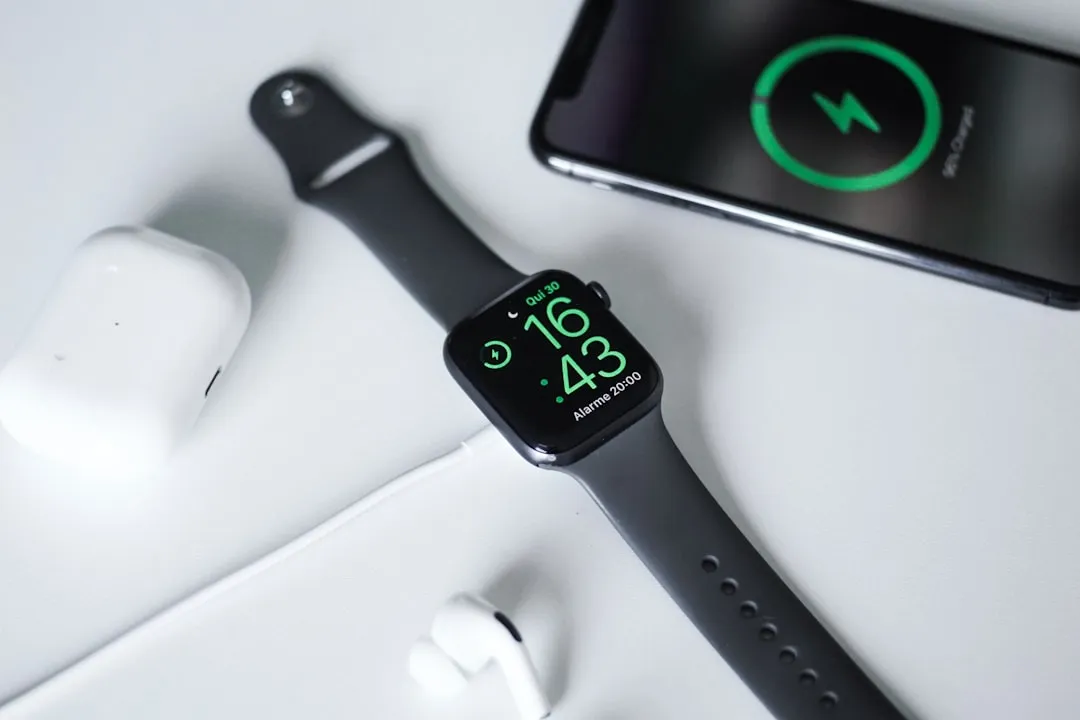
If you are experiencing unexpected battery drain on your Apple Watch Series 10, the culprit is rarely a single setting. Instead, it is usually a compounding effect of background app refreshes, high-frequency sensor polling, and unoptimized cellular handoffs. To stabilize your daily endurance, disable "Always-On" display during active workouts, prune background location permissions, and prioritize Wi-Fi over LTE usage.
The Apple Watch Series 10—heralded by marketing materials as the thinnest, most expansive display model yet—arrives with the S10 SiP (System in Package). While the efficiency gains in the new architecture are tangible, the reality of "all-day" 18-hour battery claims often collides with the friction of modern user workflows. When we talk about battery drain on a device of this sophistication, similar to issues observed with an Oura Ring Gen 3 battery draining fast, we aren't talking about a simple "dim the screen" advice. We are looking at a complex dance between watchOS 11’s aggressive background task management and the physical limitations of a miniaturized lithium-ion cell.
The Engineering Compromise: S10 Silicon and Display Refresh Rates
The Series 10 introduced a wide-angle OLED display that allows for a higher refresh rate at shallow angles. From an engineering perspective, this is a marvel of display driver integration. However, the operational reality is that the display is arguably the largest power sink.
When users report "sudden drain," they are often experiencing a failure in the LTPO (Low-Temperature Polycrystalline Oxide) backplane’s ability to drop the refresh rate when the wrist is lowered. If you see your watch losing 5-8% per hour while sitting idle, you are likely witnessing a "Display Stuck" state where the 1Hz refresh rate is failing to engage.
Systemic Factors: Why Your Watch Struggles to Sleep
The "Deep Sleep" state of an Apple Watch is a fragile ecosystem. In the world of macOS and iOS, background processes are managed with heavy-handed efficiency. On watchOS, the constraints are even tighter. Yet, developers often treat the Watch as a secondary extension of their phone, leading to excessive API calls.
- Background App Refresh (The Silent Killer): Most users don't realize that every third-party complication on your watch face is potentially waking up the CPU to pull data. If you have a weather app, a stocks app, and a transit tracker all updating every 15 minutes, you are essentially asking your watch to perform a network request 96 times a day.
- The Cellular Handoff Trap: If you own the LTE model, the watch constantly scans for signal strength. If you are in a building with poor reception, the radio amplification increases to maintain that connection, leading to a battery hemorrhage that can deplete 30% of your charge in a three-hour window.
Real Field Reports: The "Ghost Drain" Phenomenon
On forums like Reddit's r/AppleWatch and various specialized developer Discords, a recurring theme is the "Post-Update Syndrome." After a major watchOS update, indexing and cache rebuilding can lead to 24–48 hours of abnormal drain.
One user on a developer board noted:
"I spent three days debugging why my Series 10 was hitting 20% by 4 PM. Turns out, it wasn't the OS; it was a specific third-party health tracking app that had pinned a background process to the 'Workout' API, effectively keeping the heart rate sensor active 24/7."
This highlights a critical failure point in Apple's "walled garden" approach: while Apple optimizes their own apps, they cannot force third-party developers to adhere to the same rigorous power-management standards. When a third-party developer uses the Workout API incorrectly, the system doesn't always kill the process as effectively as it would for a core system app.
Optimization Tactics: Beyond the Obvious
If you want to move from "acceptable" battery life to "pro" endurance, you must surgically remove the features that provide marginal utility at a high cost.
- Haptic Crown Feedback: While satisfying, the physical actuator that provides feedback requires power. Disable haptic crown feedback in the Settings > Sounds & Haptics menu to reduce the mechanical strain on the battery.
- Voice Feedback in Workouts: If you use the fitness tracker, voice feedback over Bluetooth requires an active radio connection to your AirPods. If you don't need the audio cues, turn off "Voice Feedback" in the Workout settings.
- The "Hey Siri" Threshold: The Apple Watch is always "listening" for the wake word using a low-power neural core. While highly efficient, it is still active. If you find yourself rarely using Siri, toggling this off creates a measurable improvement in standby time.
The Conflict: Health Monitoring vs. Battery Longevity
The Series 10 is, at its core, a health-monitoring device. The Sleep Apnea detection, blood oxygen sensors, and continuous heart rate tracking are not merely passive features; they are algorithmic processes that run constantly.
There is a fundamental design contradiction here: the more health data you collect, the less battery you have to collect it with. If you are sleeping with your watch, you have to find a 45-minute window during your day to charge it. Many users fail to do this, leading to the device dying during the day. This is an operational failure, not a hardware one.
Analyzing the "Broken Promise" of All-Day Battery
Apple defines "all-day" as 18 hours. This is a conservative estimate based on specific, highly controlled test conditions (90 time checks, 90 notifications, 45 minutes of app use, and a 60-minute workout). The moment you deviate from this—by using GPS for a run, listening to podcasts via cellular, or setting your screen to maximum brightness—you exit the "All-Day" parameter.
The industry discourse often ignores that this is a physics problem. We have hit a plateau in lithium-ion density. Until battery chemistry undergoes a radical shift (e.g., solid-state batteries), the Apple Watch is effectively capped by its form factor. The Series 10 is thinner than the Series 9, which means a smaller battery volume. The engineering team has balanced this by using a more efficient processor, but there is no magic solution. When you push the device, it will drain.
Troubleshooting Steps for the Power User
If you suspect your watch is truly defective, don't just "factory reset." Use the diagnostic tools available within the iOS Watch app.
- Battery Health Check: If your capacity has dropped below 90% within the first six months, you likely have a defective unit. This is an edge-case, but it happens.
- Pairing Corruption: Sometimes, the migration from an old backup to a new Series 10 causes "process loops." If you have persistent issues, set the watch up as a "New Device" rather than restoring from backup. It’s an inconvenience, but it clears out the fragmented configuration data that often haunts new device setups.
Q: Why does my watch drain so fast when I'm not using it?
The watch is rarely truly idle. Between background sync, push notifications from your iPhone, and active sensor polling, the device is essentially a small, underpowered computer running a full-stack OS. If the battery is draining while you aren't touching it, look for apps that are "waking" the device unnecessarily in the Background App Refresh settings.
Q: Is Always-On display worth the battery hit?
For most users, the Always-On display costs approximately 10-15% of your total battery over an 18-hour day. If you struggle to reach the end of the day, turning this off is the single most effective "fix" you can implement.
Q: Does the Series 10 charge faster than older models?
Yes, the Series 10 includes improved charging architecture that allows for 0-80% in about 30 minutes. If you find yourself in a battery crunch, utilize the "Fast Charging" capability with an official Apple 20W+ power adapter rather than using third-party magnetic pucks, which are often inefficient.
Q: Will updating to the latest watchOS version fix my battery drain?
It’s a double-edged sword. While updates often include power optimizations, they also trigger a period of intense background indexing. If you update, give the device 48 hours of "settling time" before you judge the battery performance.
Q: Should I turn off Background App Refresh entirely?
You shouldn't turn it off for everything. Keep it enabled for essential apps like Calendar or Mail if you rely on them for notifications, but turn it off for social media, games, and news aggregators. This creates a balance between utility and endurance.
Conclusion: The Operational Reality
The Apple Watch Series 10 is an exceptional piece of hardware, but it is not a "set it and forget it" device. To extract maximum value from it, you must treat it like a computer. Manage its resources, monitor its background processes, and accept that its thin profile comes at the cost of total capacity. The goal is not to eliminate drain—it is to manage the energy spend so that your watch aligns with your lifestyle, rather than you having to align your lifestyle with a charging schedule.
Bu makale affiliate linkleri içermektedir.