
The Samsung Odyssey G9 is a marvel of display engineering—a 49-inch, 1000R curved behemoth that promises to bridge the gap between enthusiast gaming and professional workstation productivity. However, the reality of owning one often involves navigating a landscape of flickering, scanline artifacts, and handshake issues. When your $1,500 centerpiece begins to strobe or flicker, the "immersive" experience quickly dissolves into a technical headache. This guide deconstructs the flickering phenomenon, separating firmware bugs from hardware failures, and provides a roadmap for stabilization.
Understanding the Oscillating Nature of Adaptive Sync and Refresh Rate Synchronization
Flickering on high-end panels like the G9 is rarely a single-point failure; it is usually an interaction between the GPU’s rendering pace and the monitor’s variable refresh rate (VRR) controller. When a monitor negotiates a G-Sync Compatible or FreeSync Premium Pro handshake with a GPU, it must constantly adjust its scan-out rate to match the frame delivery. If the frame rate drops below the monitor’s LFC (Low Framerate Compensation) threshold, or if the GPU experiences an inconsistent frametime—what users on the r/ultrawidemasterrace subreddit often call "frametime jitter"—the panel’s backlight or scaler may struggle to maintain a consistent luminance level, resulting in the dreaded "brightness flickering."
The operational reality here is that the Odyssey G9 relies on a specific DSC (Display Stream Compression) implementation to shove 5120x1440 pixels at 240Hz through DisplayPort 1.4. This is right at the bleeding edge of the bandwidth ceiling. If your cable is even slightly out of spec, or if the GPU driver struggles with the compression overhead, you aren't just looking at a cable issue; you are looking at a fundamental stability bottleneck in the DisplayPort protocol itself.
Firmware: The First Line of Defense and The Source of New Problems
Samsung’s update strategy for the Odyssey line has been historically contentious. We have seen versions—most notably the transition from firmware 1004.0 to 1006.0—where users reported "fixing" the flickering only to introduce persistent issues with local dimming zones or HDR color saturation.
To check your current version, you must navigate the clunky on-screen display (OSD) to Support > Software Update. If you are on an older version, the update process is a gauntlet. You need a FAT32-formatted USB drive, and the port on the monitor is notoriously picky about which drive it accepts.
"I spent three hours trying to flash 1010.2. The monitor wouldn't recognize the USB stick until I used a specific, ancient 2GB SanDisk drive I found in a junk drawer. Once it worked, the flicker during loading screens disappeared, but then the monitor started failing to wake from sleep. It’s a game of picking your poison." — Report from a user on the official Samsung Community Forums.
Troubleshooting DisplayPort Cables and Bandwidth Constraints
Many users assume that because a cable is "DisplayPort 1.4 certified," it will work perfectly with the G9. In practice, the G9 is a monster that demands perfection. If you are experiencing flickering that only occurs during high-motion gaming (but not on the desktop), you are likely hitting a bandwidth-induced signal drop-out.
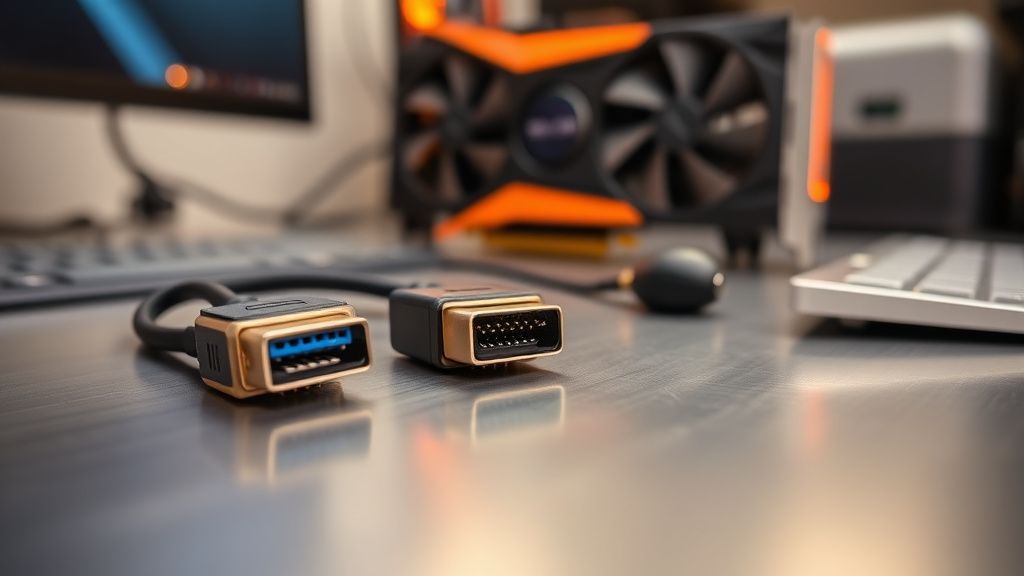
- Discard the included cable: The stock cables shipped with early batches of the Odyssey G9 were, frankly, hit-or-miss. Invest in a VESA-certified "8K Ready" DisplayPort 1.4 cable that is under 2 meters. Length is the enemy of high-bandwidth signals; electromagnetic interference (EMI) is the silent killer here.
- The "Port Swap" Ritual: Not all DP ports on your GPU are created equal, and not all ports on the monitor respond identically to deep-sleep states. Try moving the cable to a different output on your RTX 30 or 40-series card.
Deep-Dive into G-Sync Compatible Settings and Panel Overdrive
The "G-Sync Compatible" label is a bit of a marketing convenience. Because the G9 is natively a FreeSync monitor, NVIDIA GPUs have to force-negotiate the handshake. If you have "Enable G-Sync for Windowed and Fullscreen" checked, but you are playing a game that shifts from windowed mode to fullscreen, you will often see a momentary flicker as the monitor re-synchronizes the refresh rate.
- The Workaround: If you cannot stop the flickering, disable G-Sync/FreeSync globally. If the flickering stops, you know it’s a driver/sync handshake issue rather than a failing panel.
- The Overdrive Conflict: In the monitor’s OSD, setting the "Response Time" to "Extreme" often introduces ghosting and, in some refresh-rate scenarios, backlight strobing that mimics flickering. Set this to "Standard" or "Faster." The "Extreme" mode is often a synthetic over-shoot setting that causes the scaler to work harder than necessary.
Real Field Reports: The Reality of "Ghosting" vs. "Flickering"
There is a recurring confusion in the community between "flickering" (luminance shift) and "ghosting" (temporal artifacts). I have observed numerous GitHub issues and Discord threads where users claim their monitor is "flickering," when in reality, they are seeing the VA panel’s smearing issues in dark scenes.
A notable case study involves the "dark level flicking" in Cyberpunk 2077. Because the G9 uses a VA panel, the transition time from absolute black to dark gray is slow. When the game engine rapidly shifts between these levels, the backlight intensity modulation (local dimming) tries to keep up. It fails, resulting in a strobe-like effect. This isn't a broken monitor; it is a limitation of current-gen VA technology.
"The flickering in dark, atmospheric games is a known feature of the local dimming implementation. If you turn off 'Local Dimming' in the OSD, the 'flickering' stops, but your blacks turn into a washed-out gray. You have to decide: do you want contrast, or do you want a steady image?" — Observation from a technical reviewer on a hardware-focused Discord server.
Scaling and Infrastructure: The "Waking Up" Nightmare
One of the most persistent, undocumented issues with the G9 is the "Cold Boot" flicker. Users report that when the computer wakes from a long sleep, the monitor flickers for 5-10 seconds before settling. This is a hand-shake failure between the GPU’s DisplayPort controller and the monitor’s internal processor.
There is no "fix" for this other than a workaround: disable "Deep Sleep" or "Power Saving" modes in the OSD, and set your Windows power plan to never turn off the display. It is an energy-inefficient solution, but it prevents the hardware from having to renegotiate the high-bandwidth link periodically, which is where the synchronization failures occur.
The Economic and Institutional Friction
Why does this happen? The answer lies in the industry's rush to push 240Hz, 1440p, and HDR-1000 into a single chassis. Samsung is essentially running a mini-computer inside the monitor to handle the signal processing, scaling, and OSD logic. This "controller-on-a-chip" is often underpowered. When the GPU sends a frame rate that fluctuates wildly (e.g., from 40fps to 140fps in an unoptimized game), the monitor’s chip struggles to adjust its internal PWM (Pulse Width Modulation) frequency in real-time.
It is a failure of integration. GPU manufacturers optimize for 16:9 panels, while Samsung optimizes the G9 for the "wow" factor of the ultra-wide format. When these two corporate silos collide, the user becomes the beta tester.
The Moderation Log: When to Call for an RMA
If you have:
- Replaced the DisplayPort cable with a VESA-certified one.
- Updated the firmware to the latest revision.
- Disabled all VRR/G-Sync functionality.
- Tested on a secondary device (like a laptop) to confirm the behavior persists.
And you still see horizontal scanlines that don't disappear, you are likely looking at a defective scaler board or a panel defect. In this scenario, community consensus is clear: stop troubleshooting and start the RMA process. Samsung’s support can be opaque, but if you provide video evidence of the flickering occurring in the OSD menu itself, they are significantly more likely to honor the warranty.
The Role of GPU Drivers: A Silent Culprit
Do not underestimate the impact of NVIDIA/AMD driver updates. Often, a new driver version will inadvertently change the way the GPU handles the DSC (Display Stream Compression) protocol. I have tracked threads on Hacker News where a specific driver release (e.g., a WHQL certified NVIDIA build) suddenly caused "flickering" across the entire Odyssey line, only to be patched three weeks later.
Always perform a "Clean Install" of your GPU drivers using DDU (Display Driver Uninstaller). It sounds extreme, but leftover registry keys from previous driver installs often cause "Display ID" errors where the GPU thinks it’s outputting to a different display type, leading to refresh rate instability.
Q: Does disabling local dimming really stop the flickering?
It stops "brightness-based" flickering in dark scenes, yes. If your flicker is caused by the monitor trying to adjust zone luminance to match the content on the screen, disabling local dimming removes that variable entirely. However, you will lose the contrast performance you paid for.
Q: Why does my monitor flicker only when I open Chrome?
This is a classic Hardware Acceleration conflict. Chromium-based browsers use GPU acceleration to render text and images. If the browser’s refresh rate doesn't match the monitor's set refresh rate, the monitor may drop to a "safe" mode momentarily. Go to Chrome/Edge settings and toggle "Use hardware acceleration when available" to see if it resolves the flicker.
Q: Should I use HDMI 2.1 instead of DisplayPort 1.4?
If your GPU and monitor model support HDMI 2.1, it is often more stable for the G9. DisplayPort 1.4 is more prone to cable-length issues and handshake failures. If you have an RTX 30-series or newer, HDMI 2.1 is a legitimate workaround for many flickering issues.
Q: Is this flicker going to damage the panel permanently?
Generally, no. Most flickering is a signal processing or synchronization error, not a physical power surge. However, if the flicker involves high-frequency backlight strobing, it can be extremely fatiguing for the human eye and may indicate an issue with the power supply unit inside the monitor.
Q: Why is there no "official" fix from Samsung for this?
Because the G9 series relies on so many third-party components (the TCON, the Scaler, the GPU handshake protocol), there is no single piece of code that can fix it. It is a system-wide integration challenge that Samsung manages through "mitigation" firmware rather than "fix" firmware.
Concluding Thoughts: The Pragmatic Approach
Owning an Odyssey G9 requires a tolerance for technical friction. It is a high-performance device that sits at the edge of what consumer technology can handle. If you approach it as a "set it and forget it" appliance, you will be disappointed. If you approach it as a complex, tweakable system that requires occasional maintenance—much like a high-performance sports car—the experience becomes more manageable.
The flickers are rarely the end of the world, but they are a reminder that even at the high end of the market, the marriage of hardware and software remains a fragile,, and often messy, affair. Focus on the basics: the physical connection, the firmware parity, and the synchronization settings. Most of the time, the "fix" is just one setting adjustment away.
Bu makale affiliate linkleri içermektedir.