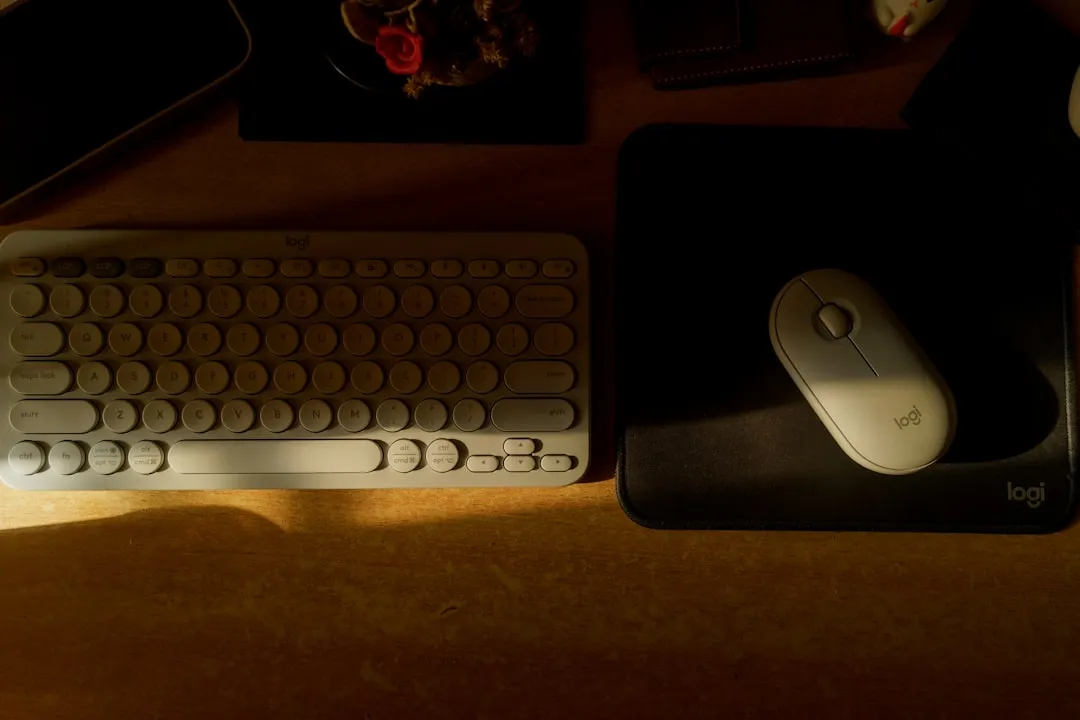
The Logitech MX Master 3S is widely regarded as the "gold standard" for productivity peripherals—an ergonomic powerhouse that graces the desks of software engineers, financial analysts, and creative directors globally. Yet, the forums on Reddit’s r/LogitechG and the technical support threads on GitHub are perpetually alive with the same chorus: "Why is my cursor jittering?" or "Why does the scroll wheel suddenly stop responding?" When a $100 mouse fails to behave like a $100 mouse, the disconnect between expectation and reality is jarring, a frustration often mirrored by users who find their Surface Pro 11 keyboard isn't working. The lag in the MX Master 3S is rarely a hardware defect in the traditional sense; it is almost always a symptom of a collision between proprietary wireless protocols, congested 2.4GHz bands, and the aggressive power-management heuristics of modern operating systems, issues often requiring a deep dive into how to fix connectivity issues for your Logitech MX Master 3S.
Understanding the Wireless Bottleneck and Radio Frequency Interference
At the heart of the MX Master 3S lies the Logi Bolt receiver. Designed to replace the aging Unifying Receiver, Bolt utilizes an encrypted, proprietary 2.4GHz connection. On paper, this is superior to standard Bluetooth (BLE), which is notoriously prone to latency fluctuations due to device polling rate variations. However, in the chaotic environment of a modern home office—packed with smart lights, mesh Wi-Fi nodes, and other peripherals—the 2.4GHz spectrum is a warzone.
When you experience "lag," you are often witnessing packet loss. Your mouse sends an input signal, it collides with a wave from your router or a neighbor's streaming device, and the data fails to reach the receiver. The cursor doesn't just stop; it "teleports" because the receiver is interpolating the missing packets.
The Hub-to-Mouse Latency Trap
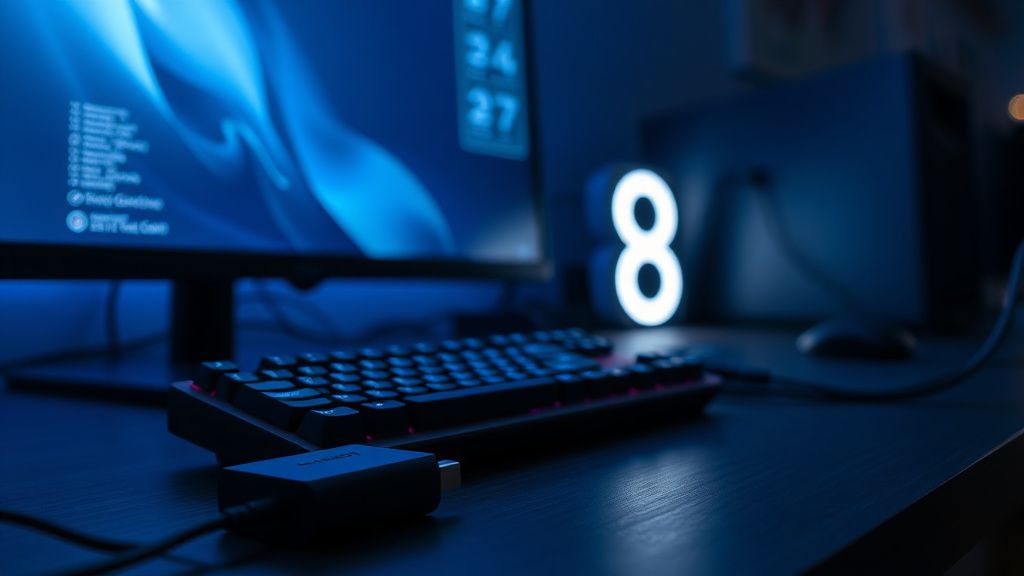
A significant, often overlooked contributor to input lag is the hardware daisy-chain. Many professionals use USB-C hubs or docking stations to manage cable clutter. These hubs, particularly those that are not shielded correctly, emit massive amounts of electromagnetic interference (EMI) that bleeds directly into the 2.4GHz frequency of your mouse receiver.
If your Bolt receiver is plugged into a cheap, unshielded hub sitting inches away from a monitor or a laptop chassis, you are essentially introducing a self-inflicted jammer. The fix is remarkably analog: The "dongle extender." If you aren't using the small USB extension cable that came in the box, you are leaving performance on the table. Moving the receiver away from the hub and into the line of sight of your mouse is the single most effective "fix" for intermittent lag.
Navigating the Logi Options+ Software Conflict
Logi Options+ is the software backbone of the MX series, but it is also a massive, resource-heavy application. Users on Hacker News have frequently noted that the background daemon, logioptionsplus_agent, can occasionally spike in CPU usage, particularly when switching between applications that trigger different button profiles.
When the OS scheduler prioritizes the Logi daemon over the input thread of your desktop environment, you get "micro-stutter." This is especially prevalent on macOS, where the transition to Apple Silicon (M1/M2/M3 chips) has created unique friction points for third-party driver software, leading to various display anomalies, much like when your MacBook Pro M4 screen starts flickering. The "accessibility permissions" in macOS are a common culprit here; if the OS revokes or hangs these permissions, the mouse's gesture-control feature—the one that requires real-time monitoring of your desktop space—can introduce a perceptible drag.
Real Field Report: The "M1 Mac Refresh" Anomaly
A developer from a remote-first tech company reported: "After the macOS Sonoma update, my MX Master 3S felt like it was running through molasses. It wasn't the mouse; it was the Bluetooth stack fighting with the Options+ software. I had to manually delete the plist files and force-reinstall the drivers to stop the ghosting behavior."
This highlights a recurring trend: The software layer is often more fragile than the wireless connection itself. If you are experiencing jitter, before buying a new mouse, perform a clean sweep of your configuration files.

The Bluetooth vs. Bolt Dichotomy
One of the most persistent controversies in the community is whether to use Bluetooth or the Bolt receiver.
- Bluetooth: Convenient, no dongle required, but at the mercy of the OS Bluetooth stack. High interference, variable polling rates.
- Bolt: Low latency, encrypted, stable. Requires a USB port.
If you are a competitive gamer or a precision editor, Bluetooth is objectively a compromise. The polling rate on Bluetooth is rarely a consistent 125Hz; it fluctuates. If you are using the mouse on a high-refresh-rate monitor (144Hz+), these variations in polling are amplified, making the mouse feel "floaty." Always use the Bolt receiver for precision workflows. If you lose the receiver, do not settle for a generic Bluetooth connection if your work demands sub-millisecond reliability.
Optimizing Battery Management and Sleep States
The MX Master 3S features an aggressive sleep mode to preserve its long battery life. Occasionally, the transition from "sleep" to "wake" is not instantaneous. If you experience a "dead zone" when you first move the mouse after a minute of inactivity, that is the sensor re-initializing its laser tracking.
While you cannot disable this in the firmware, you can mitigate the perceived delay by ensuring your mouse is on a surface that the Darkfield sensor can easily track. Contrary to marketing, the sensor does struggle on certain glass finishes or deep-pile desk mats. If the surface is inconsistent, the laser requires more processing power to determine displacement, leading to a momentary stutter upon waking.
Managing Interference in the Enterprise Environment
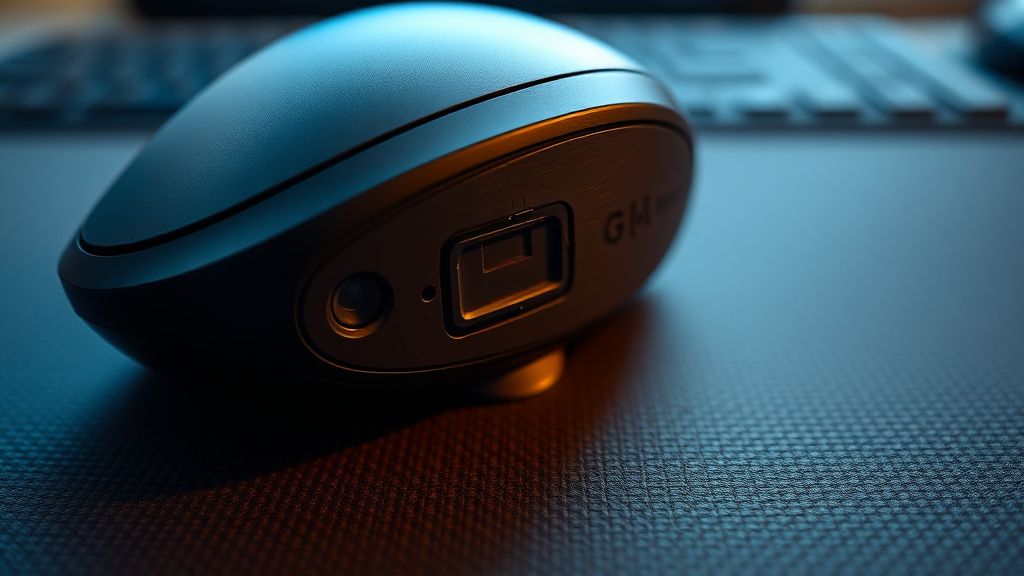
In a crowded office space, you are fighting against potentially dozens of other 2.4GHz devices. If you are in an open-office plan, your mouse might be "competing" with your coworker's wireless headset or their own mouse.
- Change your Channel: If your router is on the same 2.4GHz channel as your desk, move the router to the 5GHz or 6GHz band exclusively.
- Shielding: If you must use a USB hub, ensure it is USB-IF certified and features heavy shielding. Many cheap aluminum hubs from discount retailers are poorly insulated, creating electromagnetic noise that actively kills 2.4GHz signals.
The "Workaround" Culture: When Solutions Fail
Sometimes, the engineering reality is simply that the software stack is flawed. Community members on Reddit often turn to third-party tools like SteerMouse or BetterMouse on macOS. These tools bypass the Logitech software entirely by interacting directly with the HID (Human Interface Device) layer of the OS.
Many users find that removing Logi Options+ entirely and using these third-party utilities resolves 90% of their lag issues. This suggests that while Logitech’s hardware is premium, the software delivery system is often too bloated for its own good. If you are tired of the "Options+" cycle of update-and-break, look toward the community-supported alternatives that focus on a lean footprint.
Counter-Criticism: Is the "Lag" Actually Just User Expectation?
There is a segment of the hardware enthusiast community that argues "lag" is a psychological construct exacerbated by high-refresh-rate displays. When your cursor moves across a 165Hz monitor, your brain perceives any deviation from the 165Hz flow as "stutter." A 125Hz polling rate mouse (which the MX Master 3S uses) will always feel less "connected" than a gaming mouse with a 1000Hz or 4000Hz polling rate.
If you are a competitive gamer, the MX Master 3S is the wrong tool. It was built for Excel and Premiere Pro, not CS:GO. Understanding that the device is capped at a lower polling rate for the sake of battery longevity is crucial. Accepting that the mouse is designed for ergonomic comfort rather than competitive speed often resolves the "feeling" of lag.

Troubleshooting Checklist for the MX Master 3S
- Direct Connection: Bypass all hubs. Plug the Bolt receiver directly into a back-panel port of your PC or a high-quality, powered dock.
- Cable Extension: Use the included 10cm USB extender to bring the receiver physically closer to the mouse.
- Sensor Surface: Use a hard-mat surface if you suspect the sensor is hunting for a tracking point.
- Process Monitoring: Use Task Manager or Activity Monitor to kill the
LogiOptionsPlusprocess and see if the lag persists. If it disappears, you have a software driver conflict. - Bluetooth Cleanup: If you use Bluetooth, unpair all other Bluetooth audio devices to ensure the radio isn't bandwidth-throttled.
Q: Does the MX Master 3S lag more on Windows than on macOS?
Technically, the hardware is agnostic, but the software experience is vastly different. Windows handles generic HID drivers better than macOS. Users on macOS report higher instances of "cursor stutter" due to the strict security sandbox permissions that Logi Options+ requires to operate. If you're on macOS, the driver-to-system-permission handshake is a frequent point of failure.
Q: Why does my scroll wheel sometimes "jump" or skip lines?
The MagSpeed electromagnetic scroll wheel is a mechanical-digital hybrid. If you feel skipping, it is usually dust accumulation on the optical sensor inside the wheel housing. Compressed air is your best friend here. If it happens in software, it is likely the "SmartShift" feature miscalculating the scroll force. Try recalibrating the sensitivity in the Logi Options+ menu.
Q: Can I use the old Unifying Receiver instead of the Bolt?
No. The MX Master 3S uses the Bolt protocol specifically for its updated encryption and reduced latency characteristics. They are not cross-compatible. Attempting to force a connection will result in a failure to pair, or worse, a "ghost" device appearing in your system tray that causes instability.
Q: Is the "lag" a sign that the battery is dying?
Unlikely. The MX Master 3S communicates battery status independently of its tracking data. However, if the battery is near 0%, some OS power-management states may throttle the USB controller to save energy. If your battery is below 10%, plug it in and observe if the jittering subsides.
Q: Why do people recommend third-party software like BetterMouse?
Because the official Logi Options+ software is a heavy, multi-layered service that runs multiple background processes. Third-party alternatives generally hook directly into the system HID drivers, which results in a lighter memory footprint and often cleaner input execution, bypassing the "bloat" that can cause micro-stutters during high-CPU tasks.
The MX Master 3S is a masterpiece of industrial design, yet its operational reality is tethered to the messy world of wireless interference and driver software. By treating it not as a "plug and play" device but as a precision peripheral that requires environmental optimization—distance from interference, clean software profiles, and sensible surface choices—you can move past the limitations and reclaim the fluid performance this mouse was engineered to provide.
Bu makale affiliate linkleri içermektedir.